 Zoho CRM Implementation
 Zoho One Consulting
 Zoho Books Setup
 Zoho Analytics & BI
 Data Migration Services
 Zoho Desk Automation
 Zoho Creator Development
 Zoho Automation Services
 Zoho Widget Development
 Zoho Extension Development
 Deluge Development
 Zoho Integration Services
 Zoho API Integration
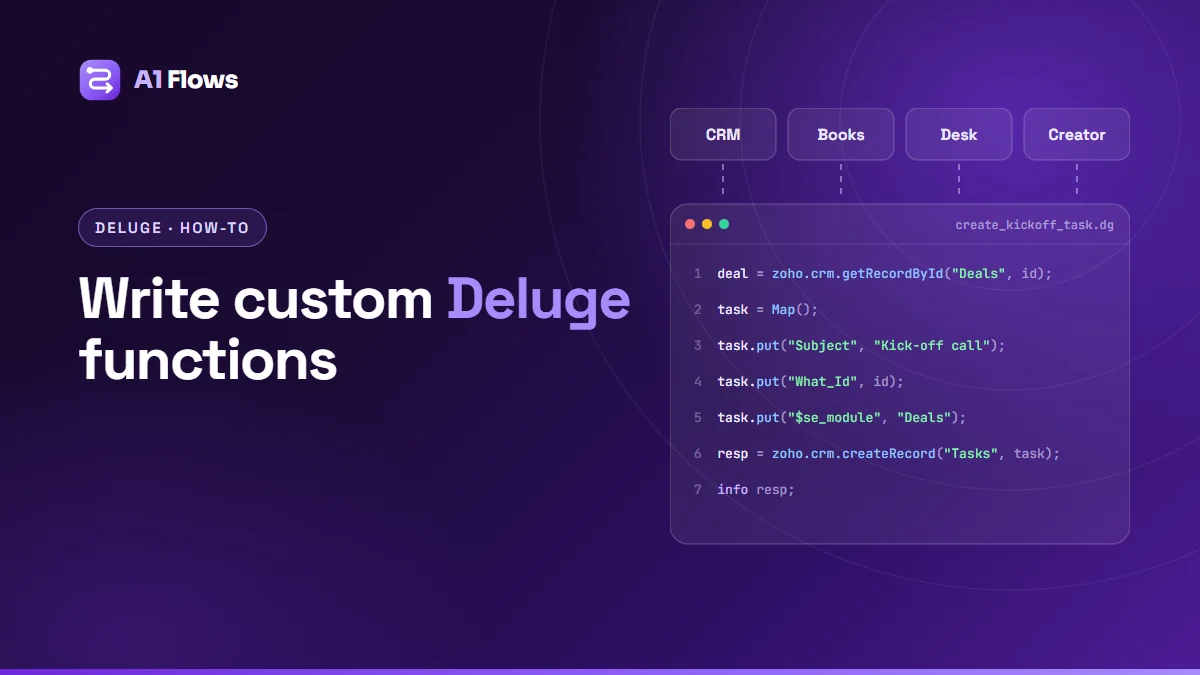
A custom function is a piece of Deluge code that a Zoho app runs for you – when a workflow rule fires, a button is clicked or a schedule comes round. Zoho CRM, Books, Desk and Creator each keep their functions in a slightly different place, but the pattern is the same everywhere: create the function, declare what it needs, write and test the code, then attach it to whatever should trigger it.
This guide shows where functions live in each app, then walks through writing, testing and triggering your first function in Zoho CRM, using the labels in Zoho’s current documentation.
In this guide
- What a custom function is
- Where functions live in each Zoho app
- Your first function in Zoho CRM, step by step
- Calling other systems with Connections
- Limits to design for
- Books, Desk and Creator differences
- Best practices
- Frequently asked questions
What a custom function is
Most Zoho automation is configured, not coded: a workflow rule that sends an email, a field update, a Blueprint transition. A custom function is for the part configuration cannot express – reading related records, calculating across them, creating records in another module or another app, or calling an external API.
Functions are written in Deluge, Zoho’s own scripting language, which has built-in tasks for reading and writing data in Zoho apps. If you are deciding whether you need a function at all, our comparison of workflow rules, Blueprint and Deluge helps.
Where functions live in each Zoho app
| App | Where you create functions | What triggers them |
|---|---|---|
| Zoho CRM | Setup > Developer Hub > Functions | Workflow rules, Blueprints, approvals, buttons, schedules |
| Zoho Books | Settings > Automation > Workflow Actions > Functions | Workflow rules, event or date based |
| Zoho Desk | As a custom function action in Setup > Automation > Workflows | Workflow rules |
| Zoho Creator | Inside the app’s workflows, in edit mode | Form events, schedules, approvals, batch workflows and more |
Zoho’s older CRM pages call Developer Hub “Developer Space”; it is the same area.
Your first function in Zoho CRM, step by step
The example: when a deal is won, create a kick-off call task for the deal’s owner, due in two days.
1. Create the function
Go to Setup > Developer Hub > Functions and click Create Function. Choose Deluge as the language, give it a clear name and description, and set the category. According to Zoho, only functions in the Automation category can be attached to workflow rules, so choose that here.
2. Declare the arguments
Arguments are the values the function receives each time it runs. This one needs only the deal’s ID, so add an argument called dealId. Pass IDs rather than many separate fields: the function can fetch whatever else it needs, and its inputs stay simple.
3. Write the code
// Category: Automation. Argument: dealId (the deal's ID)
deal = zoho.crm.getRecordById("Deals", dealId.toLong());

task = Map();
task.put("Subject", "Kick-off call: " + deal.get("Deal_Name"));
task.put("Due_Date", zoho.currentdate.addDay(2).toString("yyyy-MM-dd"));
task.put("What_Id", dealId);
task.put("$se_module", "Deals");

owner = deal.get("Owner");
if(owner != null)
{
    task.put("Owner", owner.get("id"));
}

response = zoho.crm.createRecord("Tasks", task);
if(response.get("id") == null)
{
    info "Task was not created: " + response;
}
else
{
    info "Created task " + response.get("id");
}
Three habits are already in this short function: it checks a value exists before using it, it checks whether the create succeeded, and it logs what happened with info.
4. Test it with Run
Click Run, enter the ID of a real test deal when asked for the argument, and read the output in the console. Fix anything that fails, then Save. Earlier versions are kept under Revisions, so you can compare or roll back.
5. Attach it to a workflow rule
Go to Setup > Automation > Workflow Rules and create a rule on Deals that runs when a record is edited and the stage is Closed Won. Under Instant Actions, choose Function and select your function. Zoho’s guide to functions in workflow rules covers the options.
6. Map the arguments
Map dealId to the deal’s ID from the list of merge fields. Each time the rule fires, CRM fills the argument from the record that triggered it.
Functions run from workflow rules run in the background and do not return anything to the user, so a failure will not appear on screen. That is why the info lines matter – and why our guide to debugging Deluge scripts is worth bookmarking.
Calling other systems with Connections
To call an external API, or a Zoho service the built-in tasks do not cover, use a Connection. According to Zoho’s Deluge guide, Connections store OAuth2 tokens or API keys securely, and Deluge adds the authentication and refreshes OAuth2 tokens itself. Zoho’s advice is to always use a Connection rather than hard-coding API keys.
response = invokeurl
[
    url :"https://api.example.com/v1/customers"
    type :GET
    connection :"example_api"
];
info response;
Use invokeurl for third-party APIs. A key pasted into code is visible to anyone who can open the function and has to be found and changed in every script when it rotates; a Connection is managed in one place.
Limits to design for
Zoho CRM’s documented limits include execution time by how the function is triggered:
| Trigger | Time limit |
|---|---|
| Workflow rules, Blueprints, approvals | 30 seconds |
| Buttons, related lists, validation rules, REST API | 10 seconds |
| Schedules | 15 minutes |
A workflow rule can have up to six functions associated – one instant and five time-based. Work that processes many records belongs in a scheduled function that handles them in batches, not in one that runs on every save. Limits change, so check Zoho’s current documentation for your edition.
Books, Desk and Creator differences
Zoho Books
Create the function in Settings > Automation > Workflow Actions > Functions with + New Function, choosing the module it works on. Then create a rule in Settings > Automation > Workflow Rules – event based or date based – and associate the function as an action. Connections are available from the Deluge editor. Our Zoho Books automation guide has worked examples.
Zoho Desk
Functions run as an action of a workflow rule, created in Setup > Automation > Workflows. For modules other than Tickets, alerts and custom functions are the available actions. Workflows are not available on Desk’s Free edition.
Zoho Creator
Deluge runs inside the app’s own workflows – form workflows, schedules, approvals, batch and report workflows – and Connections live under Microservices. See how to build a custom app in Zoho Creator.
Best practices
- One job per function, with a name that says what it does.
- Check before you use. Lookups and optional fields can be empty; test for it.
- Log what happened with
info, including failures. - Never hard-code credentials – use Connections.
- Test with real records, including awkward ones, before attaching the function to a rule.
- Write down what triggers each function and who owns it.
For ready-made patterns, see our Deluge script examples.
Frequently asked questions
What is a custom function in Zoho?
A Deluge script that a Zoho app runs automatically or on demand – from a workflow rule, a button, a Blueprint transition or a schedule – to do something configuration alone cannot.
Where do I write Deluge in Zoho CRM?
In Setup > Developer Hub > Functions. Click Create Function, choose Deluge, and pick a category such as Automation, Button or Schedule.
How do I test a Deluge function?
In Zoho CRM, click Run, enter test values for the arguments, and read the console output. Use info statements to show values at each step.
How do I run a function automatically?
Attach it to a workflow rule as an instant or scheduled action, and map its arguments to fields from the record that triggers the rule.
How long can a Zoho CRM function run?
Zoho documents 30 seconds for functions run by workflow rules, Blueprints and approvals, 10 seconds for buttons and similar, and 15 minutes for scheduled functions.
Should I put API keys in my Deluge code?
No. Store them in a Connection, which keeps them secure, adds authentication automatically and lets you change them in one place.
Why didn’t my function run?
Usually the rule’s criteria did not match, an argument was mapped to the wrong field, or the function failed silently in the background. Check the rule, the mapping and your info output, in that order.
Next steps
Start with one small function that removes a repetitive task, test it with Run, and attach it to a single rule. If you would like functions written, reviewed or fixed, see our Zoho Deluge development service.