 Zoho CRM Implementation
 Zoho One Consulting
 Zoho Books Setup
 Zoho Analytics & BI
 Data Migration Services
 Zoho Desk Automation
 Zoho Creator Development
 Zoho Automation Services
 Zoho Widget Development
 Zoho Extension Development
 Deluge Development
 Zoho Integration Services
 Zoho API Integration
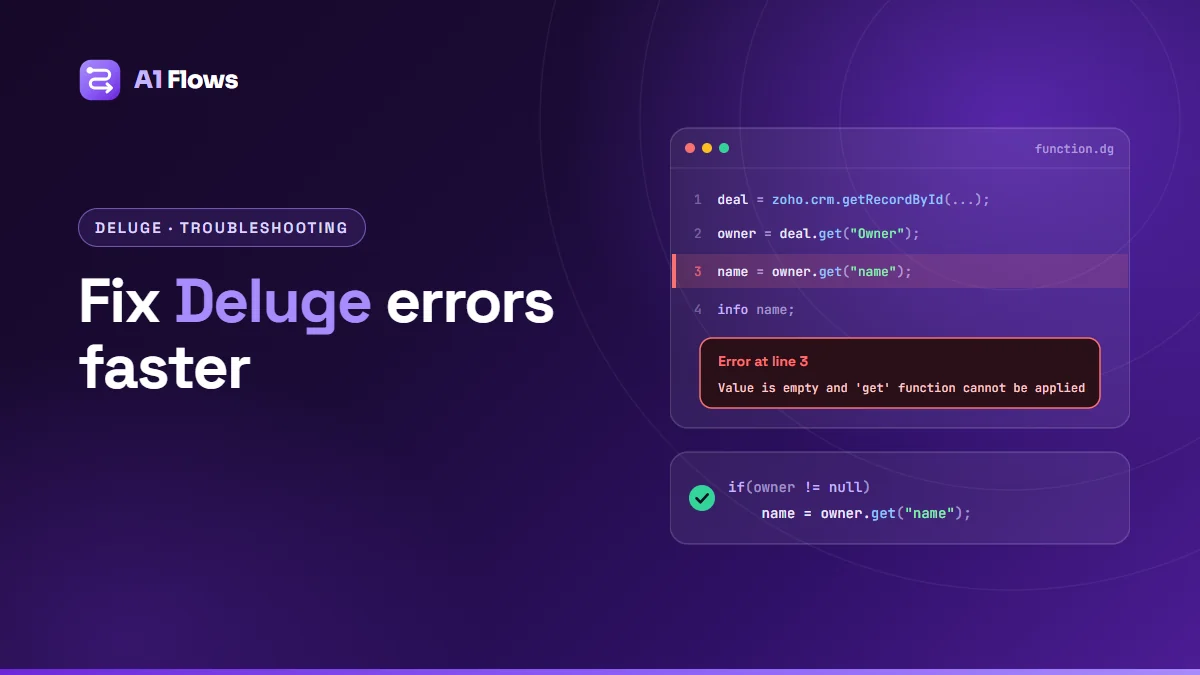
To debug a Deluge script, reproduce the failure with a real record, add info statements to see the values at each step, check the response of every integration task for an error, and confirm the field API names and data types you are using. Most Deluge bugs come down to one of a few causes: an empty value, a wrong field name, a type mismatch, a missing connection, or an execution limit.
This guide covers how to find the problem quickly, the most common errors and what causes them, and how to write scripts that are easier to debug next time.
In this guide
- Why Deluge bugs are easy to miss
- A step-by-step debugging method
- Common errors and their causes
- When it works in testing but not in the workflow
- Writing scripts that are easier to debug
- Frequently asked questions
Why Deluge bugs are easy to miss
Deluge scripts usually run in the background – from a workflow rule, a Blueprint transition or a schedule. When one fails, the user’s record often saves normally and nothing visible happens. The automation simply does not run, and the problem is noticed days or weeks later when a number in a report looks wrong.
There is also no step-through debugger. You debug Deluge the way you would debug any server-side script without one: by logging values and reading the output.
A step-by-step debugging method
1. Reproduce it with a real record
Find a record that should have triggered the automation and did not, and run the function against it. In Zoho CRM functions, Save & Execute lets you supply the arguments and see the output. Real records reveal problems test records hide – an empty field, an unusual value, a missing related record.
2. Log the inputs first
info "dealId: " + dealId;
deal = zoho.crm.getRecordById("Deals", dealId.toLong());
info deal;
Many bugs are an argument mapped to the wrong field in the workflow rule, so the function receives the wrong value – or nothing.
3. Log each step’s result
Add an info after every step that fetches or changes data. The first log line that shows something unexpected is where the bug is.
4. Check every integration task’s response
Calls such as zoho.crm.updateRecord return a response rather than throwing on many errors. If you never look at it, a failed update is invisible:
response = zoho.crm.updateRecord("Deals", dealId.toLong(), update);
info response;
// a successful update returns the record's id;
// a failure returns an error code and message - check for it
5. Isolate
Comment out everything after the failing step and confirm it works on its own, then add the rest back a piece at a time.
6. Fix, then test the awkward cases
Once it works, run it again with an empty field, a record missing its related records, and a duplicate submission. Those are the cases that will reach production.
Common errors and their causes
“Value is empty and ‘get’ function cannot be applied”
One of the most common Deluge errors. You called .get() on something that is empty – usually a lookup field with no value, or a record that was not found.
// fails if the deal has no Owner, or the record was not found
name = deal.get("Owner").get("name");

// safe
owner = deal.get("Owner");
if(owner != null)
{
    name = owner.get("name");
}
A field update that silently does nothing
Usually the field’s API name is wrong. “Deal Tier” on screen might be Deal_Tier, or something else entirely if the field was renamed after it was created. Check the API names in the module’s field settings, and log the update’s response, which reports invalid fields.
Type mismatches
Comparing or combining values of different types – a number stored as text, an ID that needs to be a number, a date compared with a string. Convert explicitly with functions such as toLong(), toDecimal(), toDate() and toString().
Errors calling another Zoho app or an external API
Usually a missing or unauthorised connection, a connection created by a user who has since left, or a scope that does not cover the action. Check the connection in the app’s connection settings and re-authorise it if needed. For external APIs, log the full invokeurl response – the other service’s error message is usually in it.
The script stops part-way through a large job
Deluge runs within limits on execution time, statements and API calls that depend on the product and edition. Loops that make one call per record are the usual culprit. Fetch in bulk, keep per-record work light, and move large jobs to a scheduled function that processes records in batches.
Duplicate records created
The function ran twice – often because a workflow rule fires on both create and edit, or because the function’s own update re-triggers the rule. Search for an existing record before creating one, and check rule criteria so the function’s own changes do not trigger it again.
When it works in testing but not in the workflow
- Argument mapping. In the workflow rule’s function action, check which field is mapped to each argument.
- Different data. The real record has an empty field that your test record happened to fill.
- The rule did not fire. Check the rule’s criteria and trigger – “on create” does not run for edits.
- Permissions. The function may run in a context with different access from your own test run.
- Order of automation. Another rule may change the record before or after yours.
Zoho apps keep logs of function executions and failures; check them for the records in question. Where they exist, they show whether the function ran at all, which distinguishes “the rule did not fire” from “the function failed”.
Writing scripts that are easier to debug
- Wrap network calls in try/catch and write failures somewhere a person will see them.
- Guard lookups and optional fields with null checks or
ifnull. - Log the important steps – and remove noisy logging once the script is stable.
- Name things clearly.
booksInvoiceIdbeatsid2when you are reading a log at month end. - Write the rule down in plain language before coding. Many “bugs” are a rule nobody stated precisely.
- Keep one function per job, called from several places, rather than copies that drift apart.
try
{
    response = zoho.crm.updateRecord("Deals", dealId.toLong(), update);
    info response;
}
catch (e)
{
    info "Deal " + dealId + " update failed: " + e;
    // notify an admin, or write to a log record for review
}
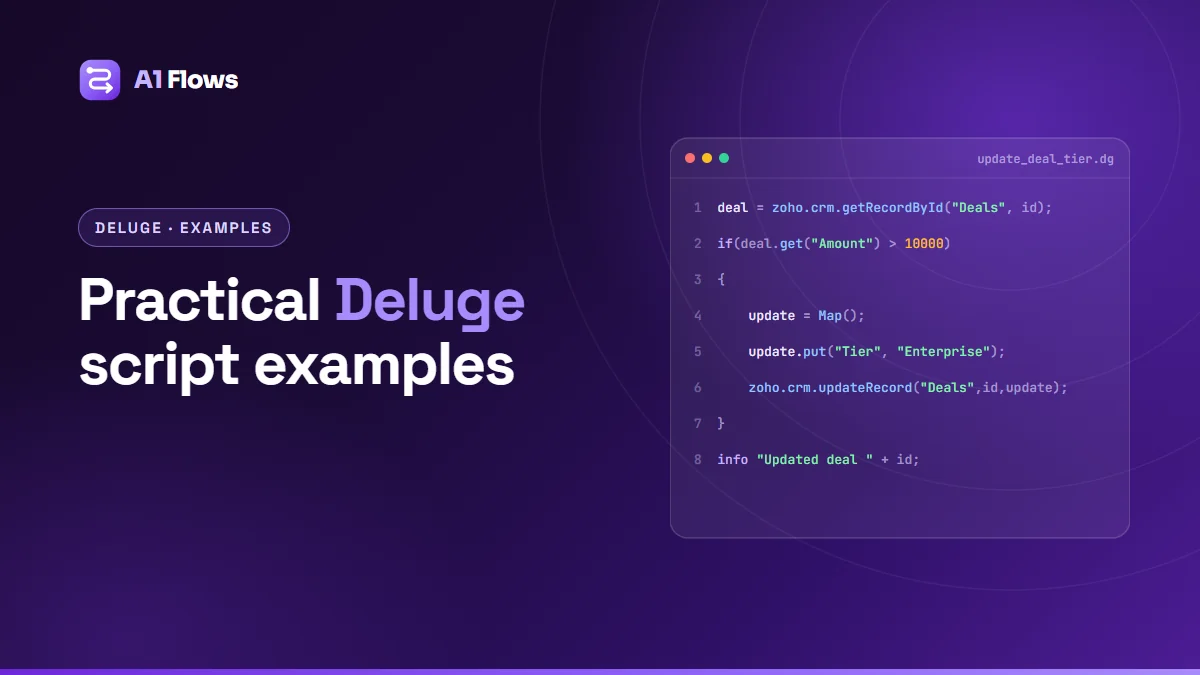
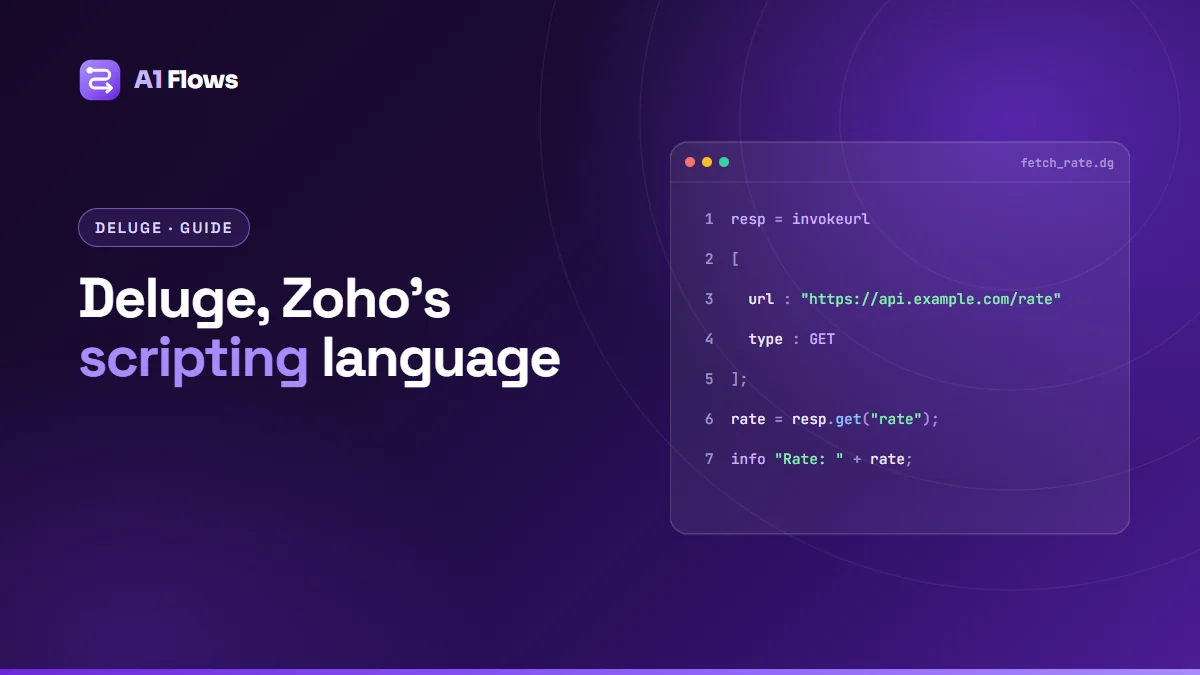
For a broader set of patterns, see our Deluge script examples, and for the language basics our guide to the Deluge scripting language.
Frequently asked questions
Does Deluge have a debugger?
There is no step-through debugger. You debug by running the function with test arguments and reading the output of info statements, plus the app’s execution logs.
Where does info output appear?
In the execution output when you run the function from the editor, and in function logs where the app provides them.
Why does my function work when I run it but not from the workflow?
Most often the workflow passes different arguments than you tested with, or the real record has empty fields. Log the arguments at the start of the function to see what it actually receives.
How do I find a field’s API name?
In the module’s field settings in Zoho’s developer or customisation settings. API names often differ from labels, especially for renamed custom fields.
Why did my script stop half-way through?
Probably an execution or API limit. Reduce per-record calls, fetch in bulk, and move heavy work to a scheduled function that runs in batches.
How do I stop silent failures?
Check integration task responses, wrap network calls in try/catch, and notify someone on failure instead of only logging it.
Can you fix Deluge scripts someone else wrote?
Yes – that is a common request. The first step is reading what the scripts are meant to do, which is often harder than fixing the bug itself when nothing is documented.
When to get help
Most single bugs fall to the method above in an hour or two. If a setup has many functions failing in ways nobody can trace, or nobody knows what the scripts were meant to do, an audit is faster than fixing them one at a time.
Our Deluge development service covers debugging, refactoring and taking over existing scripts.