 Zoho CRM Implementation
 Zoho One Consulting
 Zoho Books Setup
 Zoho Analytics & BI
 Data Migration Services
 Zoho Desk Automation
 Zoho Creator Development
 Zoho Automation Services
 Zoho Widget Development
 Zoho Extension Development
 Deluge Development
 Zoho Integration Services
 Zoho API Integration
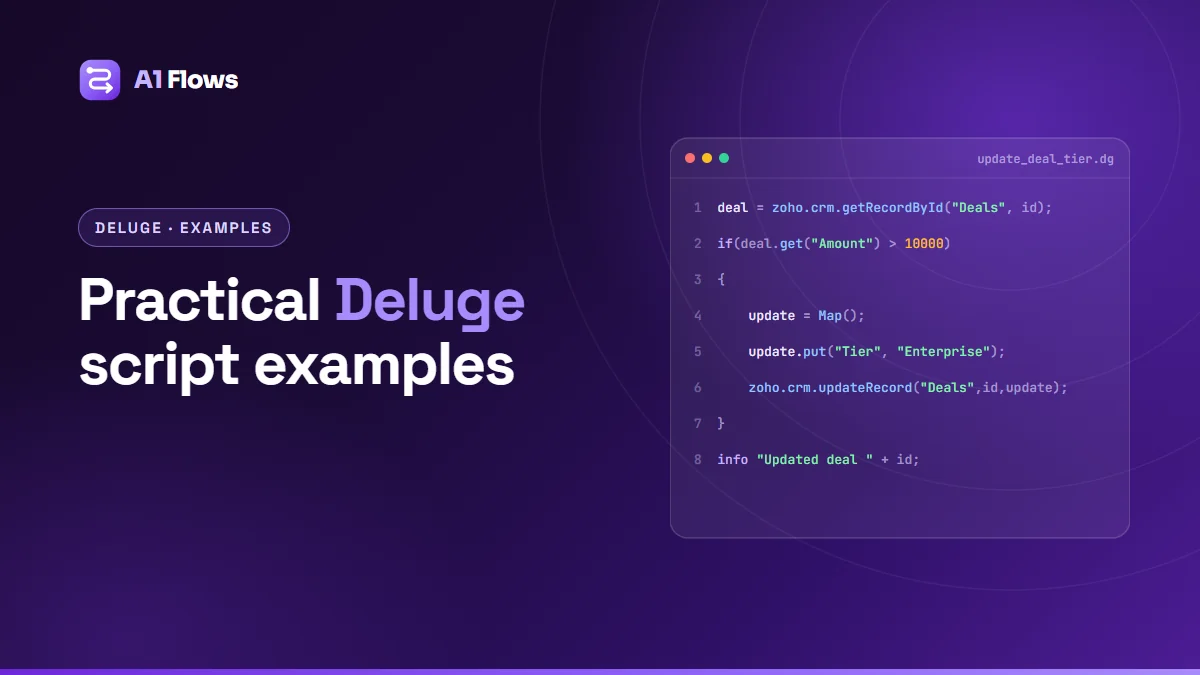
A Deluge script is a short program written in Zoho’s built-in scripting language to automate something Zoho’s settings cannot do on their own – calculate a value from other records, create follow-up work, call another system, or check data before it is saved. This article collects ten practical Deluge script examples you can adapt, each with a note on where it runs and what to watch for.
If you are new to the language itself, start with our practical guide to the Deluge scripting language, which covers the syntax, data types and limits. This page is the companion: working patterns rather than concepts.
In this guide
- What is a Deluge script?
- Where Deluge scripts run
- How to add a Deluge script to Zoho CRM
- 10 Deluge script examples
- Best practices and common mistakes
- Frequently asked questions
What is a Deluge script?
Deluge is the scripting language Zoho built into its own products. A Deluge script runs on Zoho’s servers, inside a Zoho app, when something triggers it – a record is saved, a button is clicked, a workflow rule fires, or a schedule comes round. It can read and write Zoho data with built-in integration tasks such as zoho.crm.getRecordById, and reach external systems with invokeurl.
You do not install or host anything. You write the script in the app’s own editor, save it, and attach it to whatever should trigger it.
Where Deluge scripts run
- Zoho CRM – custom functions called from workflow rules, blueprint transitions, buttons and schedules.
- Zoho Creator – form and field actions (on load, on validate, on success), report actions and scheduled workflows.
- Zoho Books, Desk and other apps – custom functions attached to the app’s automation rules.
- Zoho Flow – custom function steps inside a flow.
The language is the same everywhere; what changes is the trigger and which integration tasks are available. Some features, such as custom functions and schedules, are not available on every edition of every app, so check yours before designing around them.
How to add a Deluge script to Zoho CRM
- In Zoho CRM, go to Setup > Developer Hub > Functions (labels vary slightly between versions) and create a new function.
- Give it a name and choose the category – for example Automation if a workflow rule will call it.
- Declare the arguments it needs, such as
dealId, and map them to record fields when you attach the function to a rule. - Write the script and use Save & Execute with a test record ID to run it.
- Attach it to a workflow rule as a function action, so it runs when the rule’s condition is met.
Most examples below assume a CRM function triggered by a workflow rule on the Deals module, receiving the deal’s ID as dealId. Field names are API names – check them under Setup > Developer Hub > APIs or in the module’s field list, because custom fields rarely match their labels exactly.
10 Deluge script examples
1. Set a field from other fields
Classify a deal by its amount. Formula fields can do simple cases; a script handles tiers, exceptions and anything that needs another record.
deal = zoho.crm.getRecordById("Deals", dealId.toLong());
amount = ifnull(deal.get("Amount"), 0);

tier = "Starter";
if(amount >= 50000)
{
    tier = "Enterprise";
}
else if(amount >= 10000)
{
    tier = "Business";
}

update = Map();
update.put("Deal_Tier", tier);   // a custom picklist field
response = zoho.crm.updateRecord("Deals", dealId.toLong(), update);
info response;
Watch for: ifnull protects against an empty Amount. Without it, comparing an empty value is a common source of runtime errors.
2. Create a follow-up task when a deal changes stage
deal = zoho.crm.getRecordById("Deals", dealId.toLong());

task = Map();
task.put("Subject", "Send proposal for " + deal.get("Deal_Name"));
task.put("Due_Date", zoho.currentdate.addDay(2).toString("yyyy-MM-dd"));
task.put("What_Id", dealId);
task.put("$se_module", "Deals");
task.put("Owner", deal.get("Owner").get("id"));

created = zoho.crm.createRecord("Tasks", task);
info created;
What_Id and $se_module link the task to the deal, so it appears in the deal’s activity list.
3. Find a contact by email before creating one
Prevents duplicates when records arrive from a form or another system.
matches = zoho.crm.searchRecords("Contacts", "(Email:equals:" + email + ")");

if(matches.size() > 0)
{
    contactId = matches.get(0).get("id");
}
else
{
    newContact = Map();
    newContact.put("Last_Name", lastName);
    newContact.put("Email", email);
    contactId = zoho.crm.createRecord("Contacts", newContact).get("id");
}
info contactId;
4. Loop through an account’s contacts
contacts = zoho.crm.getRelatedRecords("Contacts", "Accounts", accountId.toLong());

emails = List();
for each contact in contacts
{
    if(contact.get("Email") != null)
    {
        emails.add(contact.get("Email"));
    }
}
info emails;
Loops in Deluge iterate over lists. To repeat something a fixed number of times, loop over a list with that many items. To work with positions, for each index i in emails gives you indexes starting at 0.
5. Work with dates
start = zoho.currentdate;
renewal = start.addMonth(12);
reminder = renewal.subDay(30);
daysLeft = daysBetween(start, renewal);

info "Renews " + renewal.toString("dd MMM yyyy") + ", remind on " + reminder.toString("dd MMM yyyy");
info daysLeft + " days to go";
6. Call an external API and read the response
payload = Map();
payload.put("email", contact.get("Email"));
payload.put("plan", "pro");

response = invokeurl
[
    url :"https://api.example.com/v1/accounts"
    type :POST
    parameters :payload.toString()
    headers :{"Content-Type":"application/json"}
    connection :"example_api"
];

accountRef = response.get("id");
info accountRef;
Send JSON with .toString() and an explicit Content-Type. Use a Zoho connection for authentication so Zoho handles OAuth tokens and their refresh, instead of keeping credentials in the script.
7. Send an email notification
deal = zoho.crm.getRecordById("Deals", dealId.toLong());

sendmail
[
    from :zoho.adminuserid
    to :deal.get("Owner").get("email")
    subject :"Large deal closed: " + deal.get("Deal_Name")
    message :"<p>" + deal.get("Deal_Name") + " closed at " + deal.get("Amount") + ".</p>"
]
For customer-facing email, prefer CRM email templates attached to a workflow rule – they are easier for non-developers to edit than text inside a script.
8. Create a Zoho Books invoice from a won deal
// Needs a Zoho Books connection named "zbooks" and your Books organization ID
orgId = "YOUR_BOOKS_ORG_ID";

line = Map();
line.put("item_id", booksItemId);
line.put("quantity", 1);
line.put("rate", deal.get("Amount"));

invoice = Map();
invoice.put("customer_id", booksCustomerId);
invoice.put("line_items", {line});

result = zoho.books.createRecord("Invoices", orgId, invoice, "zbooks");
info result;
The customer and item must already exist in Books. In practice the script first looks up (or creates) the Books customer that matches the CRM account – which is exactly the kind of mapping worth deciding before you write the code.
9. Validate a Zoho Creator form before it saves
In Creator, add this to the form’s On Validate action:
if(input.End_Date < input.Start_Date)
{
    alert "The end date cannot be before the start date.";
    cancel submit;
}
cancel submit stops the record being saved, and the alert tells the user why.
10. Process records in batches on a schedule
Long jobs belong in a scheduled function that works through records page by page, rather than inside a workflow that runs on every save.
perPage = 200;
finished = false;

// Ten pages = up to 2,000 records; size this list to your volume
for each page in {1,2,3,4,5,6,7,8,9,10}
{
    if(finished == false)
    {
        leads = zoho.crm.getRecords("Leads", page, perPage);
        for each lead in leads
        {
            // keep per-record work light: no API call per record if you can avoid it
            info lead.get("id");
        }
        if(leads.size() < perPage)
        {
            finished = true;
        }
    }
}
For very large volumes, Zoho’s bulk read and bulk write APIs are designed for the job and are kinder to your API limits.
Making any example production-ready
Every example above can fail on a bad day: an empty field, a deleted record, a network timeout. Wrap anything that touches the network in try/catch and make failures visible:
try
{
    response = zoho.crm.updateRecord("Deals", dealId.toLong(), update);
    info response;
}
catch (e)
{
    info "Deal " + dealId + " failed: " + e;
    // notify someone, or write the failure to a log record
}
A function that fails inside a workflow usually fails silently from the user’s point of view – the record saves, the automation does not run, and nobody notices until a number looks wrong. For more on finding and fixing those failures, see our guide to debugging Deluge scripts.
Best practices and common mistakes
- Use API names, not labels. “Deal Tier” on screen is probably
Deal_Tierin code. - Guard against empty values with
ifnullor a null check before using them. - Convert IDs with
toLong()where a task expects a number. - Fetch in bulk, not in loops. One search returning many records costs one call; a
getRecordByIdper record costs one each and runs into limits. - Keep secrets in connections, never as text in the script.
- Log what matters with
info, and remove noisy logging once the script is stable. - Write down the rule first. Most automation bugs are a business rule nobody stated precisely, not a coding error.
Frequently asked questions
What is a Deluge script used for?
Automating work in Zoho that configuration cannot express: calculations across records, creating related records, validating data, generating documents, and calling external systems.
Can I test a Deluge script before attaching it to a workflow?
Yes. In Zoho CRM functions, Save & Execute runs the script with the arguments you provide, and info output appears in the result. Use a test record, or a sandbox if your edition has one.
Is Deluge case-sensitive?
Field API names and map keys must match exactly, so treat them as case-sensitive. Keeping a consistent style for your own variables avoids a whole class of confusing bugs.
How do I loop a fixed number of times in Deluge?
Loops iterate over lists, so create a list with the number of items you need and loop over it, as in example 10.
Can a Deluge script call a non-Zoho API?
Yes, with invokeurl, as in example 6. Use a connection for OAuth-based services so tokens are handled for you.
Why does my script work in testing but fail in the workflow?
The usual causes are an argument mapped to the wrong field, an empty value on real records that the test record happened to have, or a missing connection permission. Logging the arguments at the start of the function finds most of these quickly.
Can I reuse one function in several places?
Yes. A standalone function can be called from other functions and from several workflow rules, which keeps the logic in one place instead of copied into each rule.
Putting the examples to work
Pick the example closest to your problem, write down the rule it should follow in plain language, adapt the field names, and test it against a few awkward records before attaching it to a live workflow.
If you would rather have scripts written, debugged or taken over for you, our Deluge development service covers exactly this, and our guide to writing custom Deluge scripts for Zoho apps has more worked examples.