 Zoho CRM Implementation
 Zoho One Consulting
 Zoho Books Setup
 Zoho Analytics & BI
 Data Migration Services
 Zoho Desk Automation
 Zoho Creator Development
 Zoho Automation Services
 Zoho Widget Development
 Zoho Extension Development
 Deluge Development
 Zoho Integration Services
 Zoho API Integration
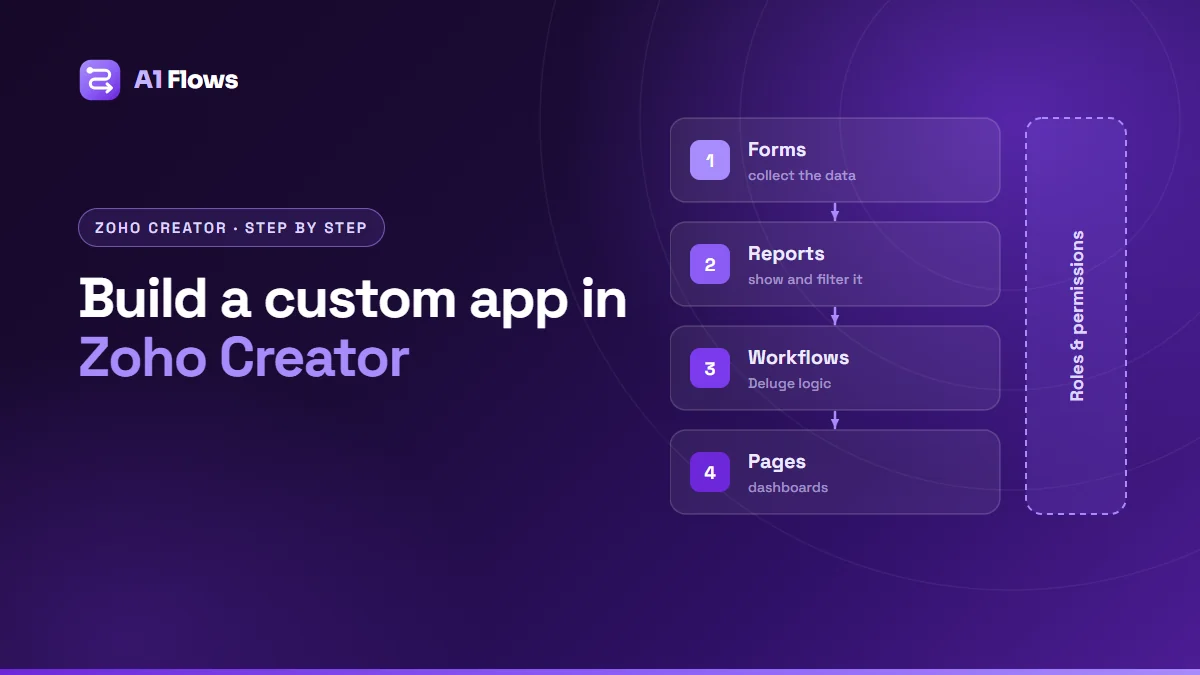
Zoho Creator is Zoho’s low-code platform for building your own business applications. An app is made of forms that collect data, reports that show it, workflows – written in Zoho’s Deluge language where needed – that act on it, and pages that bring it together for each kind of user. Permissions decide who sees what, and a portal can open parts of the app to people outside your company.
This guide shows how to build a custom app in Zoho Creator step by step, in the order that avoids rebuilding it later: data model first, screens second, automation third, access last.
In this guide
- When Zoho Creator is the right tool
- Step 1: Design the data model
- Step 2: Build the forms
- Step 3: Create reports
- Step 4: Add workflows
- Step 5: Build pages
- Step 6: Set permissions and roles
- Step 7: Test and publish with environments
- Step 8: Add a portal, if outsiders need access
- Common mistakes
- Frequently asked questions
When Zoho Creator is the right tool
Creator fits when a process is specific to your business and does not belong in an off-the-shelf app:
- A process currently run on spreadsheets passed around by email.
- Operational data that is not about customers or deals – equipment, inspections, jobs, applications, stock movements.
- Approvals and hand-offs between teams that nothing currently tracks.
- A self-service portal for customers, suppliers or partners.
It is the wrong tool when the data is mainly customers, deals and activities – customise Zoho CRM instead – or when a standard Zoho app already does the job. Rebuilding a CRM inside Creator is a common and expensive mistake.
Step 1: Design the data model
Before opening Creator, list the things the app tracks and how they relate. Each thing usually becomes a form. For a field service app, for example:
| Form | Key fields | Linked to |
|---|---|---|
| Customer | Name, email, phone | – |
| Site | Address, access notes | Customer |
| Service Request | Issue, priority, status, photos | Customer, Site |
| Visit | Date, engineer, outcome, signature | Service Request |
Getting this right is most of the work. A data model that matches how the business thinks makes every later step simpler; one that does not makes every report a workaround.
Step 2: Build the forms
Create one form per thing in your model. Choose field types deliberately – dates as dates, amounts as numbers or currency, fixed options as dropdowns – because reports, filters and scripts depend on them.
Use lookup fields to link forms: the Service Request form looks up the Customer and the Site rather than retyping them. That one decision is what lets you later show “all requests for this site” or “all visits for this customer” without duplicate data.
Mark genuinely required fields as required, and no more. Name fields clearly from the start; scripts refer to them, and renaming later means updating every script that uses them.
Step 3: Create reports
Reports display the records a form collects. Build them for an audience, not one per form: “My open requests” for an engineer, “Unassigned high priority” for a coordinator, “Visits this week” for a manager. Filters, sorting and grouping make the same data useful to different people without copying it.
Step 4: Add workflows
Workflows are where the app starts doing work on its own. Zoho Creator’s workflow types include form workflows, schedules, approvals, payments, Blueprints, batch workflows, report workflows and functions.
To create a form workflow, open the app in edit mode, go to the Workflows tab, choose Form workflows and click New Workflow. Pick the form, set the record event (for example, when a record is created) and the form event (for example, on successful submission), then click Create Workflow and add its actions or Deluge code.
A simple example – confirming a new service request to the customer:
// Service Request form - record created - on successful form submission
sendmail
[
    from :zoho.adminuserid
    to :input.Contact_Email
    subject :"We have received your request"
    message :"Thank you, " + input.Contact_Name + ". Your request is logged and our team will be in touch."
]
Approvals, schedules (such as a daily reminder for overdue requests) and Blueprints (a step-by-step status process) follow the same pattern. Our Deluge script examples and guide to writing custom Deluge functions cover the scripting side.
Step 5: Build pages
Pages bring reports, charts and buttons together into one screen for a role: a coordinator’s dashboard with today’s unassigned requests and a button to create a visit, or a manager’s view of volumes and response times. Start with one page per role and add more only when someone asks for them.
Step 6: Set permissions and roles
Creator controls access through permissions, roles and data sharing. In edit mode, go to Settings > Permissions > User Permissions. According to Zoho, Read and Write permission sets are built in, and custom permission sets and roles are available on paid plans.
Start from the least access each role needs and add to it. Then test as each role, not as the admin who can see everything.
Step 7: Test and publish with environments
On Creator 6, environments let you build in Development, test in Stage and release to Production, so users are never working in an app you are halfway through changing. Publishing is done from Environments under Deploy.
Development and Stage together get 20% of your plan’s limits, and portals run only on apps in Production. Check your plan for environment availability.
Whatever your setup, test with real-looking data and real users before launch – especially the workflows, which are where small mistakes have the biggest effect. Creator apps can also be used through Zoho Creator’s mobile apps, so check the screens your field users will see on a phone.
Step 8: Add a portal, if outsiders need access
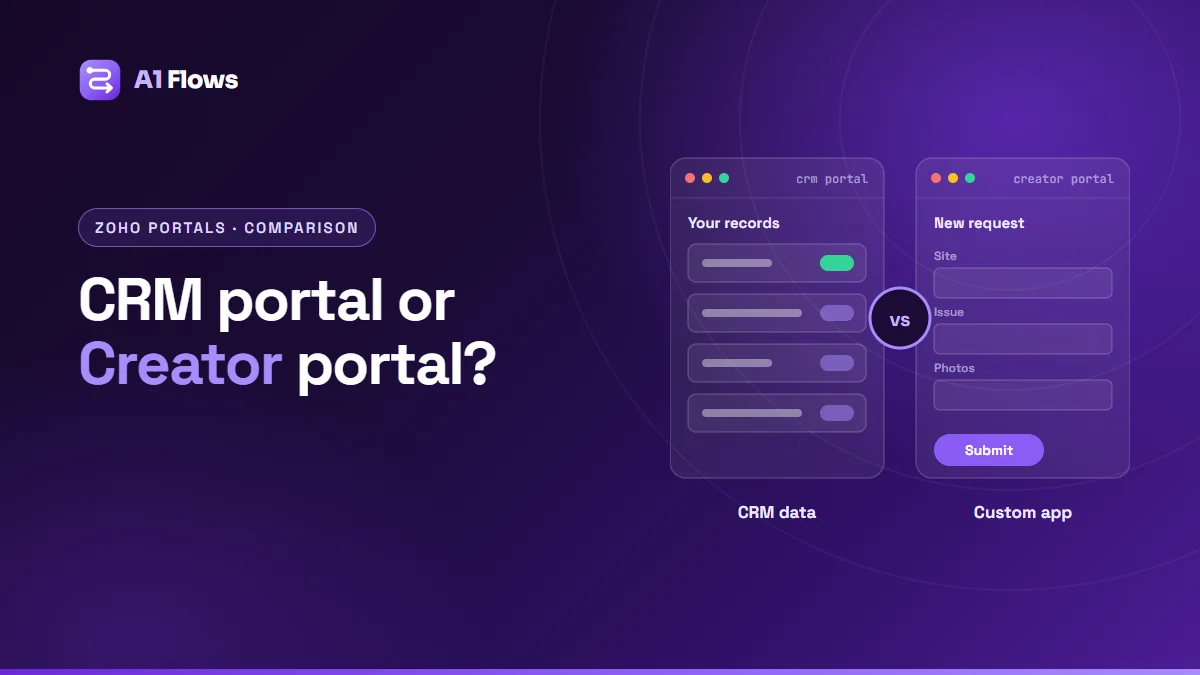
If customers, suppliers or partners need to submit or check records themselves, add a portal. Portal users get their own login and see only what their permission set allows, typically only their own records. Our guide What is a Zoho Creator portal? walks through it, and CRM portal vs Creator portal helps if you are deciding between the two.
Common mistakes
- Building forms before the data model. The first form is easy; the fifth reveals the model was wrong.
- Text fields where lookups belong, which duplicates data and breaks reporting.
- One giant form for everything, instead of related forms.
- Permissions as an afterthought, discovered when a user sees data they should not.
- Untested workflows that send the wrong email to every customer at once.
- No documentation of what each workflow does and why.
Frequently asked questions
Do I need to code to build a Zoho Creator app?
Not for forms, reports, pages and simple workflows, which are configured visually. Logic beyond that – calculations, conditional emails, integrations – is written in Deluge, Zoho’s scripting language.
How long does it take to build a Zoho Creator app?
It depends on the number of forms and how they relate, the logic behind them, whether there is a portal and what it integrates with. A focused single-team app can take a few weeks; a multi-role app with a portal and integrations takes longer.
Can a Creator app work with Zoho CRM?
Yes. Deluge can read and write Zoho CRM records, so a Creator app can use CRM customers and push results back to them.
Do Creator apps work on mobile?
Yes. Creator apps can be used through Zoho Creator’s mobile apps as well as in a browser, so design the key screens with phone users in mind.
What are environments in Zoho Creator?
On Creator 6, Development, Stage and Production versions of an app, so changes are built and tested before users see them.
Can people outside my company use the app?
Yes, through a Creator portal on a paid plan. Portal users log in separately and see only what their permissions allow.
Should I customise Zoho CRM or build in Creator?
If the data is customers, deals and sales activity, customise CRM. If it is an operational process with its own records, build it in Creator and connect it to CRM where they meet.
Next steps
Write the data model table before anything else – an hour on paper saves weeks in the builder. If you would like help designing or building the app, see our Zoho Creator development service.