 Zoho CRM Implementation
 Zoho One Consulting
 Zoho Books Setup
 Zoho Analytics & BI
 Data Migration Services
 Zoho Desk Automation
 Zoho Creator Development
 Zoho Automation Services
 Zoho Widget Development
 Zoho Extension Development
 Deluge Development
 Zoho Integration Services
 Zoho API Integration
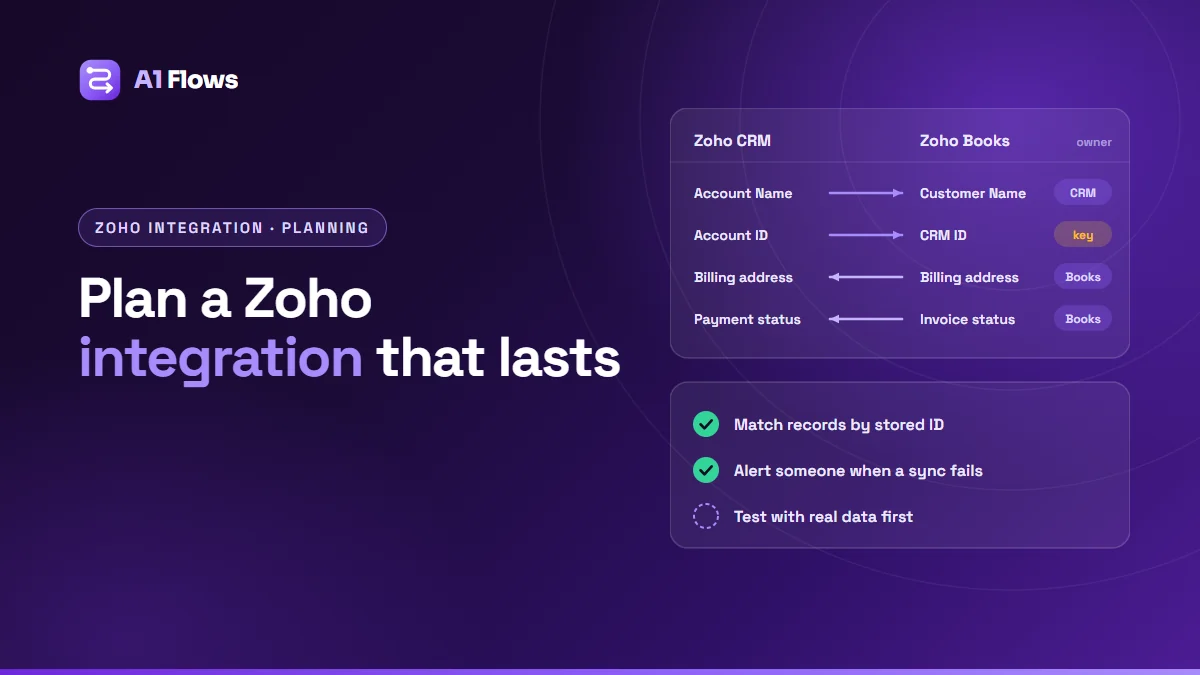
Planning a Zoho integration means deciding, before anything is built, which system owns each piece of data, which way it flows and when, how records in one system are matched to records in the other, and what happens when a sync fails. Most integrations that break after go-live were not badly coded. They were never planned: two systems both “owned” the customer’s address, nobody decided what a failed sync should do, and duplicates appeared in the first week.
This guide walks through planning a Zoho integration step by step – between Zoho CRM, Books, Desk or any third-party system – so that whichever method you build it with, it keeps working after launch.
In this guide
- Why integrations fail
- Step 1: List the systems and the flows
- Step 2: Decide the source of truth
- Step 3: Choose direction and timing
- Step 4: Decide how records match
- Step 5: Map the fields
- Step 6: Choose how to build it
- Step 7: Plan for failure
- Step 8: Test with real data, then go live
- Common mistakes
- Frequently asked questions
Why integrations fail
An integration connects two systems so that work done in one shows up in the other without anyone re-typing it: a won deal in Zoho CRM becomes an invoice in Zoho Books, a closed ticket in Zoho Desk updates the account, an order from your online shop appears in your inventory.
The connection itself is rarely the hard part. The problems come from decisions nobody made:
- Two systems edit the same field, and each sync overwrites the other’s change.
- Records are matched by name, so “Acme Ltd” and “ACME Limited” become two customers.
- A failed sync fails silently, and the gap is found weeks later when a report does not add up.
- Existing duplicates are copied across, so the mess now exists in two places.
Every step below exists to make one of those decisions on purpose, before the build starts.
Step 1: List the systems and the flows
Write each flow as one sentence: when something happens in system A, something should happen in system B. If you cannot write the sentence, the flow is not ready to build.
| When this happens | In | Then this happens | In |
|---|---|---|---|
| A deal is marked Closed Won | Zoho CRM | Create the customer and a draft invoice | Zoho Books |
| A payment is recorded | Zoho Books | Mark the deal as paid | Zoho CRM |
| A ticket is escalated | Zoho Desk | Notify the account manager | Zoho CRM |
| An order is placed | Online shop | Create a sales order | Zoho Inventory |
Then ask, for each one: how often does it happen, who notices if it stops, and what does it cost if it is a day late? Those answers decide how much engineering each flow deserves.
Step 2: Decide the source of truth
For every piece of shared data, one system is the owner – the place where it is created and changed. Every other system receives a copy and does not edit it. This one rule prevents most sync conflicts.
| Data | Owned by | Copied to |
|---|---|---|
| Company name, contacts, owner | Zoho CRM | Books, Desk |
| Billing address, tax details, currency | Zoho Books | CRM (read-only) |
| Invoices and payment status | Zoho Books | CRM |
| Support history | Zoho Desk | CRM |
| Product prices | One of Books or Inventory – pick one | Everywhere else |
Ownership can be per field, not per record: CRM can own an account’s name while Books owns its billing address. What matters is that every field has exactly one owner, written down.
Step 3: Choose direction and timing
One-way or two-way
Prefer one-way flows, field by field. “Two-way sync” usually means two one-way flows for different fields, which is fine. A genuine two-way sync of the same field needs a conflict rule – which change wins when both systems edit it – and is where most sync bugs live. Use it only when the business truly edits the same data in both places.
Real-time or scheduled
- Real-time (triggered by an event, such as a workflow rule or a webhook) suits anything a person waits for: an invoice after a deal closes, a ticket alert.
- Scheduled (every hour, every night) suits bulk or reporting data, and is gentler on API limits.
Step 4: Decide how records match
When the integration updates a customer in Books, how does it know which customer? The reliable answer is to store the other system’s ID on the record: the Books customer ID on the CRM account, the CRM account ID on the Books customer. Every later sync looks the record up by ID, never by name.
Name or email matching is acceptable only once, for the first sync of existing records – and even then, review the matches before trusting them. Clean duplicates in both systems first, or the integration will faithfully link the wrong records.
Step 5: Map the fields
List every field the integration touches, where it comes from, where it goes, and any rule in between.
| Zoho CRM | Zoho Books | Rule |
|---|---|---|
| Account Name | Customer Name | Set on create only |
| Account ID | Custom field: CRM ID | Matching key |
| Deal Amount | Invoice line item rate | Same currency, or convert |
| Deal Stage = Closed Won | – | Trigger, not a mapped field |
| Custom field: Payment Status | Invoice Status | Books to CRM; translate values |
Watch the fields that do not translate one-to-one: picklists with different values, multi-select fields, lookups, dates and time zones, currencies and decimal places. Agreeing this table with the people who use both systems is usually the slowest part of planning – and the most valuable.
Step 6: Choose how to build it
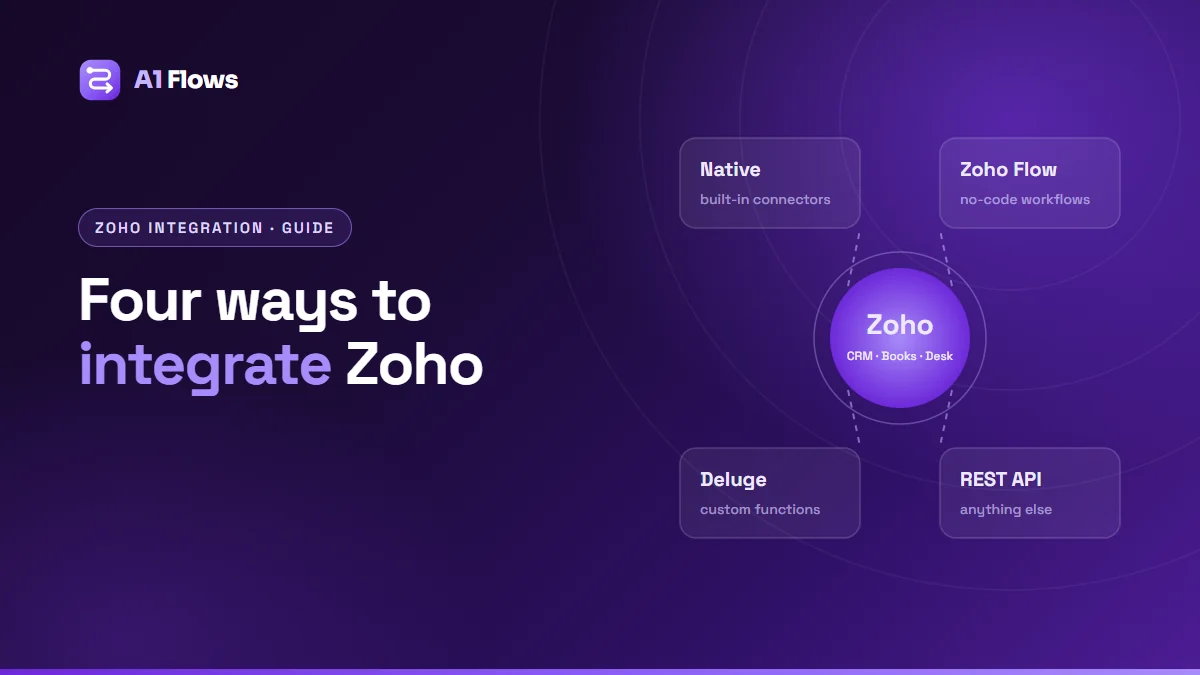
Only now choose the method. There are four, and our guide to Zoho integration options compares them in detail:
- A native integration, where Zoho already connects the two apps and the built-in behaviour matches your plan.
- Zoho Flow, for simple event-to-action flows across apps without code.
- Deluge custom functions, for rules, transformations and matching logic inside Zoho.
- The API with a small service in between, for heavy, high-frequency or complex syncs, or systems Zoho cannot reach directly.
Choose the simplest method that implements the whole plan, including its failure handling. A plan often shows that a native integration covers most flows and one custom function covers the rest.
Step 7: Plan for failure
Every integration will fail sometimes: a system is briefly unavailable, a required field is empty, an API limit is reached, a token expires. Decide in advance:
- Where failures are recorded – a log, or a status field on the record itself such as “Sync failed: missing tax ID”.
- Who is told, and how quickly. A failure nobody sees is the expensive kind.
- Whether it retries, and that a retry cannot create a second invoice. Check whether the target record already exists (by its stored ID) before creating it.
- How authentication is handled. In Zoho, use Connections rather than tokens pasted into code, so access can be renewed or revoked in one place.
Our guide to debugging Deluge scripts covers logging and error handling inside custom functions.
Step 8: Test with real data, then go live
- Test in a safe place – a sandbox or test organisation where your Zoho edition offers one – with a copy of real records, not three tidy examples.
- Test the awkward cases: missing fields, special characters, very long values, merged records, deleted records, the same event twice.
- Run the first sync of existing records as its own planned step, with counts checked on both sides afterwards.
- Go live on a quiet day and watch the logs closely for the first week or two.
- Write it down: the flows, the field map, the owner of each field, and where failures appear. Whoever maintains it next will need this more than the code.
Common mistakes
- Syncing everything both ways “to be safe”. It creates conflicts instead of safety.
- Matching on names or emails after the first sync.
- Integrating before cleaning duplicates, which copies the problem into a second system.
- No owner after go-live. Systems change – a new required field, a renamed picklist value – and someone has to notice.
- Building the trigger before the plan. The first working sync feels like progress; the field map and failure rules are what make it last.
Frequently asked questions
What is a source of truth in an integration?
The one system where a piece of data is created and changed. Other systems receive copies but do not edit them, which prevents two systems overwriting each other.
Should a Zoho integration be one-way or two-way?
One-way per field wherever possible. Two-way sync of the same field needs a conflict rule and is where most sync problems come from, so use it only when people genuinely edit that data in both systems.
How do I stop an integration from creating duplicates?
Store each system’s record ID on the matching record in the other system, look records up by that ID, and check whether a record already exists before creating one. Clean existing duplicates before the first sync.
Do I need middleware to integrate Zoho?
Not always. Many integrations run entirely inside Zoho as native integrations, Zoho Flow or Deluge functions. Heavier, high-frequency or complex syncs are better handled by a small service between the systems.
What should happen when a sync fails?
It should be recorded where someone will see it, a named person should be alerted, and any retry should be safe to run twice. Decide this before building, not after the first failure.
Can Zoho integrate with a system that has no API?
Often, through other routes such as scheduled file exports and imports, or a service that reads from the system another way. These need more care with matching and failure handling, so plan them in the same detail.
Who should own an integration after go-live?
A named person or team, with the documentation from planning. Connected systems change over time, and an integration without an owner drifts until something breaks.
Next steps
Start with the flow sentences and the source-of-truth table; they take an afternoon and decide most of the outcome. For worked examples, see integrating Zoho CRM with Zoho Books and Zoho WorkDrive integrations.
If you would like help planning or building one, see our Zoho integration services and Zoho API integration.