 Zoho CRM Implementation
 Zoho One Consulting
 Zoho Books Setup
 Zoho Analytics & BI
 Data Migration Services
 Zoho Desk Automation
 Zoho Creator Development
 Zoho Automation Services
 Zoho Widget Development
 Zoho Extension Development
 Deluge Development
 Zoho Integration Services
 Zoho API Integration
Zoho integration means getting a Zoho app to share data with another system – another Zoho app, your accounting software, a payment gateway, an online store, or something your company built in-house – so that nobody has to copy information between them by hand.
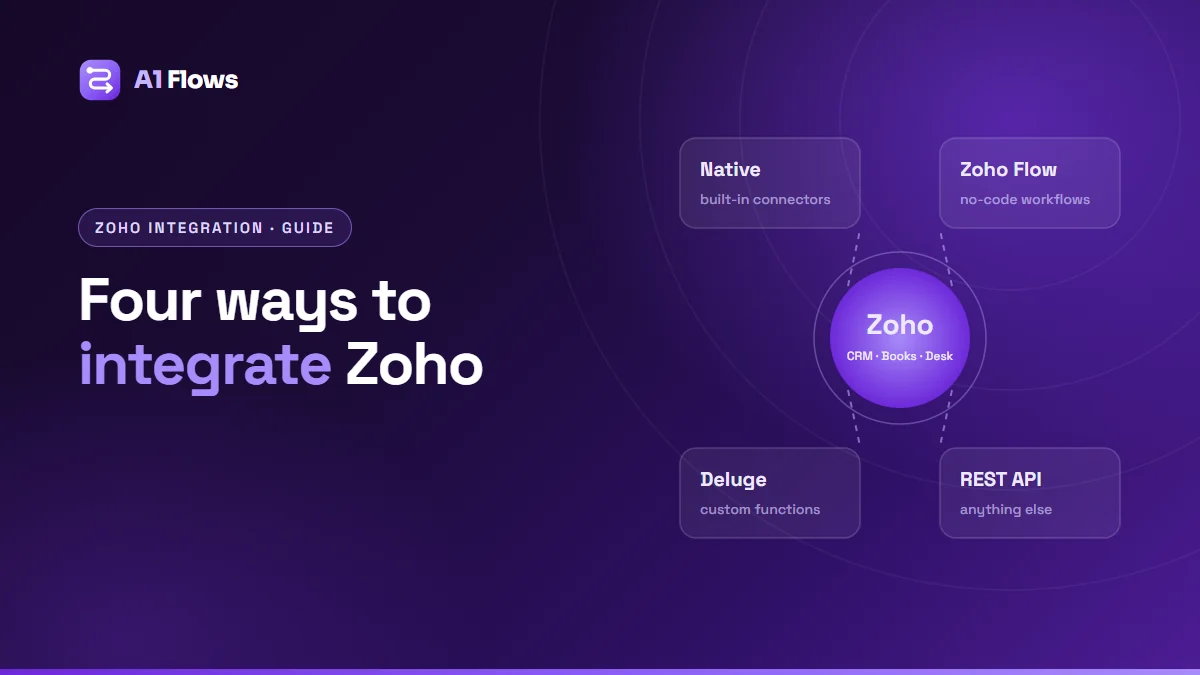
There are four ways to do it: Zoho’s native integrations, Zoho Flow, Deluge custom functions, and the Zoho REST APIs. Each is the right answer for some jobs and the wrong one for others, and picking the wrong one is the most common reason an integration becomes fragile. This guide explains all four, when to use each, and how to tell which your situation needs.
In this guide
- What is Zoho integration?
- What Zoho integrations are used for
- The four ways to integrate Zoho
- How to choose the right method
- How a Zoho integration is built, step by step
- Who needs a custom integration
- Best practices and common mistakes
- Frequently asked questions
What is Zoho integration?
Every Zoho app keeps its own data. Zoho CRM holds your leads, contacts and deals; Zoho Books holds invoices and payments; Zoho Desk holds support tickets. On their own, each works well. The value appears when they talk to each other – and to the systems outside Zoho that your business also depends on.
An integration is the connection that moves data between two systems automatically. It has three parts you should be able to name before anything is built:
- A trigger – what starts it. A record is created, a field changes, a payment arrives, or a schedule fires every hour.
- A mapping – which fields go where, and how values are translated on the way. A “Closed Won” deal in CRM might become an “Active” customer in your billing system.
- A direction – one-way (CRM pushes to accounting) or two-way (both can change the same record), and if two-way, which side wins when they disagree.
Everything else – the tool, the code, the hosting – is a choice about how to deliver those three things reliably.
What Zoho integrations are used for
Most integration projects fall into a handful of patterns:
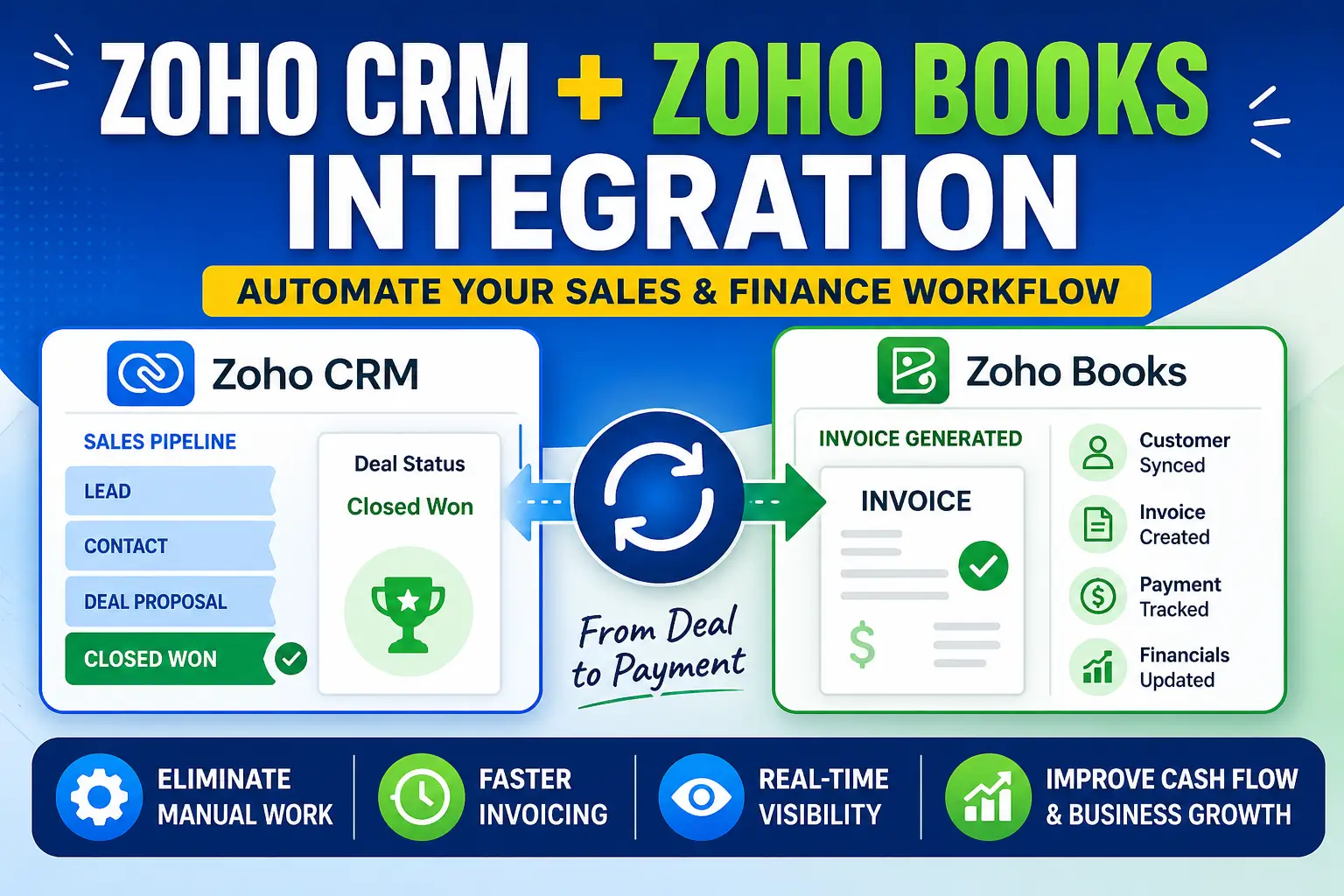
- Sales to finance. A deal closes in Zoho CRM and the customer and invoice appear in Zoho Books, QuickBooks or Xero without being retyped. See our walkthrough of connecting Zoho CRM and Zoho Books.
- Website and e-commerce to CRM. Form submissions and orders from your site, Shopify or WooCommerce become leads, contacts and sales orders.
- Payments. Stripe, PayPal or Razorpay payments are recorded against the right invoice and customer.
- Marketing. Contacts and segments stay in step between CRM and an email platform such as Mailchimp or Zoho Campaigns.
- Support context. An agent in Zoho Desk sees the customer’s deals and unpaid invoices beside the ticket.
- Files and documents. Invoices, contracts and attachments are filed automatically into Zoho WorkDrive or another document store.
- Internal systems. An ERP, a warehouse system or a database your team built is kept in sync with Zoho.
The four ways to integrate Zoho
1. Native integrations
Zoho builds many integrations directly into its apps: Zoho-to-Zoho connections (CRM with Books, Desk, Campaigns, WorkDrive and others) and integrations with widely used third-party tools such as Google Workspace and Microsoft 365. More are available as installable extensions from the Zoho Marketplace.
Use it when a native integration does exactly what you need. It is supported by Zoho, needs no code, and survives product updates.
Watch for the edges of what it covers. Native integrations sync the fields and objects Zoho decided to sync, in the direction Zoho decided. If your process needs a field it ignores, a transformation it does not do, or a rule about which side wins a conflict, you will hit a wall – usually after go-live.
2. Zoho Flow
Zoho Flow is Zoho’s no-code integration platform. You pick a trigger in one app (“new row in a sheet”, “deal updated in CRM”), add actions in others, and Flow runs it. It has prebuilt connectors for Zoho apps and hundreds of third-party services, plus logic steps such as conditions, delays and custom functions.
Use it when both systems have Flow connectors and the logic fits comfortably in a diagram: a few steps, simple mapping, moderate volume.
Watch for flows that grow into small programs. Once a flow has nested conditions, several lookups and error branches, it is harder to read and test than the equivalent code would be. Volume also matters: every run counts against your Flow plan’s task limits.
3. Deluge custom functions
Deluge is Zoho’s built-in scripting language. A custom function in CRM, Books, Desk or Creator can read and write Zoho data with one-line integration tasks and call any external API with invokeurl. Zoho connections handle OAuth to the other service, including token refresh, so you do not store passwords in code.
// Push a won deal to an external billing system
deal = zoho.crm.getRecordById("Deals", dealId.toLong());
payload = Map();
payload.put("customer", deal.get("Account_Name").get("name"));
payload.put("amount", ifnull(deal.get("Amount"), 0));

response = invokeurl
[
    url :"https://api.example-billing.com/v1/subscriptions"
    type :POST
    parameters :payload.toString()
    headers :{"Content-Type":"application/json"}
    connection :"billing_system"
];
info response;
Use it when the integration is triggered by something happening in Zoho, needs real logic, and runs at moderate volume. There is nothing to host, and it lives next to the data it works on.
Watch for Deluge’s execution limits. Every function runs within limits on time, statements and API calls that vary by product and edition. A script that loops through thousands of records making one call each will be stopped part-way. Heavy work belongs in scheduled batches or outside Zoho.
4. The Zoho REST APIs and middleware
Every Zoho app exposes a REST API – the same records you see on screen, readable and writable by another program. A custom integration uses those APIs from code you host: a small service, a serverless function, or part of an application you already run.
Use it when volume is high, several systems are involved at once, the other system cannot receive calls from Zoho, or the logic is too heavy for Deluge. It is also the route when your own product needs to read or write Zoho data.
Watch for the details that make API integrations brittle: OAuth access tokens expire and must be refreshed; Zoho accounts live in regional data centres with different API domains; and API usage counts against limits that depend on your edition and number of licences. The Zoho CRM developer documentation covers each of these.
How to choose the right method
| Method | Best for | Skills needed | Hosting | Main limit |
|---|---|---|---|---|
| Native | Standard Zoho-to-Zoho and common tools | Admin settings | None | Only syncs what Zoho chose |
| Zoho Flow | Simple flows between connected apps | No-code | None | Gets hard to maintain as logic grows |
| Deluge | Zoho-triggered logic and API calls | Scripting | None | Execution and API limits |
| REST API | High volume, many systems, your own apps | Software development | You host it | You own reliability and security |
A simple rule of thumb: start at the top of the table and move down only when the method above genuinely cannot do the job. Native beats Flow when it fits; Flow beats Deluge when the logic is simple; Deluge beats a hosted service when nothing forces you out of Zoho. Many real setups use more than one – a native CRM-to-Books sync, a Flow for notifications, and a Deluge function for the one rule nothing else could express.
How a Zoho integration is built, step by step
- List the systems and the records that move. Customers, invoices, orders, tickets – and in which direction each one travels.
- Decide who owns each field. For two-way sync, write down which system wins when both change the same value. This is the step most often skipped and the source of most “the data keeps changing by itself” complaints.
- Check both APIs. Confirm the other system offers the endpoints you need on your plan, how it authenticates, and its rate limits. Do the same for the Zoho side.
- Choose the method using the table above.
- Build against test data. Use a Zoho sandbox where your edition has one, and a test account on the other system.
- Test the bad days. Missing fields, duplicate submissions, the other system timing out, a record edited twice in a minute. Integrations rarely fail on the happy path.
- Add logging and alerts. Every sync should leave a record you can read, and failures should notify a person.
- Go live and watch it. Review the logs daily for the first couple of weeks, then let the alerts do the watching.
Who needs a custom integration
If a native integration or a simple Flow covers your need, use it – there is no prize for writing code you did not have to. A custom integration earns its cost when:
- Someone on your team spends meaningful time each week copying data between systems.
- Two systems disagree about the same customer and nobody is sure which is right.
- The system you need to connect has no Zoho connector at all.
- Your process includes a rule – a pricing calculation, an approval, a conditional mapping – that no off-the-shelf connector can express.
- Volume is high enough that per-task pricing or execution limits become a constraint.
Best practices and common mistakes
- Do not assume two-way sync. One-way is simpler and safer. Only go two-way when both systems genuinely need to edit the same data, and define the conflict rule first.
- Do not hard-code one data centre. A Zoho org in Europe uses different API and accounts domains from one in the US. Read the correct domain from the account rather than assuming it.
- Handle token refresh. An integration that does not refresh its OAuth token works on the day it is demonstrated and fails the next morning.
- Batch instead of looping. Use bulk endpoints and paginated reads. One call per record is the fastest way to hit an API limit.
- Never fail silently. An integration that stops without telling anyone is worse than none, because people keep trusting the data. Log every run and alert on errors.
- Avoid chains. A flow that triggers a workflow that triggers another flow is hard to reason about and easy to loop. Keep each integration’s job single and visible.
- Keep credentials in your own accounts. API keys, OAuth apps and connections should be created under your company’s accounts, not a contractor’s.
Frequently asked questions
Does Zoho integrate with QuickBooks, Xero and Stripe?
Yes. Zoho offers integrations for many popular accounting and payment tools, and where the native option does not cover your process, Zoho Flow, Deluge or the APIs can. Our guide to Zoho integrations with QuickBooks, Mailchimp and Microsoft Teams covers several common ones.
Is Zoho Flow included with Zoho One?
Zoho Flow is part of the Zoho One bundle, and it is also sold on its own. Each plan includes a number of task runs, so check your plan’s limits against the volume your integrations will generate.
Can Zoho integrate with a system that has no API?
Often, yes, but less elegantly. Options include scheduled file exchanges (CSV over SFTP), reading from the system’s database, or a small middleware service that sits between them. It is more work to make reliable, so it is worth checking first whether the vendor offers an API on a different plan.
Real-time or scheduled – which is better?
Real-time (triggered by an event or a webhook) is better when someone is waiting on the result, such as a sales rep who needs the customer created in billing. Scheduled syncs are better for high volume and for systems that cannot send events. Many integrations use both: real-time for the important records, a nightly sync to catch anything missed.
What happens when one system is down?
A well-built integration retries failed calls with a delay, records what could not be delivered, alerts someone, and offers a way to replay the missed period once the system is back. If yours simply drops the data, it is worth fixing before it matters.
How long does a Zoho integration take to build?
A one-way sync between two systems with a clear field map is often a matter of days to a few weeks, including testing. Two-way sync with conflict rules, several objects or an awkward third-party API takes longer. Agreeing the field map and ownership rules is a real part of the timeline, not a formality.
What affects the cost of an integration?
The number of systems and record types, whether the sync is one-way or two-way, data volume against each side’s API limits, the quality of the other system’s API, and whether a hosted service is needed. Monitoring and a way to replay failures should be included in any quote rather than treated as extras.
Choosing your next step
Start with the simplest method that fully does the job, write down the direction and ownership of every field before building, and make sure failures are visible. Those three habits prevent most integration problems before they start.
If you would rather have it designed and built for you – including the monitoring that keeps it trustworthy – see our Zoho integration services, or for code-level work against the Zoho APIs, our Zoho API integration service.