 Zoho CRM Implementation
 Zoho One Consulting
 Zoho Books Setup
 Zoho Analytics & BI
 Data Migration Services
 Zoho Desk Automation
 Zoho Creator Development
 Zoho Automation Services
 Zoho Widget Development
 Zoho Extension Development
 Deluge Development
 Zoho Integration Services
 Zoho API Integration
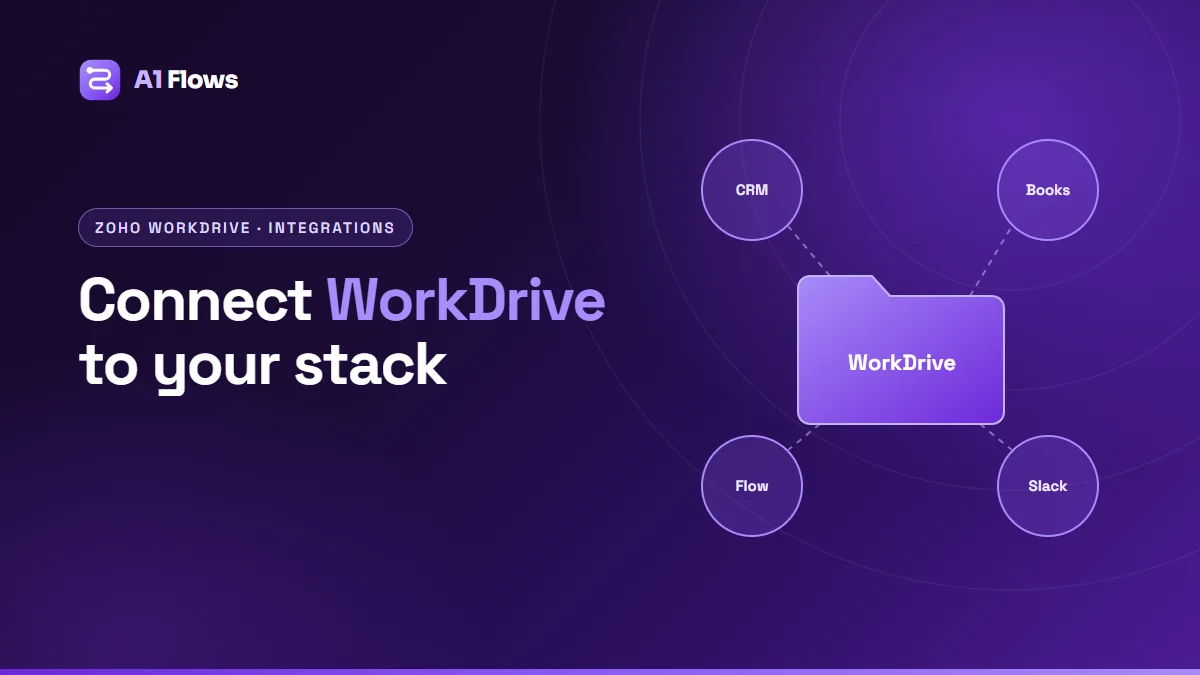
Zoho WorkDrive integrations connect your team’s file storage to the apps where the work happens – Zoho CRM, Zoho Books, other Zoho apps, and third-party tools such as Slack – so documents are filed in the right place automatically and opened from the record they belong to, instead of being hunted for across email, desktops and three different folders.
There are four ways to connect WorkDrive: Zoho’s built-in integrations, Zoho Flow, Deluge with the WorkDrive API, and Marketplace extensions. This guide explains each, with practical examples and the limits worth knowing.
In this guide
- What is Zoho WorkDrive?
- Why integrate WorkDrive
- WorkDrive and Zoho CRM
- WorkDrive and Zoho Books
- WorkDrive with Zoho Flow and third-party apps
- Choosing an integration method
- Best practices and common mistakes
- Frequently asked questions
What is Zoho WorkDrive?
Zoho WorkDrive is Zoho’s online file storage and collaboration service for teams. Files live in team folders with permissions, version history, sharing controls and built-in editors for documents, spreadsheets and presentations. It is included in Zoho One and available on its own.
Why integrate WorkDrive
- Documents end up in one place. Contracts, proposals and invoices stop being scattered across CRM attachments, inboxes and personal drives.
- Files are where the record is. A sales rep opens a deal and sees its documents, without searching.
- Filing happens on its own. Generated invoices and signed contracts are saved to the right folder automatically.
- Permissions follow the business. WorkDrive’s team folders and sharing settings control access, rather than everyone forwarding attachments.
- No attachment size headaches. Large files live in WorkDrive and are linked, rather than copied into each app.
WorkDrive and Zoho CRM
Zoho’s built-in integration
Zoho CRM can attach files from WorkDrive to a record. According to Zoho’s CRM help, files attached from WorkDrive are added as links – the original stays in WorkDrive, so there is no attachment size limit – and you can attach several at a time. Zoho documents this integration as available to Zoho One users.
Zoho has also announced that, for new CRM sign-ups, record attachments are stored in WorkDrive in a structured folder path by app, module and record, with access rolling out to existing customers in phases. Check your own account to see whether it applies yet.
A folder for every record
What the built-in integration does not do is give each CRM record its own dedicated WorkDrive folder that the team works in directly. That is the gap our own Zoho CRM extension, WorkDrive In Zoho CRM, was built to fill: when a record is created, it creates a WorkDrive folder for it, stores the folder on the record, and lets the team upload, preview, rename, search and share files from inside the record. It runs in your own Zoho organisation through a Zoho connector, so the files stay in your WorkDrive.
Custom automation
For specific rules – a folder structure per deal stage, moving files when a deal closes, sharing a folder with a customer automatically – Deluge custom functions can call the WorkDrive API from a CRM workflow rule.
WorkDrive and Zoho Books
The most common need is filing documents Books generates: every invoice, credit note or receipt saved as a PDF into the matching customer’s folder, so finance and account managers find them without searching Books. A custom function triggered by a Books workflow rule can generate the PDF and upload it to the right WorkDrive folder.
We have published a complete walkthrough of exactly this setup: automating Zoho Books invoice PDFs into WorkDrive.
WorkDrive with Zoho Flow and third-party apps
Zoho Flow has a WorkDrive connector with triggers and actions, which covers many integrations without code. Typical flows include:
- Creating a folder structure for each new CRM lead or deal.
- Posting to a Slack channel or Zoho Cliq when a new file arrives in a folder.
- Saving email attachments or form uploads into a specific folder.
- Copying signed documents from an e-signature tool into the right client folder.
Third-party automation platforms also offer WorkDrive connectors for tools outside Zoho’s ecosystem. For any system that offers an API, a custom integration with the WorkDrive API is also an option.
Choosing an integration method
| Method | Use it for | Trade-off |
|---|---|---|
| Built-in CRM integration | Attaching existing WorkDrive files to records | Links files; does not organise folders per record |
| Marketplace extension | A working folder per record, inside CRM | Install and configure, no build |
| Zoho Flow | Simple event-to-action flows across apps | Harder to maintain as logic grows |
| Deluge + WorkDrive API | Rules specific to your process | Code to write and maintain |
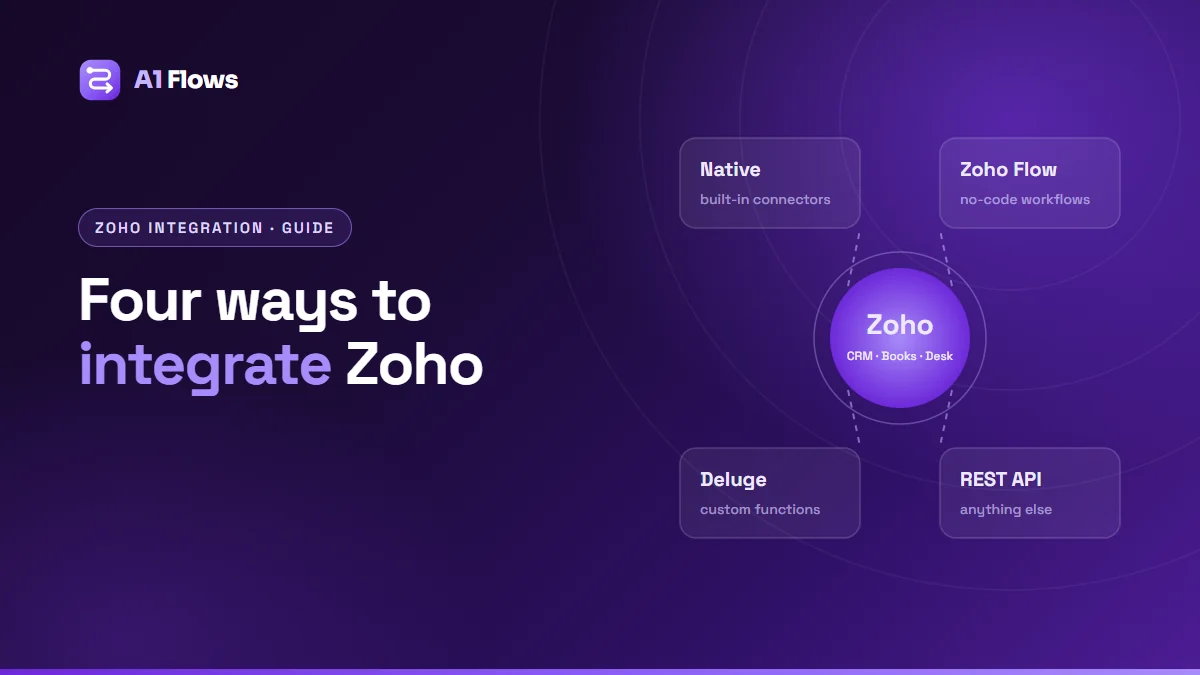
As with any integration, start with the simplest option that fully does the job. Our overview of the four ways to integrate Zoho explains the general trade-offs.
Planning a WorkDrive integration, step by step
- Decide the folder structure – by customer, by deal, by project – and write it down. Everything else follows from it.
- Decide who sees what. Map WorkDrive team folders and permissions to your teams and, where relevant, to customers who need shared access.
- List the events that create or move files: record created, deal won, invoice raised, contract signed.
- Choose the method for each event using the table above.
- Bring existing files across into the new structure, so day one does not start with two filing systems.
- Test with real records, including renamed and deleted ones, before rolling out.
Best practices and common mistakes
- Use a team folder, not a personal one, as the root – so files do not leave with the person who created them.
- Name folders predictably, ideally including a stable identifier, so they remain findable when a record is renamed.
- Store the folder reference on the record rather than searching by name each time; names change, IDs do not.
- Keep sharing deliberate. External sharing should be a decision made per folder, not a default.
- Do not duplicate files across apps. Link to one copy in WorkDrive instead of attaching copies everywhere.
Frequently asked questions
Does Zoho WorkDrive integrate with Zoho CRM?
Yes. Zoho CRM can attach WorkDrive files to records as links, and Zoho documents this for Zoho One users. Extensions and custom functions add more, such as a dedicated folder per record.
Can WorkDrive create a folder automatically for each CRM record?
Yes, through an extension such as WorkDrive In Zoho CRM, a Zoho Flow, or a Deluge function on a workflow rule.
Can Zoho Books save invoices to WorkDrive?
Yes, with a custom function that generates the PDF and uploads it when an invoice is created – see our step-by-step example.
Does WorkDrive integrate with Slack?
Yes, through Zoho Flow or third-party automation platforms – for example, posting a message when a new file is added to a folder.
Is WorkDrive included in Zoho One?
Yes. WorkDrive is part of the Zoho One bundle, and it is also sold separately.
Are files copied into CRM when linked from WorkDrive?
No. Files attached from WorkDrive are added as links, with the original kept in WorkDrive.
Can customers upload files to a WorkDrive folder?
WorkDrive supports sharing options for external users, and some integrations – including our extension – provide ways to collect files from customers into the right record’s folder. Configure external access deliberately, folder by folder.
Next steps
Settle the folder structure first, then pick the lightest integration that delivers it. Most teams get the biggest improvement simply from every record having one obvious place for its files.
For a ready-made folder-per-record setup, see WorkDrive In Zoho CRM. For custom file automation across Zoho apps, see our Zoho integration services.