 Zoho CRM Implementation
 Zoho One Consulting
 Zoho Books Setup
 Zoho Analytics & BI
 Data Migration Services
 Zoho Desk Automation
 Zoho Creator Development
 Zoho Automation Services
 Zoho Widget Development
 Zoho Extension Development
 Deluge Development
 Zoho Integration Services
 Zoho API Integration
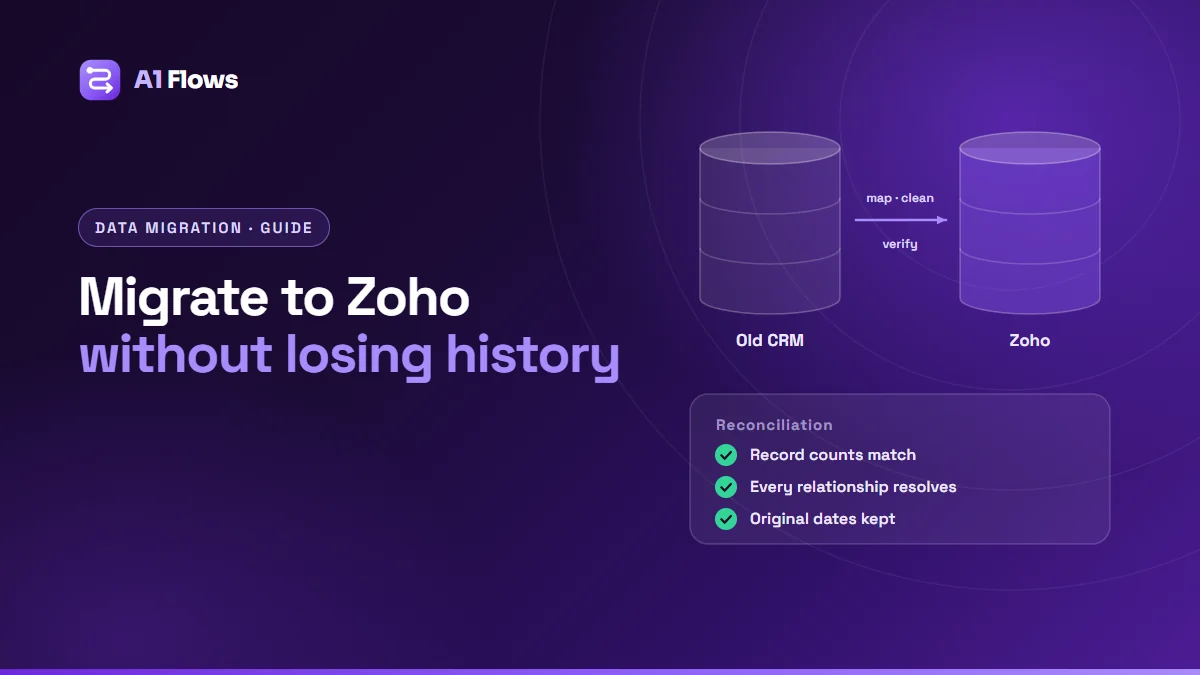
Migrating data into Zoho CRM means moving your records – and, more importantly, the relationships, owners, history and attachments between them – from your old system into Zoho without losing anything that makes the data useful. The safe way to do it is in stages: audit, map, clean, trial-migrate, reconcile, and only then run the real migration.
This guide walks through each stage, covers moving into Zoho One across several apps at once, and lists the mistakes that cause most failed migrations. It is written for anyone planning a move from another CRM, spreadsheets or a legacy system.
In this guide
- What a CRM data migration involves
- Why migrations go wrong
- How to migrate to Zoho CRM, step by step
- Migrating into Zoho One
- Migrating from common sources
- Common mistakes
- Frequently asked questions
What a CRM data migration involves
A CRM holds more than rows of data. It holds connections: this contact works at that account, this deal belongs to that contact, these notes, emails and files belong to that deal, and each record is owned by a particular person. An export gives you flat files; a migration has to rebuild every one of those connections inside a system with a different structure.
It also has to keep time intact. If every record arrives stamped with the import date, reports about pipeline age, sales cycles and activity history become meaningless overnight.
Why migrations go wrong
- Matching on names instead of IDs. Two contacts called “John Smith” at different companies end up linked to the wrong account.
- Importing in the wrong order. Deals imported before their accounts and contacts have nothing to link to.
- Dropping unmapped values. A picklist value that does not exist in Zoho is silently discarded or replaced with a default.
- Bringing the mess along. Duplicates and abandoned records from the old system multiply in the new one.
- Checking the count and nothing else. The right number of records can arrive with every amount, owner and link wrong.
How to migrate to Zoho CRM, step by step
Step 1: Audit the source data
List every object you hold – leads, contacts, accounts, deals, activities, notes, attachments, custom objects – with record counts. Note duplicates, empty fields that are supposed to be filled, and fields nobody has used in years. This is also the moment to decide what not to bring: records untouched for many years may be better archived than migrated.
Step 2: Design the Zoho data model
Decide which Zoho modules each source object becomes, including any custom modules, and which fields each one needs. Do this before mapping; mapping into a structure that will change later means doing it twice.
Step 3: Map every field and value
For each source field, record its Zoho destination, any transformation (date formats, currency, splitting a full name), and for every picklist the exact value-to-value mapping. Map users too: every record owner in the old system needs a corresponding Zoho user, or a rule for where their records go.
Step 4: Clean the data
De-duplicate on agreed rules – email for contacts, domain or name for accounts – and decide which version wins when duplicates disagree. Standardise formats such as phone numbers and countries. Cleaning before the move is far easier than cleaning inside the new system.
Step 5: Import in dependency order
Load records that others depend on first: users, then accounts, then contacts, then deals, then activities, notes and attachments. Keep each source record’s original ID in a field on the Zoho record, so later imports can link to it reliably and you can trace any record back to where it came from.
Step 6: Run a trial migration
Migrate into a sandbox or test environment first, ideally with a full copy of the data rather than a sample – problems hide in the records nobody thought to include.
Step 7: Reconcile
- Record counts per module match, with every excluded record explained.
- Totals on money fields – deal amounts, invoice totals – match.
- A sample of records checked field by field against the source.
- Every relationship type resolves: contacts to accounts, deals to contacts, notes and files to their parents.
- Created and modified dates carried across, where the target allows it, or preserved in dedicated fields.
Step 8: Review with the team
Ask the people who know the data to look at familiar records in Zoho. They will spot problems a checklist will not.
Step 9: Cut over
Freeze the old system for as short a window as the volume allows, run the final migration, run a delta for anything changed during the window, reconcile again, and switch the team over. Keep the old system read-only for a defined period afterwards.
Migrating into Zoho One
A Zoho One migration often loads several apps at once – CRM, Books, Desk and others – from several different sources. The extra challenge is the links between apps: the customer in CRM must be the same customer in Books and in Desk, not three similar-looking records.
- Pick a master for each shared object. Usually CRM for customers and contacts; Books for financial records.
- Load the master first, then load the other apps and link to it, rather than importing each app independently.
- Stage it with the rollout. Each app’s data can move when that app goes live, as long as the cross-app links are planned from the start. Our Zoho One implementation checklist shows how migration fits into a phased rollout.
Migrating from common sources
From another CRM
Salesforce, HubSpot, Pipedrive and most other CRMs export standard and custom objects, and Zoho CRM’s import tools include migration options for several of them. What a source lets you export – activity history, email, attachments – depends on that system and your plan with it. Automations, reports and email templates do not migrate as data; they are rebuilt in Zoho, which is a good moment to drop the ones nobody uses.
From spreadsheets
Often the messiest source and the most important to get right, because the structure exists only in how people have used the columns. Expect more time on cleaning and on agreeing what each column actually means.
From legacy or in-house systems
Older systems often have no export tool or API. Data may need to come directly from the database or from scheduled exports, with more transformation along the way.
Common mistakes
- Migrating before the data model is settled, then migrating again.
- Losing original IDs, which makes it impossible to fix links later.
- Treating attachments as an afterthought. They are often the largest and slowest part of the job.
- No trial run. The first migration should never be the real one.
- Switching off the old system on day one. Keep it read-only until the team trusts the new one.
Frequently asked questions
Can I migrate to Zoho CRM myself?
For a small, clean dataset from a common CRM or a tidy spreadsheet, often yes, using Zoho’s import tools. Help is worth it for large volumes, several related objects, custom objects, heavy attachments, or several Zoho apps at once.
Will we lose data in the migration?
Not if it is planned and reconciled properly. The risk comes from skipping the trial run and the reconciliation, not from the move itself. Anything that cannot be migrated cleanly should be identified and decided on before go-live.
How long does a CRM migration take?
It depends on data volume, the number of objects and relationships, attachment size and how clean the source is. A small, clean migration can be quick; years of messy data across several systems takes considerably longer, mostly in cleaning and reconciling.
Can we keep the original created dates?
Where the target allows it, original dates can be carried across; otherwise they can be preserved in dedicated fields so reports remain accurate.
Do emails and notes migrate?
Notes usually do. Email history depends on what the source system can export; in many cases it is migrated as notes or attachments, or re-synced from the mailbox through Zoho’s email integration.
What happens to our automations and reports?
They are rebuilt in Zoho rather than migrated, because each platform builds them differently. Document what the current ones do before you switch.
What affects the cost of a migration?
Volume, the number of objects and relationships, attachment size, data quality, and whether the source has an API or only exports. Clean data from a modern CRM is the simplest case.
Before you start
Audit first, design the model second, and never let the first migration be the real one. Those three rules prevent most of the problems that make migrations memorable for the wrong reasons.
If you would like the migration planned, run and reconciled for you, see our Zoho data migration service, or our Zoho CRM implementation service if the migration is part of a wider rollout.