 Zoho CRM Implementation
 Zoho One Consulting
 Zoho Books Setup
 Zoho Analytics & BI
 Data Migration Services
 Zoho Desk Automation
 Zoho Creator Development
 Zoho Automation Services
 Zoho Widget Development
 Zoho Extension Development
 Deluge Development
 Zoho Integration Services
 Zoho API Integration
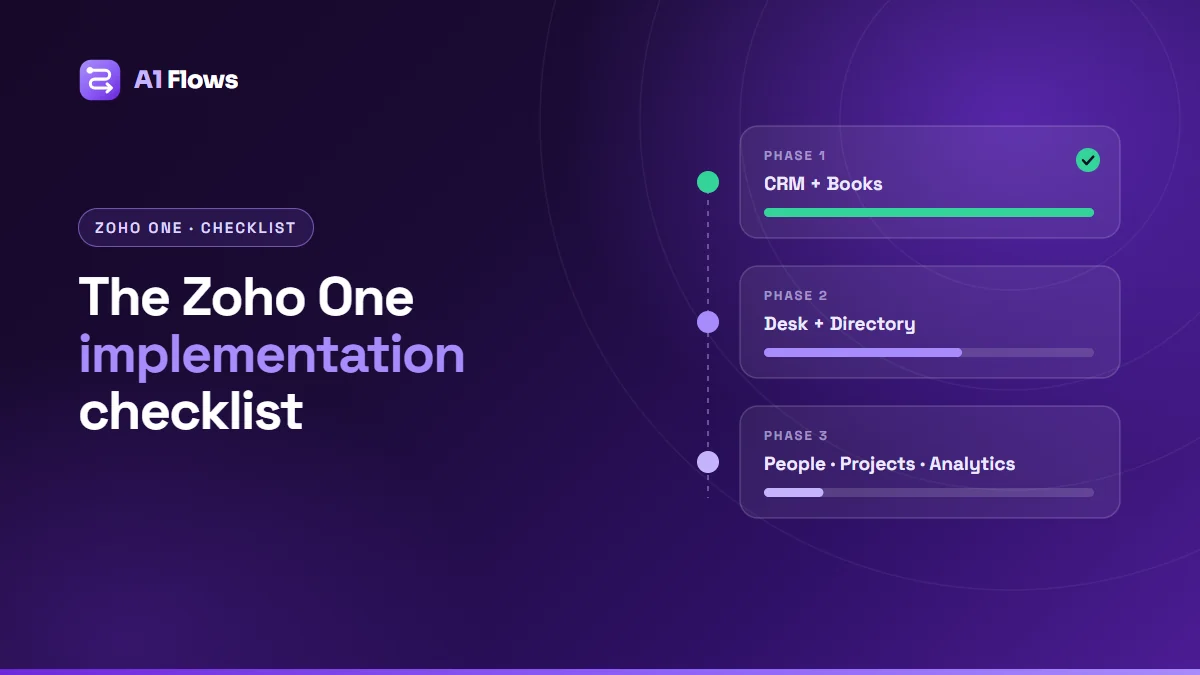
A Zoho One implementation goes best in phases: map how your business works, set up the shared foundations, launch a small core of apps with your data migrated into them, and only then add the rest – one team at a time. This checklist walks through each phase and what has to be true before you move to the next.
Zoho One gives you 45+ applications under one licence. That is its strength and its trap. Companies that switch everything on at once usually end up using a handful of apps badly; companies that phase it end up using the right apps well.
In this guide
- What a Zoho One implementation is
- Why phase it at all
- Phase 0: Discovery and planning
- Phase 1: Foundations and the core apps
- Data migration checklist
- Go-live checklist
- Phase 2 and beyond: adding departments
- Common mistakes
- Frequently asked questions
What a Zoho One implementation is
Zoho One is Zoho’s bundle of its business applications – CRM, Books, Desk, Projects, People, Campaigns, Analytics and many more – sold under one per-user licence, with a shared admin panel and a single directory of users. Implementing it means deciding which of those apps your business needs, configuring them around your processes, connecting them so they share data, moving your existing data in, and getting your teams using them.
The last two words matter most: connecting them. Separate apps on one invoice are not one system. The value of Zoho One comes from a customer entered once in CRM appearing correctly in Books, Desk and Analytics – and that has to be planned before the first record is imported.
Why phase it at all
- Teams can only absorb so much change. New software on top of a normal workload is hard; three new systems at once is how adoption fails.
- Early phases teach you about later ones. How your team actually uses the CRM changes how you should set up Desk.
- Risk stays contained. If something goes wrong in phase one, it affects one or two apps, not the whole company.
- Value arrives sooner. A working CRM in eight weeks beats a perfect suite in eight months.
Phase 0: Discovery and planning
Before anything is configured:
- ☐ Map the main processes end to end: lead to customer, customer to invoice, request to resolution. Note who does each step and which system they use today.
- ☐ List every current system and what data lives in each, including spreadsheets that have quietly become systems.
- ☐ Decide the core. Usually CRM plus one of Books, Desk or Projects, depending on whether your biggest pain is sales, money, support or delivery.
- ☐ Decide what is out of scope for phase one, in writing. Apps you are not using yet stay switched off.
- ☐ Name an owner on your side who can make decisions and will administer the system after launch.
- ☐ Agree the phase order and what each phase should change about someone’s working day.
Phase 1: Foundations and the core apps
Shared foundations
- ☐ Verify your domain and set up users in the Zoho One admin panel, with Zoho Directory as the single list of people.
- ☐ Decide on single sign-on and multi-factor authentication policy.
- ☐ Create groups and departments that mirror how access should work, so app permissions can be assigned by group rather than person by person.
- ☐ Set organisation details – time zone, currency, business hours, fiscal year – consistently across apps.
The core apps
- ☐ Design the data model: modules, fields, picklists and how records relate. This is expensive to change later, so review it on paper first.
- ☐ Configure the pipeline or process stages with clear entry criteria for each.
- ☐ Set roles, profiles and sharing rules so people see what they need and nothing more.
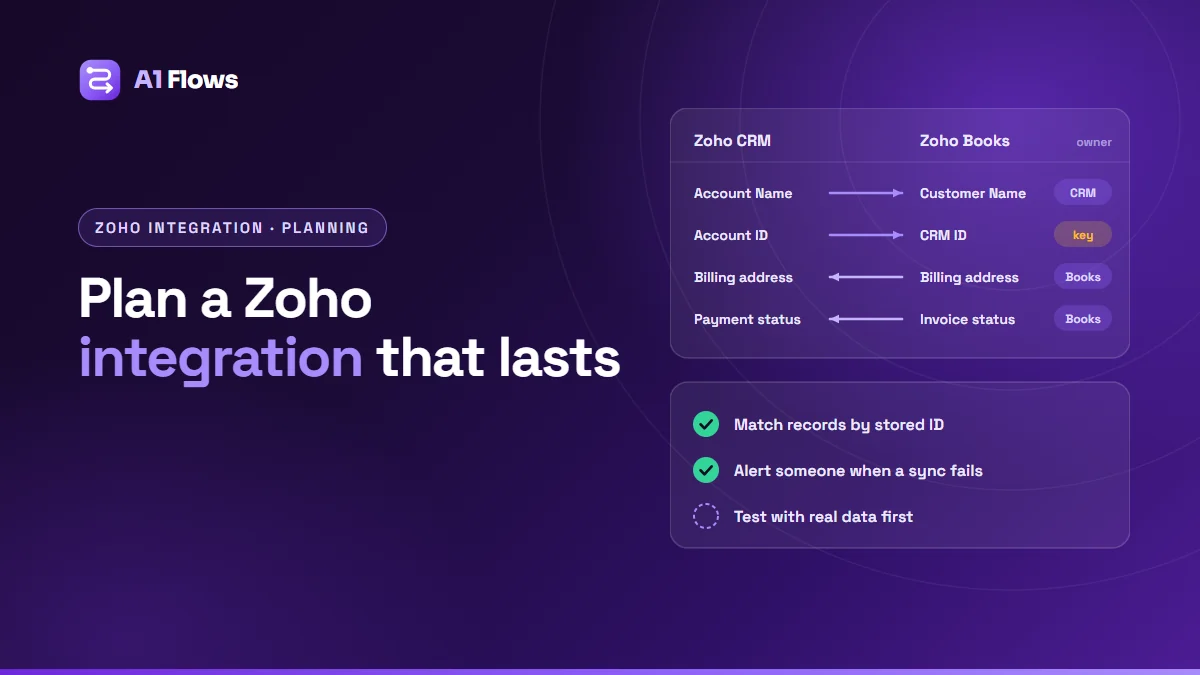
- ☐ Connect the core apps to each other – for example CRM to Books so customers and invoices are shared – and agree which app owns which field.
- ☐ Build the automations that save the most time first: lead assignment, follow-up tasks, invoice creation from won deals. Leave the clever ones for later.
- ☐ Build the first reports managers will actually read, on fields people will actually fill in.
Data migration checklist
Migration is usually the riskiest part of the project. Treat it as its own workstream:
- ☐ Audit the source data: volumes, duplicates, empty fields, inconsistent values.
- ☐ Map every field and picklist value to its destination, including what happens to values that do not exist in Zoho.
- ☐ Plan the cross-app links – the same customer in CRM and Books – before loading anything.
- ☐ Run a trial migration into a sandbox or test org.
- ☐ Reconcile the trial: record counts, totals on money fields, a sample of records checked field by field, and every relationship confirmed to resolve.
- ☐ Keep original dates so history and reports stay meaningful.
- ☐ Plan the cutover window and a delta run for anything changed during it.
Our step-by-step guide to Zoho CRM data migration goes into each of these in detail.
Go-live checklist
- ☐ User acceptance testing done by the people who will use the system, on real scenarios.
- ☐ Role-based training – short sessions for what each role does daily.
- ☐ Final migration run and reconciled.
- ☐ Old system set to read-only, not deleted, for a defined period.
- ☐ A support channel for the first weeks, so questions are answered before people give up and return to spreadsheets.
- ☐ Documentation of configuration, automations and integrations, handed to your admin.
Phase 2 and beyond: adding departments
Once the core is stable and being used, add the next app for the next team. A common order:
- Support or delivery – Zoho Desk for customer support, or Zoho Projects for project-based work – connected to CRM so agents and project managers see the customer.
- Marketing – Zoho Campaigns or Marketing Automation, fed by CRM segments.
- Operations and people – Zoho People, Recruit, Expense and Inventory, as the teams that own them are ready.
- Company-wide reporting – Zoho Analytics across every app, once there is enough clean data to report on.
Each new phase repeats a smaller version of the same cycle: map, configure, connect, migrate, train.
Common mistakes
- Turning on every app because it is included. Unused apps confuse users and clutter navigation. Switch on what each phase needs.
- Skipping the connections. Separate apps that do not share data recreate the problem Zoho One was meant to solve.
- Migrating dirty data. Duplicates and broken records imported into a new system are harder to clean than they were in the old one.
- No owner after launch. Somebody has to administer the platform, or it slowly drifts back to spreadsheets.
- Training once. People need help in week three, not just on day one.
When to do it yourself and when to get help
A small business with one team and a simple process can implement the core of Zoho One itself, especially with Zoho’s onboarding resources. Help pays off when several departments are involved, when data is migrating from more than one system, when the apps need custom automation or integration with non-Zoho systems, or when nobody internal has the time to own the project. Our guide on how to choose a Zoho implementation consultant covers what to look for.
Frequently asked questions
How long does a Zoho One implementation take?
There is no single date because it is phased. A first phase covering a core of two apps with migration commonly takes a couple of months; later phases add departments as they are ready.
Which Zoho One apps should we implement first?
The ones closest to your biggest pain. For most businesses that is CRM, plus Books if invoicing is manual, Desk if support is chaotic, or Projects if delivery is where things fall through.
Can we migrate data from several systems into Zoho One?
Yes. The key is planning how records link across apps before loading – so the customer in CRM and the customer in Books are the same customer – and reconciling each load.
Do all our users need a Zoho One licence?
Zoho One is licensed per user, and Zoho offers different pricing models, so check Zoho’s current plans against who actually needs access. Some businesses license everyone; others mix Zoho One with standalone app licences.
Can Zoho One replace all our current software?
Often much of it, but not always all of it, and it does not have to. Specialist systems can stay and be integrated. The goal is fewer disconnected tools, not zero.
What happens to our old systems?
Keep them read-only for a defined period after go-live so historical questions can still be answered, then archive the data and cancel the subscriptions.
What affects the cost of implementing Zoho One?
The number of apps and departments in scope, data volume and quality, integrations with non-Zoho systems, and how much custom automation the processes need. Scoping by phase means you know the cost of phase one before committing to the rest.
Getting started
Start with Phase 0. Mapping your processes and choosing a small core costs nothing but time, and it makes every later decision easier – whether you implement Zoho One yourself or with a partner.
If you would like help planning or delivering it, see our Zoho One consulting and implementation service.