 Zoho CRM Implementation
 Zoho One Consulting
 Zoho Books Setup
 Zoho Analytics & BI
 Data Migration Services
 Zoho Desk Automation
 Zoho Creator Development
 Zoho Automation Services
 Zoho Widget Development
 Zoho Extension Development
 Deluge Development
 Zoho Integration Services
 Zoho API Integration
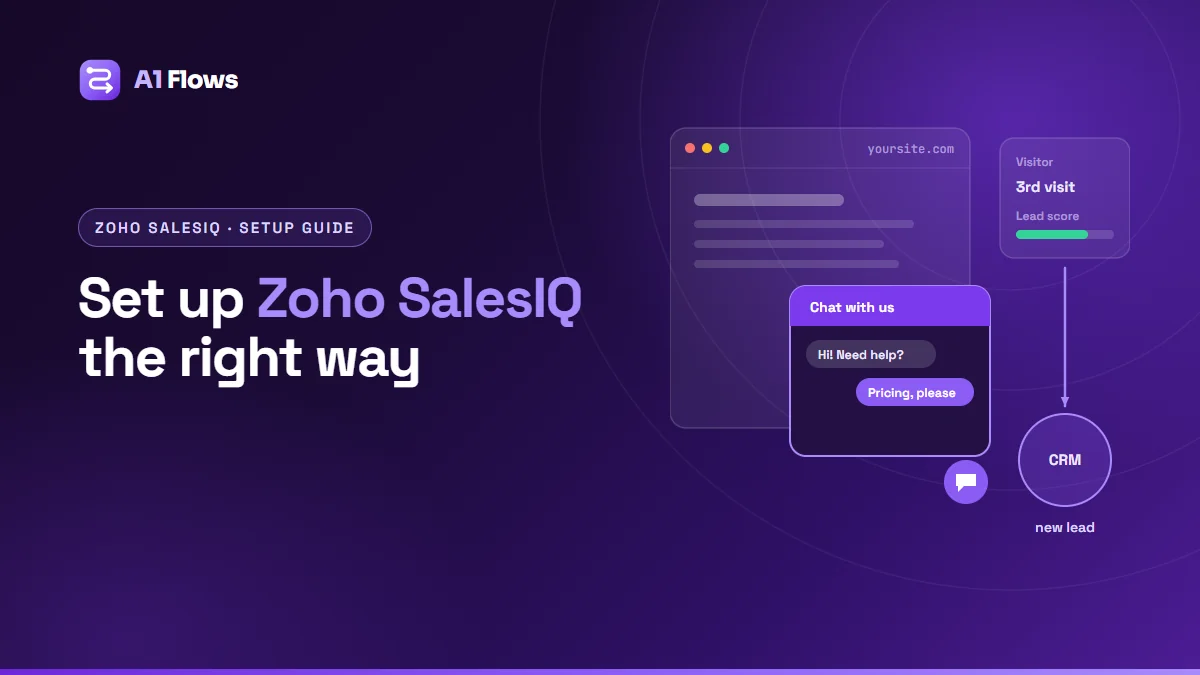
Zoho SalesIQ is Zoho’s live chat and visitor engagement tool. It shows who is on your website right now, lets your team chat with them, runs chatbots when nobody is free, scores visitors by how interested they look, and sends them into Zoho CRM as leads or contacts. Setting it up well is less about switching it on and more about three decisions: who answers which chats, what counts as a good lead, and what is allowed into your CRM.
This guide walks through a complete SalesIQ setup step by step, using the labels in Zoho’s current documentation.
In this guide
- What SalesIQ does
- Step 1: Add SalesIQ to your website
- Step 2: Set up brands, departments and operators
- Step 3: Watch visitors in real time
- Step 4: Set up lead scoring
- Step 5: Create triggers
- Step 6: Add chatbots
- Step 7: Connect SalesIQ to Zoho CRM
- Best practices and common mistakes
- Frequently asked questions
What SalesIQ does
- Live chat between website visitors and your team.
- Visitor tracking, showing who is on the site and where.
- Lead scoring, which adds and removes points based on what a visitor does.
- Triggers, which invite the right visitors to chat at the right moment.
- Chatbots – Zobots for guided conversations and Answer Bot for questions your help content already answers.
- Zoho CRM integration, so conversations and visitors become leads, contacts, notes and tasks.
It suits any business whose website generates enquiries: service firms, software companies, online shops, education providers. If a visitor who leaves without talking to anyone is a lost sale, SalesIQ is worth setting up properly.
Step 1: Add SalesIQ to your website
In SalesIQ, go to Settings > Brands, open (or create) the brand for your website, and copy its website embed code from the brand’s installation settings. Zoho’s setup guide says to paste the code anywhere above the closing </body> tag, on every page where the chat should appear.
If someone else manages your website, use Send installation code to webmaster. Zoho also documents installation for platforms such as WordPress, Wix, Joomla and Drupal.
Step 2: Set up brands, departments and operators
- A brand is a website or business identity with its own chat widget. One SalesIQ account can run several.
- A department is a group of people who answer a type of chat. Every brand needs at least one, and only the operators in a department see the chats that come in to it.
- Operators are the team members who answer chats.
Design departments around who should answer, not around your org chart. “Sales”, “Support” and “Billing” lets the widget ask visitors what they need and route the chat accordingly.
Step 3: Watch visitors in real time
The Visitors online tab shows who is on your site now, in a Rings view or a List view. Operators can start a conversation with a visitor who looks stuck or interested, instead of waiting to be asked. The value grows once visitors are identified – by a chat, a form or the CRM integration – because their history follows them.
Step 4: Set up lead scoring
Lead scoring turns behaviour into a number your team can act on. Go to Settings > Automate > Lead Scoring and add rules that add or subtract points, according to Zoho’s documentation. For example:
- Add points for viewing the pricing or demo page.
- Add points for returning to the site.
- Subtract points for visiting only the careers page.
Scores also decay over time – by default weekly, by 25% – so a visitor who was keen months ago does not outrank one who is keen today. The score is passed to the CRM’s Visitor Score field only once the visitor’s name and email are known.
Step 5: Create triggers
Triggers are automatic actions based on what a visitor does. Go to Settings > Automate > Triggers and add one. You choose when it fires – the visitor lands on my website, accesses any page on my website, performs a custom action or leaves my website – add conditions, and choose the action: Send chat invite, or Invoke JS API for something custom.
The classic example is a chat invite to visitors who reach your pricing page. Keep triggers few and specific; a widget that pops up on every page trains visitors to close it.
Step 6: Add chatbots
Zobot
A Zobot is a chatbot that runs conversations on your site – qualifying visitors, collecting details, booking calls, or routing them to the right department. Create one from Settings > Bot and choose Zobot. According to Zoho, Zobots can be built with the Codeless Bot Builder, SalesIQ Scripts, Zia Skills, webhooks, Watson Assistant or Azure Bot Service. Most businesses start with the Codeless Bot Builder.
Answer Bot
Answer Bot answers visitors’ questions from content you already have: SalesIQ FAQs, articles and webpages, or a Zoho Desk knowledge base (Zoho requires at least 30 articles for that). Zia is the default engine, with OpenAI, Anthropic, Google AI and DeepSeek available as alternatives.
Use bots for out-of-hours cover, common questions and routing, and make the hand-over to a person easy. A bot that will not let a ready buyer reach a human costs more than it saves.
Step 7: Connect SalesIQ to Zoho CRM
In SalesIQ, go to Settings > Developers > Integrations, choose Zoho CRM, and open the CRM configuration. The documented options include:
- Add new visitors as Lead/Contact, and which visitors to add: missed, attended or accessed.
- Field mapping between SalesIQ and the CRM.
- A lead-score threshold, so only visitors above a score are pushed.
- Attach Chat Transcripts automatically and Push chat summary as notes in CRM.
During a chat, operators can also push the visitor to the CRM, add a task, convert to a contact or add a deal. On the CRM side, leads and contacts gain visit summary fields such as Visitor Score, and a visits related list.
Choose carefully what gets pushed. “Every visitor who accessed the site” fills the CRM with names nobody will follow up; attended chats or a score threshold give sales a list worth working.
Best practices and common mistakes
- Staff the widget or hide it. An “online” chat that nobody answers is worse than no chat.
- Write the bot’s hand-over first, then the rest of its script.
- Score on intent, not volume. Pricing and demo pages say more than page count.
- Limit triggers to a few pages where a conversation genuinely helps.
- Keep the CRM clean by pushing qualified visitors, not everyone.
- Review transcripts monthly; they show which questions your website is failing to answer.
Frequently asked questions
What is Zoho SalesIQ used for?
Live chat with website visitors, real-time visitor tracking, lead scoring, proactive chat invitations, chatbots, and passing visitors and conversations into Zoho CRM.
How do I add SalesIQ to my website?
Copy your brand’s website embed code from Settings > Brands and paste it above the closing body tag on your site, or send it to your webmaster from the same screen.
Does SalesIQ integrate with Zoho CRM?
Yes. It can add visitors as leads or contacts, map fields, attach chat transcripts, push chat summaries as notes, and pass the visitor’s score to the CRM.
What is the difference between a Zobot and Answer Bot?
A Zobot runs a designed conversation, such as qualifying a visitor or booking a call. Answer Bot answers free-text questions from your existing FAQs, articles, webpages or Zoho Desk knowledge base.
How does lead scoring work in SalesIQ?
You create rules that add or subtract points for what visitors do. Scores decay over time, by default weekly by 25%, and reach the CRM once the visitor’s name and email are known.
Can SalesIQ create CRM leads automatically?
Yes, with the Add new visitors as Lead/Contact setting. You choose whether missed, attended or all accessed visitors are added, and can set a minimum lead score.
Can SalesIQ use AI models other than Zia?
For Answer Bot, yes: Zia is the default, and OpenAI, Anthropic, Google AI and DeepSeek can be selected instead.
Next steps
Set up departments and the CRM integration first, then scoring, then triggers and bots – in that order, each one builds on the last. If SalesIQ is part of a wider sales setup, see our Zoho CRM implementation and automation services, or our guide to Zoho Desk automation if Answer Bot will draw on your help centre.