 Zoho CRM Implementation
 Zoho One Consulting
 Zoho Books Setup
 Zoho Analytics & BI
 Data Migration Services
 Zoho Desk Automation
 Zoho Creator Development
 Zoho Automation Services
 Zoho Widget Development
 Zoho Extension Development
 Deluge Development
 Zoho Integration Services
 Zoho API Integration
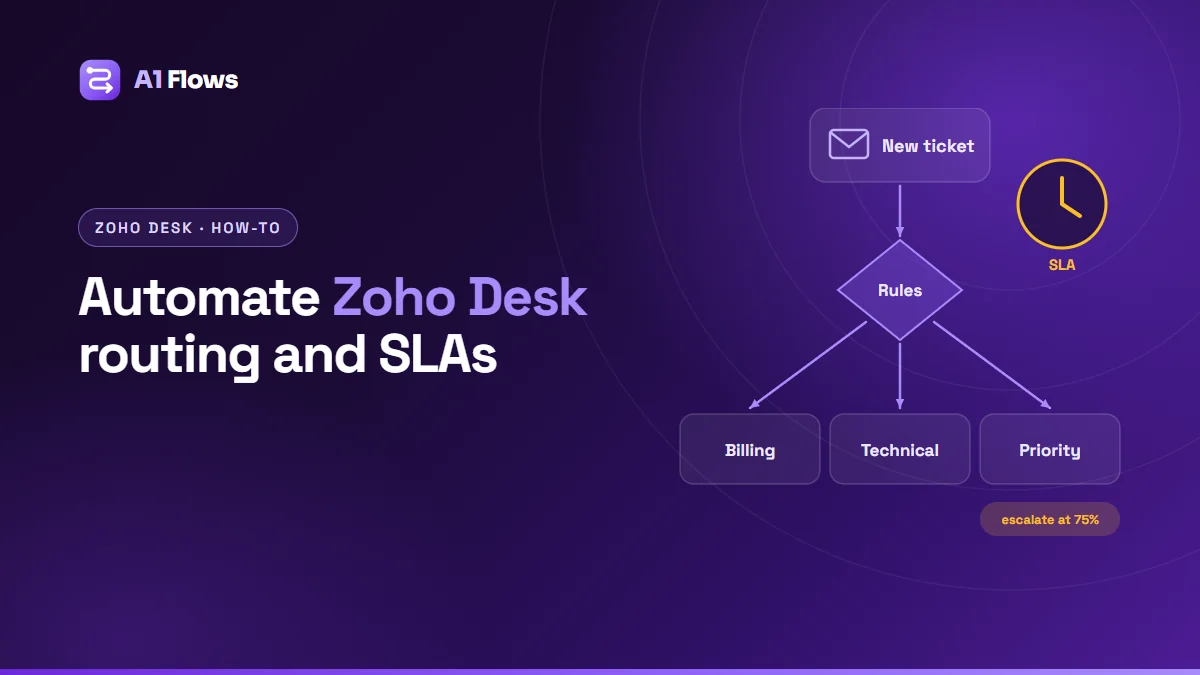
Zoho Desk automation is the set of rules that route, prioritise, escalate and follow up on support tickets without an agent doing it by hand. Set up well, it means agents open their queue and find work they can start, urgent tickets surface before they breach, and the routine follow-ups happen on their own.
This guide covers the main automation tools in Zoho Desk – workflow rules, assignment rules, SLAs with escalations, supervisor rules, blueprints and macros – what each one is for, and how to set them up in a sensible order.
In this guide
- What is Zoho Desk automation?
- What it is used for
- Problems it solves
- The automation tools in Zoho Desk
- Setting it up, step by step
- Example automations
- Best practices and common mistakes
- Frequently asked questions
What is Zoho Desk automation?
Zoho Desk is Zoho’s customer support software: tickets from email, web forms, chat, phone and social channels land in one place, organised by department. Automation is everything Desk does to those tickets without being told each time – assigning them, setting their priority, tracking them against a service level agreement, escalating them when they are late, and following up when they have gone quiet.
Most automation lives in Desk under Setup > Automation. Creating and editing it needs the Helpdesk Automation permission in the user’s profile, and features such as SLAs and supervisor rules need the Standard edition or above.
What it is used for
- Routing – getting each ticket to the right department, team or agent.
- Prioritising – marking tickets from key accounts or with urgent keywords so they are seen first.
- Service levels – tracking response and resolution time against targets you have promised.
- Escalation – alerting managers and reassigning tickets before or when targets are missed.
- Follow-up – nudging customers who have not replied, and closing tickets that have gone cold.
- Consistency – making sure multi-step processes such as refunds or returns are followed in the right order.
Problems it solves
- Someone sorts the inbox by hand. It happens because every ticket lands in one shared queue. Assignment rules route on what the ticket is – channel, product, customer, language – so the sorting disappears.
- Urgent tickets are found by accident. Without priority rules and SLAs, a key account’s outage waits behind password resets. Rules mark it urgent on arrival; the SLA makes the deadline visible.
- Breaches are discovered in the monthly report. An SLA that only measures is not a commitment. Escalations act in the hours before a breach, while something can still be done.
- Tickets wait forever on customers. Supervisor rules notice tickets that have sat untouched and send a reminder or close them.
- Processes depend on who is on shift. Blueprints make the steps of a refund or return explicit and enforced.
The automation tools in Zoho Desk
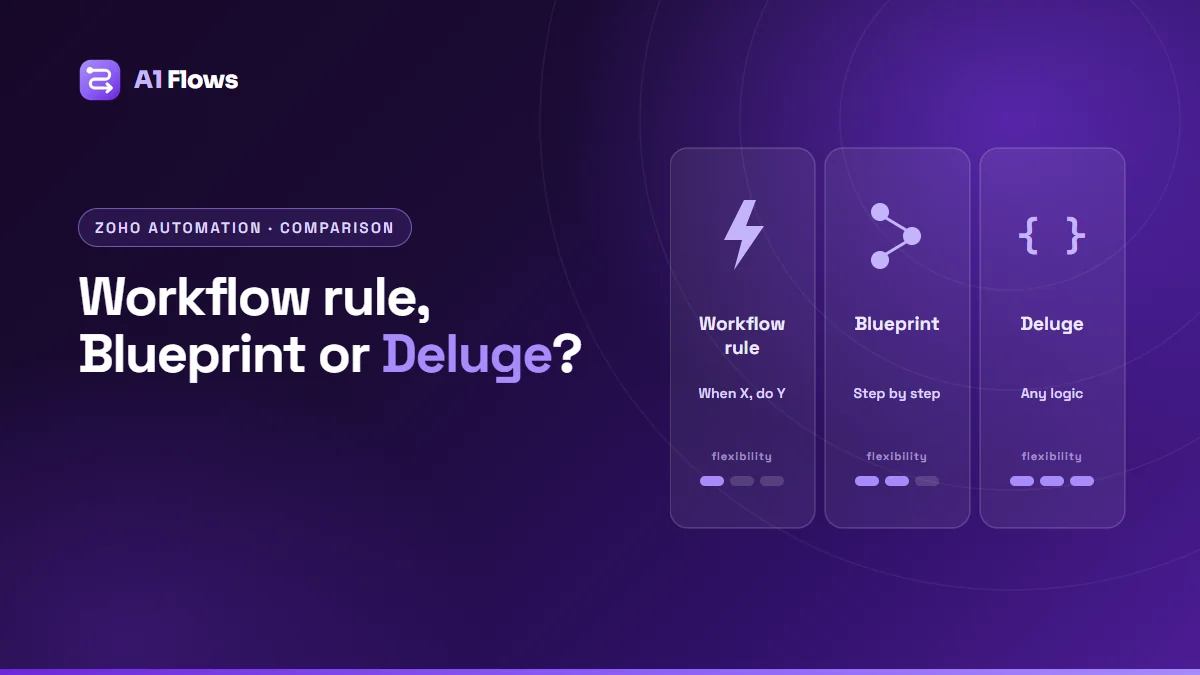
Workflow rules
Event-driven: when a ticket is created, edited or receives a customer reply, and it matches your criteria, perform actions – assign it, update fields, send an email alert, create a task, or call a custom function. Found under Setup > Automation > Workflow Rules.
Assignment rules
Direct ticket assignment to an agent or a team, and optionally a move to another department, based on criteria. Use them for the routing logic itself; use round robin within a team to share load fairly.
Service level agreements (SLAs)
Response and resolution targets applied automatically to tickets that match each SLA’s criteria, measured in calendar time or your business hours. Configured under Setup > Automation > Service Level Agreements (SLA).
SLA escalations
Levels attached to an SLA that fire before, on or after a response or resolution deadline. Each level can email roles such as team leads or managers, reassign the ticket, or change its priority. Zoho’s documentation sets a limit of two response escalations and four resolution escalations per SLA – enough for a staged path from a nudge to the owner up to a manager.
Supervisor rules
Time-based rules that run hourly and act when a ticket has stayed in a state for a set period – hours since creation, hours to the due date, time since the last reply. They can send alerts, create follow-up tasks or update fields. Found under Setup > Automation > Supervisor Rules.
Blueprints
A process modelled as states and permitted transitions, with fields that must be filled at each step. Use them where the order of steps matters – approvals, returns, onboarding.
Macros
One-click bundles of actions an agent applies manually: set the status, add a canned reply, notify a team. They do not run on their own, but they turn a five-step routine into one click.
Zoho’s own walkthrough of SLAs and supervisor rules is a good reference alongside this guide.
Setting it up, step by step
Order matters: each layer depends on the one before it.
- Set business hours and holidays. SLAs measured in business hours are only as accurate as these settings.
- Organise departments and teams. Separate departments for separate functions (support, billing, onboarding), with teams inside them for specialisms.
- Add the fields routing needs. Product, customer tier, issue type – whatever the rules will read. If a rule needs a value nobody captures, add it to the ticket form first.
- Write the assignment rules. Start with the obvious splits and leave a small general queue for tickets the rules cannot place confidently, rather than guessing.
- Create SLA policies. One per meaningful combination of department, priority and customer tier – not one per customer.
- Add escalation levels. For example: remind the owner before the response deadline, alert the team lead on breach, alert a manager if it is still open later.
- Add supervisor rules for tickets waiting on customers: a reminder after a few days, closure after a longer period, with a message explaining how to reopen.
- Build macros for the routine replies agents already type repeatedly.
- Test with real ticket examples from each channel before switching the rules on for everyone.
Example automations
Priority routing for key accounts
A workflow rule on ticket creation checks whether the contact’s account is marked as a key account (often synced from Zoho CRM), sets the priority to High, and assigns the ticket to the senior team. The matching SLA gives it a shorter response target.
Staged escalation
An SLA for high-priority tickets with a one-hour response target: a reminder to the owner before the deadline, an email to the team lead on the deadline, and reassignment to a senior agent plus a manager alert if it is still unanswered afterwards.
Waiting-on-customer follow-up
A supervisor rule finds tickets in an “On Hold – Customer” status with no customer reply for three days and sends a polite reminder; a second rule closes them after a longer period.
CRM context for agents
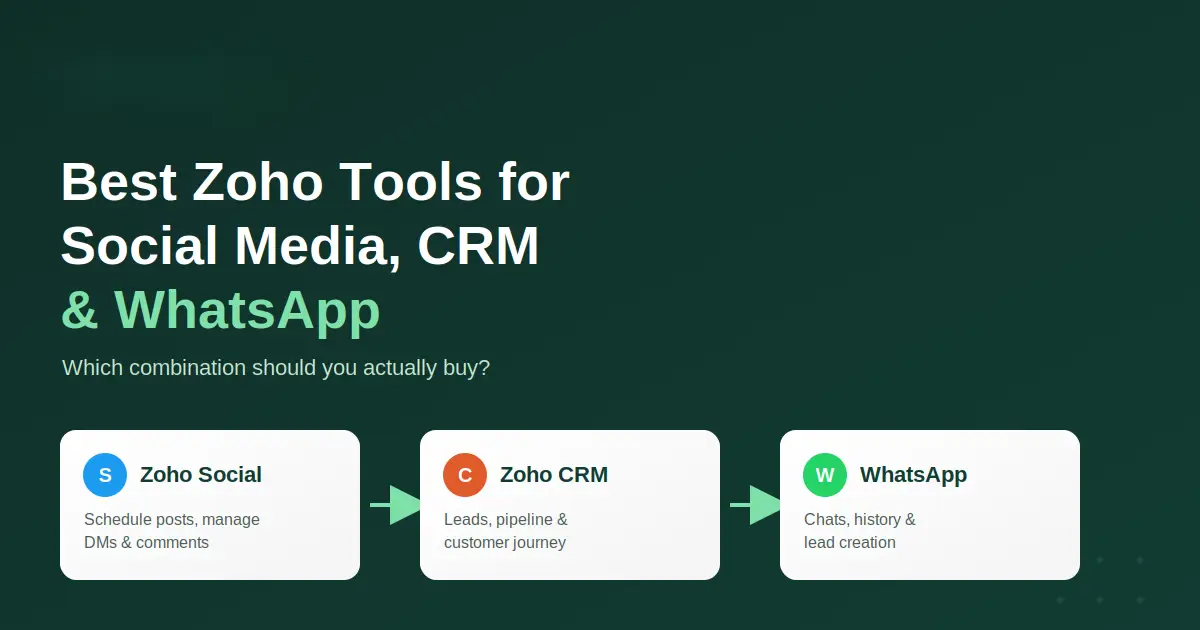
With Zoho Desk connected to Zoho CRM, agents see the customer’s deals and history beside the ticket, and a custom function can update CRM when a key account raises an urgent ticket, so the account manager knows.
Who needs it
Any team handling more tickets than one person can read benefits from basic routing and SLAs. Expert help is worth it when you run several departments or brands, promise contractual SLAs to different customer tiers, need Desk connected to CRM, Books or other systems, or are migrating from another helpdesk and want the history to come across intact.
Best practices and common mistakes
- Do not route on everything at once. Start with a few clear rules and add more as you see where tickets are misplaced.
- Keep a fallback queue. Rules that cannot decide should leave a ticket for a person, not assign it at random.
- Avoid overlapping rules. Two workflow rules that both set the owner will fight. Keep one rule responsible for each outcome.
- Escalate before the breach. An escalation that only fires after the deadline tells you about a failure; one that fires before can prevent it.
- Stop the clock fairly. Make sure time waiting on the customer does not count against the agent, or the numbers – and the agents’ trust in them – suffer.
- Document every rule. A short list of what each rule does and who owns it saves hours when something behaves unexpectedly.
Frequently asked questions
Which Zoho Desk edition do I need for automation?
Basic workflow automation is available on several plans, but Zoho lists SLAs and supervisor rules as Standard edition and above, and limits on rules and features rise with each plan. Check your edition before designing the setup.
How many escalation levels can an SLA have?
According to Zoho’s documentation, up to two response escalations and four resolution escalations per SLA.
Can Zoho Desk assign tickets automatically?
Yes – through assignment rules and workflow rules, by department, team or individual agent, with round robin for sharing load within a team.
What is the difference between a workflow rule and a supervisor rule?
A workflow rule reacts to an event, such as a ticket being created or updated. A supervisor rule checks on a schedule – hourly – and acts on tickets that have stayed in a state for a set time.
Can Desk automation update Zoho CRM?
Yes. Desk integrates with Zoho CRM, and workflow rules can call custom functions written in Deluge that read and update CRM records.
Can we migrate from another helpdesk without losing history?
Yes, with care: tickets, contacts, attachments and conversation threads can be migrated, ideally keeping original ticket numbers and dates, and reconciled before go-live.
How long does a Desk automation setup take?
A single department with standard routing and one or two SLAs can be set up quickly. Several departments with tiered SLAs, CRM integration and a migration take longer, mostly because the rules have to be agreed with the teams first.
Next steps
Start with business hours, departments and a handful of assignment rules; add SLAs once tickets reach the right people; then layer escalations and supervisor rules on top. Each step is useful on its own, and each makes the next one more accurate.
If you would like it designed and configured for you, see our Zoho Desk automation service. For automation across other Zoho apps, see Zoho automation services.