 Zoho CRM Implementation
 Zoho One Consulting
 Zoho Books Setup
 Zoho Analytics & BI
 Data Migration Services
 Zoho Desk Automation
 Zoho Creator Development
 Zoho Automation Services
 Zoho Widget Development
 Zoho Extension Development
 Deluge Development
 Zoho Integration Services
 Zoho API Integration
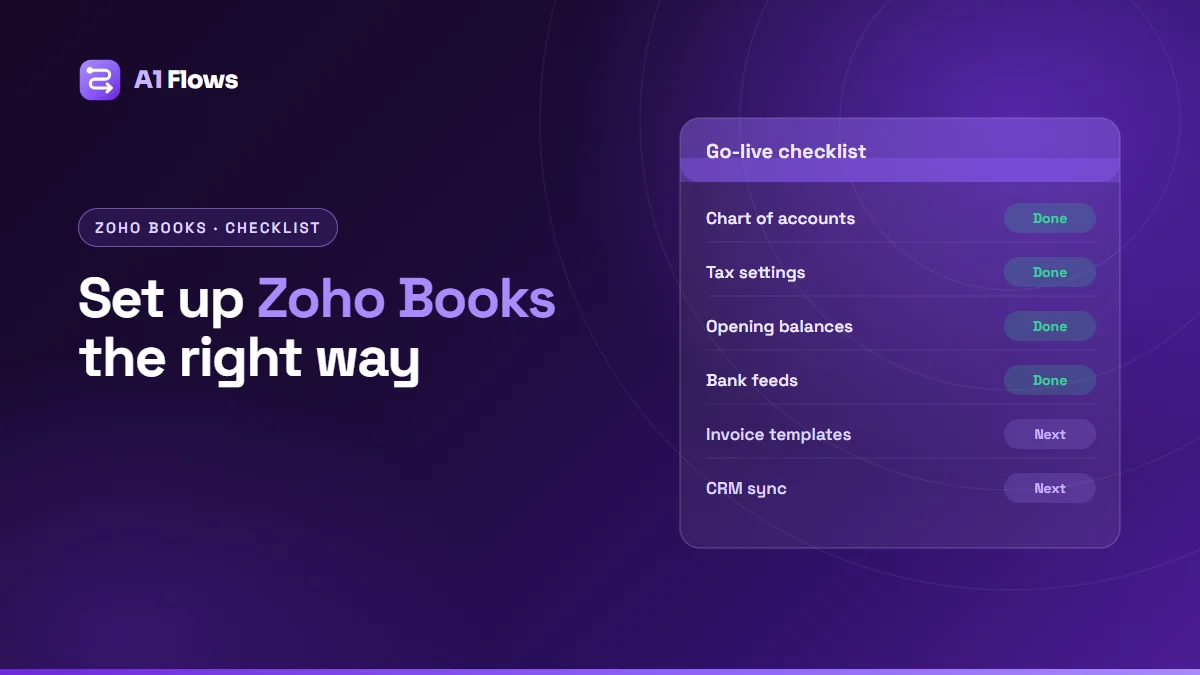
A Zoho Books implementation is mostly decided before the first invoice is sent: your organisation profile, chart of accounts, tax settings, opening balances and bank connections. Get those right and Books runs quietly in the background; get them wrong and every month-end becomes a clean-up. This checklist covers what to set up, in what order, and what to check before you go live.
It is written for business owners, finance leads and admins setting up Books for the first time or moving from another accounting system. It is not accounting advice – involve your accountant in the decisions marked below.
In this guide
- What a Zoho Books implementation covers
- Before you start
- Step 1: Foundations
- Step 2: Accounting setup
- Step 3: Your data
- Step 4: Day-to-day operations
- Step 5: Connections and automation
- Go-live checklist
- Frequently asked questions
What a Zoho Books implementation covers
Zoho Books handles invoicing, bills, expenses, banking, inventory basics, tax and financial reporting. Implementing it means configuring all of that to match your business and your obligations, bringing in your existing customers, suppliers, items and balances, connecting your bank and payment methods, and setting up the routines your team will follow.
Before you start
- ☐ Choose the go-live date – ideally the start of a financial year, quarter or month, so opening balances are clean.
- ☐ Confirm the edition and plan. Books has country-specific editions with different tax features, and plans differ in users, transactions and automation.
- ☐ Get your accountant involved in the chart of accounts, tax setup and opening balances.
- ☐ Gather your last closed figures: trial balance, open invoices and bills, bank balances and inventory values at the go-live date.
Step 1: Foundations
- ☐ Organisation profile: legal name, address, logo, contact details.
- ☐ Fiscal year and the date format your team expects.
- ☐ Base currency – this cannot easily be changed later, so confirm it.
- ☐ Additional currencies, if you trade in them, with how exchange rates will be updated.
- ☐ Branches or locations, if your plan and structure need them.
- ☐ Users and roles: who can create, approve and view what. Give the least access each role needs.
Step 2: Accounting setup (with your accountant)
- ☐ Chart of accounts: start from Books’ default and adjust to match how you report. Fewer, well-named accounts beat many overlapping ones.
- ☐ Tax settings: tax registrations, rates and rules for each jurisdiction you trade in, according to your country edition.
- ☐ Opening balances as at the go-live date, tied back to your last trial balance.
- ☐ Accounts for payment methods – bank, card and payment-gateway clearing accounts.
Step 3: Your data
- ☐ Customers and suppliers imported with consistent names, emails, tax details and payment terms. De-duplicate first.
- ☐ Items and services with prices, accounts and tax treatment.
- ☐ Open invoices and bills at the go-live date, so receivables and payables are correct from day one.
- ☐ Reconcile the imported totals against your old system: receivables, payables, and the balance of each account.
Step 4: Day-to-day operations
- ☐ Invoice, quote and credit-note templates with your branding, terms and required tax wording.
- ☐ Numbering sequences that continue sensibly from your old system.
- ☐ Payment terms as defaults per customer.
- ☐ Payment reminders before and after due dates.
- ☐ Recurring invoices and bills for subscriptions, retainers and regular suppliers.
- ☐ Approval rules for transactions that need sign-off.
Step 5: Connections and automation
- ☐ Bank feeds, where your bank is supported, and bank rules for recurring transactions.
- ☐ Payment gateways on invoices so customers can pay online.
- ☐ Zoho CRM integration, if sales runs in CRM, so customers and invoices are shared rather than retyped. See integrating Zoho CRM and Zoho Books.
- ☐ Workflow rules and custom functions for your own policies – covered in our guide to Zoho Books automation.
- ☐ Document filing, for example invoices saved automatically to WorkDrive.
Go-live checklist
- ☐ Opening balances agreed with your accountant.
- ☐ A test invoice created, sent, paid and reconciled end to end.
- ☐ A test bill entered, approved and paid.
- ☐ Tax calculated correctly on test transactions in each jurisdiction.
- ☐ Users trained on the tasks their role performs.
- ☐ Old system set to read-only and its final reports saved.
Common mistakes
- Going live mid-period without a clear cut-off, so some transactions land in both systems or neither.
- Importing dirty contact data, creating duplicate customers that split their history.
- Automating before the foundations are right, which produces wrong numbers faster.
- Everyone as an admin. Broad access makes errors more likely and harder to trace.
- Skipping the end-to-end test of an invoice through to reconciliation.
Frequently asked questions
How long does a Zoho Books implementation take?
A straightforward setup for a single business can be done quickly; much of the elapsed time is usually spent waiting for final figures from the outgoing system or accountant. Multiple currencies, branches, a data migration and CRM integration extend it.
Can we migrate from QuickBooks, Xero or Tally?
Yes. Customers, suppliers, items, open transactions and opening balances can be brought across. How much history to migrate is worth discussing with your accountant – many businesses migrate open items and balances and keep the old system read-only for history.
Which Zoho Books plan do we need?
It depends on your number of users, transaction volume, and features such as multi-currency, branches and automation, which vary by plan and by country edition. Check Zoho’s current plan comparison for your region.
Do we still need an accountant?
Yes. Books records and automates; accounting judgement, tax filing and sign-off remain your accountant’s job. A good setup makes their work faster.
When is the best time to switch to Zoho Books?
The start of a financial year is cleanest. The start of a quarter or month also works with clear opening balances.
Can Zoho Books share customers with Zoho CRM?
Yes, through the Zoho CRM integration. Decide which system owns customer details before connecting them, so the two do not overwrite each other.
What affects the cost of a Books setup?
How much history migrates, the number of entities, currencies and tax regimes, and how much automation and integration you want. A clean start at a new financial year is the simplest case.
Next steps
Work through the checklist in order – foundations, accounting, data, operations, connections – and do not skip the end-to-end test. Each step is quick on its own; skipping one is what makes month-end hard.
If you would like Books set up, migrated and automated for you, see our Zoho Books setup service.