 Zoho CRM Implementation
 Zoho One Consulting
 Zoho Books Setup
 Zoho Analytics & BI
 Data Migration Services
 Zoho Desk Automation
 Zoho Creator Development
 Zoho Automation Services
 Zoho Widget Development
 Zoho Extension Development
 Deluge Development
 Zoho Integration Services
 Zoho API Integration
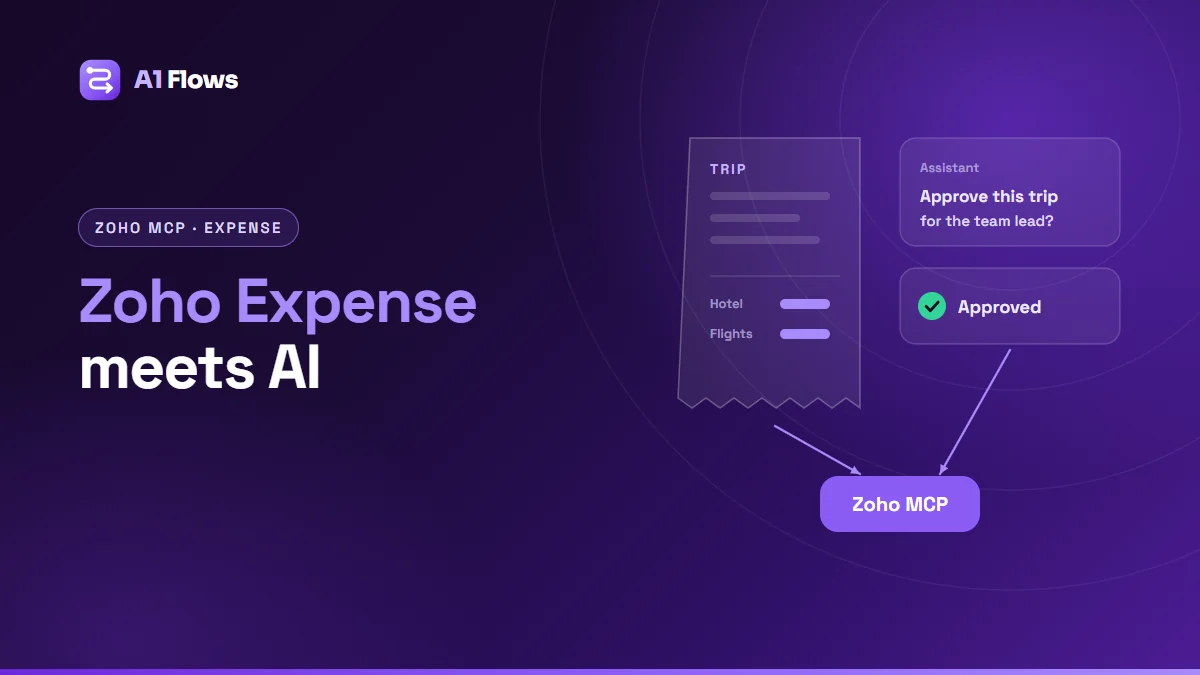
Zoho Expense MCP lets an AI assistant such as Claude or ChatGPT work with your Zoho Expense data – listing trips, creating expenses, approving reports – through tools you choose in Zoho MCP. You create an MCP server, enable only the Expense actions you want, and connect the server to your AI client. Every action runs through the Zoho Expense API, under its permissions and audit logs.
This guide explains what Zoho Expense MCP can do, how to set it up safely, and which uses are worth starting with.
In this guide
- What is Zoho Expense MCP?
- What you can use it for
- Which tools are available
- How to set it up, step by step
- Per-user or shared connection
- Safety and best practices
- Frequently asked questions
What is Zoho Expense MCP?
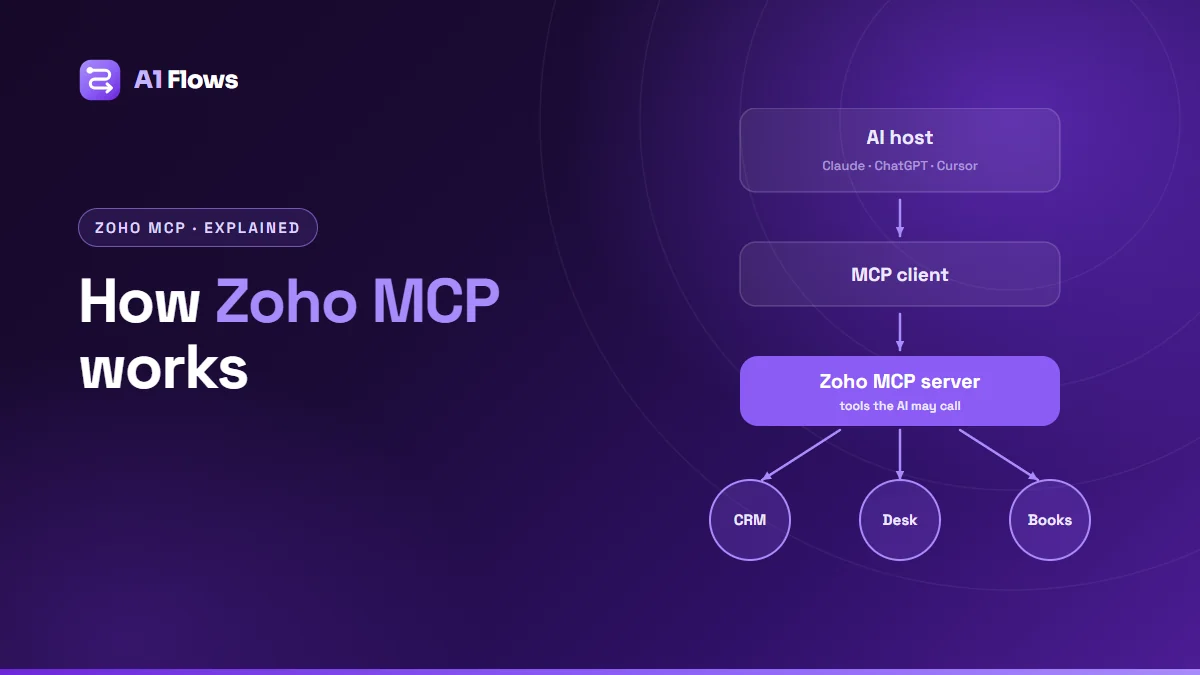
Zoho Expense handles business expenses, travel requests, trips and expense reports, with approval workflows and policies. The Model Context Protocol (MCP) is an open standard that lets AI assistants call defined tools against business systems.
Zoho Expense MCP brings the two together. In Zoho MCP you create a server for Zoho Expense and choose which actions – tools – an AI model may perform. Each tool maps to a specific Zoho Expense API call. Zoho is explicit that the model does not get access to everything by default: you decide.
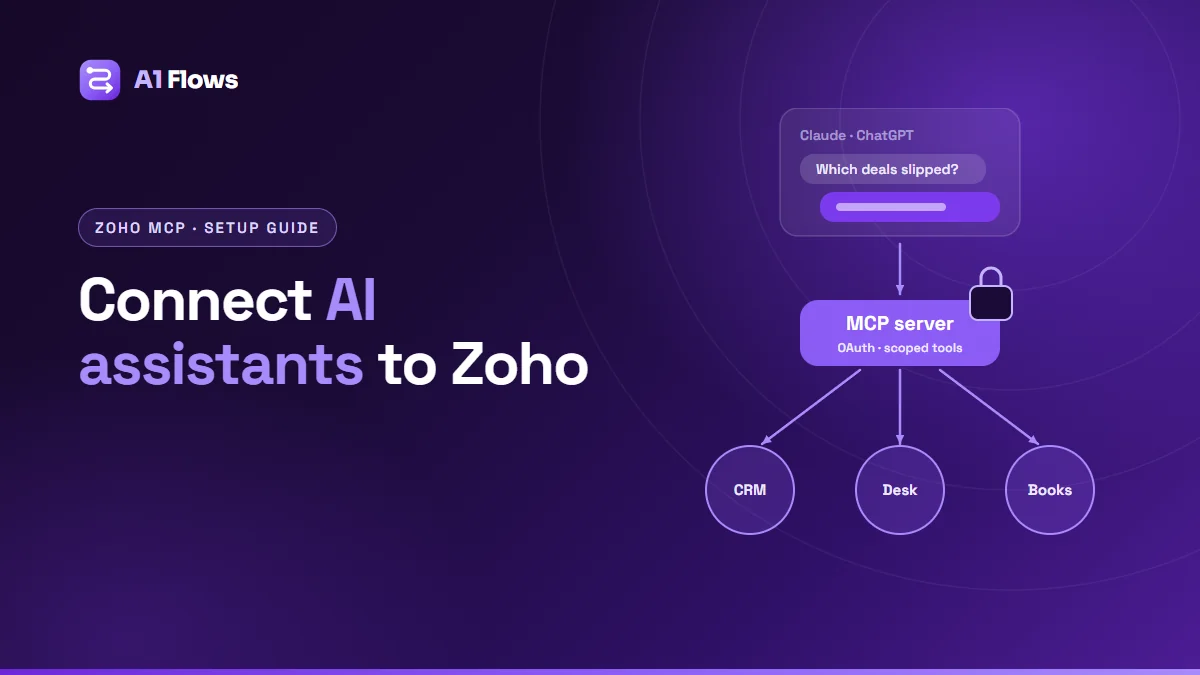
For the general setup that applies across Zoho apps, see our guide to connecting AI assistants to Zoho with MCP.
What you can use it for
- Answering questions about spend. “Which trips are waiting for approval this week?” without opening reports.
- Approvals with context. A manager asks the assistant to summarise a trip and its costs before approving it.
- Creating expenses from a description. Logging an expense by describing it, then reviewing before it is submitted.
- Housekeeping for admins. Listing users, checking categories, merging duplicate expenses.
Which tools are available
Zoho’s Zoho Expense MCP documentation names example tools including:
- Create Expense Categories
- List Users
- Create Expense
- Merge Expenses
- Approve Expense Report
- Get Trip, List Trips and Approve Trip
The full list is under Tools in Zoho MCP. Zoho’s own example scenario enables only Get Trip, List Trips and Approve Trip – a good model for starting narrow.
How to set it up, step by step
These steps follow Zoho’s documentation; labels may change as the product evolves.
1. Create the server
Sign in to Zoho MCP with your Zoho Expense account and create or select an MCP server.
2. Choose the tools
Under Tools, enable only the actions you need. Start with read-only tools – listing and getting trips or reports – before enabling anything that creates, merges or approves.
3. Copy the server URL
Under Connect, copy the server URL. It includes an API key: anyone with the URL can use your server. If it is exposed, use Regenerate API Key, which invalidates the old URL and disconnects all existing clients.
4. Connect your AI client
Claude: Zoho’s guide describes adding it as a custom connector under Settings > Connectors as a Claude Organization Admin on a Team plan or higher, after which it is available to the organisation. Paste the URL, save, click Connect, and approve the Zoho MCP and Zoho OAuth screens.
ChatGPT: Zoho’s guide states a Plus, Pro or Team plan is required. Turn on Developer mode under Settings > Apps > Advanced settings, click Create app, paste the URL as the MCP Server URL, set authentication to OAuth, confirm you trust the application, and approve the two authorisation screens.
Other clients: Zoho lists Cursor, Windsurf, VS Code (with GitHub Copilot in agent mode), Zed, Continue, Cline and n8n as compatible MCP clients.
5. Test in a sandbox
Zoho recommends testing in a sandbox before going live, because AI models can misread a request.
6. Review the logs
Zoho MCP’s Logs record each tool call and can be filtered by date, status, tool, user and execution ID. Check them after the first sessions.
Per-user or shared connection
Zoho’s documentation describes two models. Each user can authorise access the first time they use a tool, so every action runs as that user with their own permissions. Alternatively, an admin can set up one connection that powers all tool calls. You can switch between them.
For approvals, per-user authorisation is usually the safer choice: the approval is recorded against the person who asked for it, exactly as if they had clicked the button in Zoho Expense.
Safety and best practices
- Start read-only. List and get tools first; add create, merge and approve tools once you know how people use the assistant.
- Keep approvals human. Have the assistant summarise and recommend, and let a person confirm the approval.
- Re-authorise after changing tools. Zoho notes that after adding a tool, Claude users must disconnect and reconnect, and ChatGPT users must refresh the app, then grant permissions again.
- Remember API limits. Every action is a Zoho Expense API call, subject to the same limits and audit logs as any other.
- Protect the URL. Treat it like a password and regenerate it if it leaks.
Who it is for
Finance teams and managers who approve travel and expenses regularly will feel the benefit first, along with admins who maintain categories and users. Teams that want custom tools – combining Expense data with Zoho Books or Projects, for example, or enforcing their own approval rules – will need some development on top of the standard tools.
Frequently asked questions
Is Zoho Expense MCP the same as the Zoho Books MCP?
No. They are separate servers for separate apps with different tools. Zoho Books covers invoices, contacts and other accounting records.
Can the assistant approve expense reports on its own?
Only if you enable the approval tool, and only with the permissions of the user it acts as. Many teams prefer the assistant to prepare a summary and leave the approval to a person.
Which AI assistants work with Zoho Expense MCP?
Any MCP-compatible client. Zoho’s documentation includes setup steps for Claude and ChatGPT and lists Cursor, VS Code, Windsurf and others as compatible.
What permissions are needed?
Zoho states you need account-level access to your Zoho Expense organisation. Actions are then limited by the permissions of the user the connection runs as.
Can I see what the assistant did?
Yes. Zoho MCP logs every tool call, and the actions also appear in Zoho Expense’s own audit trail because they run through its API.
Do I need a developer to set this up?
Not for the standard tools – setup is configuration. Custom tools over your own rules or other apps need development.
Getting started
Enable a couple of read-only trip tools, connect one assistant, and try it on real but low-stakes questions for a week. The logs will tell you which actions are worth adding next.
For custom tools, approval steps or connecting Expense data to other Zoho apps, see our Zoho MCP integration service.