 Zoho CRM Implementation
 Zoho One Consulting
 Zoho Books Setup
 Zoho Analytics & BI
 Data Migration Services
 Zoho Desk Automation
 Zoho Creator Development
 Zoho Automation Services
 Zoho Widget Development
 Zoho Extension Development
 Deluge Development
 Zoho Integration Services
 Zoho API Integration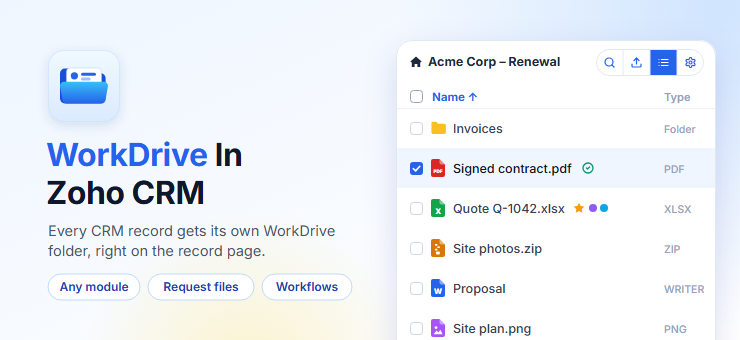
WorkDrive in Zoho CRM gives every Zoho CRM record its own Zoho WorkDrive folder, with a files panel on the record page to upload, preview, share and request files.
The folder is created automatically when the record is created, so your team can keep each lead’s, deal’s or account’s documents in one place without leaving CRM.
This guide covers everything in the current version of the extension: installing it, setting up the root folder, choosing which modules get folders, naming folders with CRM fields and smart tags, building a subfolder structure, back-filling older records, and using every action in the files panel.
What you can do with WorkDrive in Zoho CRM
- Give every record in Leads, Contacts, Accounts, Deals, Sales Orders, Invoices, Quotes, Purchase Orders, Campaigns, Tasks and your own custom modules a dedicated WorkDrive folder.
- Name each folder from CRM fields, fixed text and smart tags, and create the same subfolders inside every new record folder.
- Upload, preview, download, rename, move, copy and delete files from the record page, one at a time or in bulk.
- Share files and folders with team members or with anyone through a link, and change or revoke links later.
- Request files from a customer with a public upload link that drops their files straight into the record’s folder.
- Keep version history, read comments and file statistics, and get a Zia summary of a document.
- Add WorkDrive labels, fill data templates from the record’s values and run WorkDrive workflows on a file.
- Create Zoho Writer, Sheet and Show documents, convert Office files, extract ZIP files and download a whole folder as a ZIP.
- Copy the record’s CRM attachments into its WorkDrive folder with one click.
Before you start
- A Zoho CRM account in the US data center (zoho.com) and a Zoho WorkDrive account in the same organization.
- Administrator access in Zoho CRM, to install the extension and open its Settings.
- Permission in WorkDrive to create or use the team folder that will hold the record folders.
How to install WorkDrive in Zoho CRM
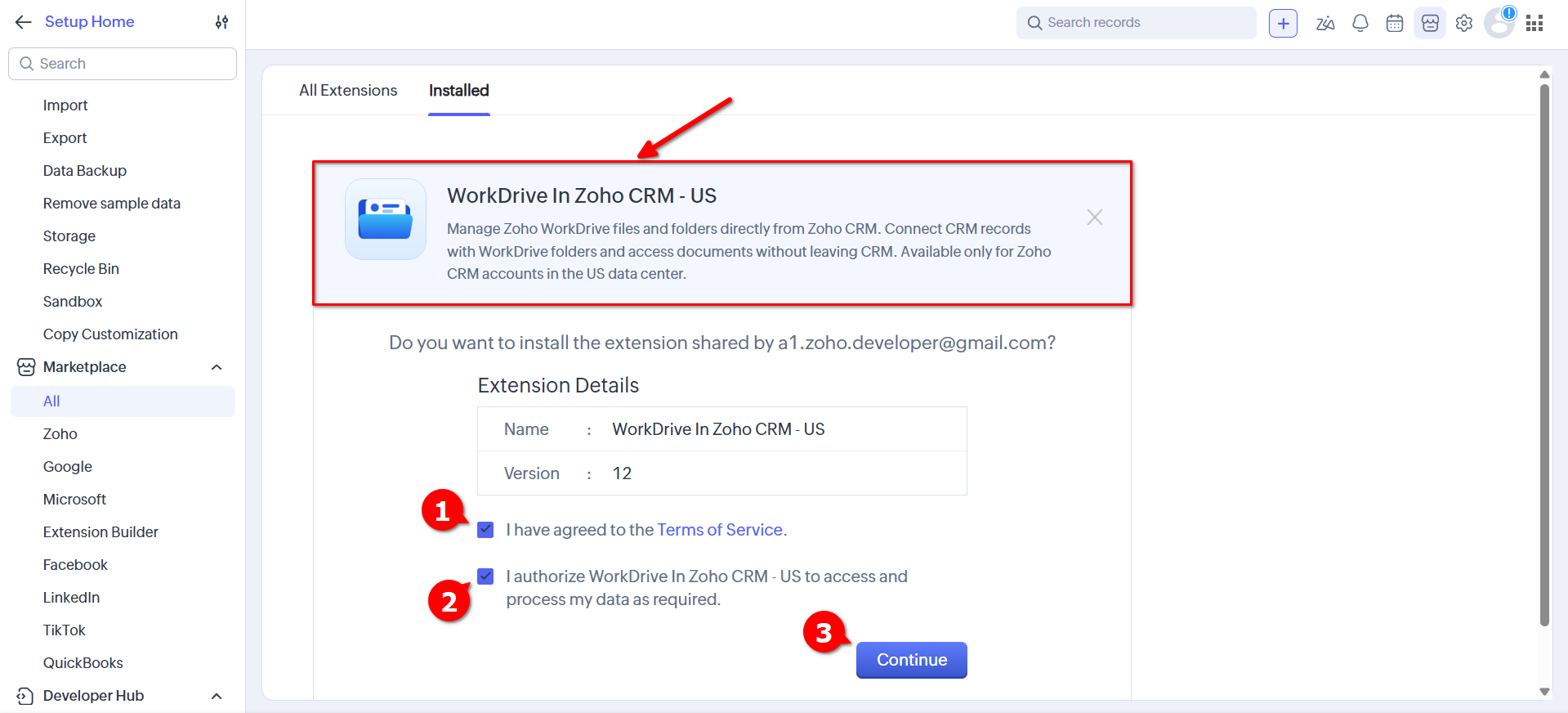
Go to the Zoho Marketplace and search for WorkDrive in Zoho CRM, or open the installation page directly. Review and accept the Agreements, then click Continue.
Choose users or profiles
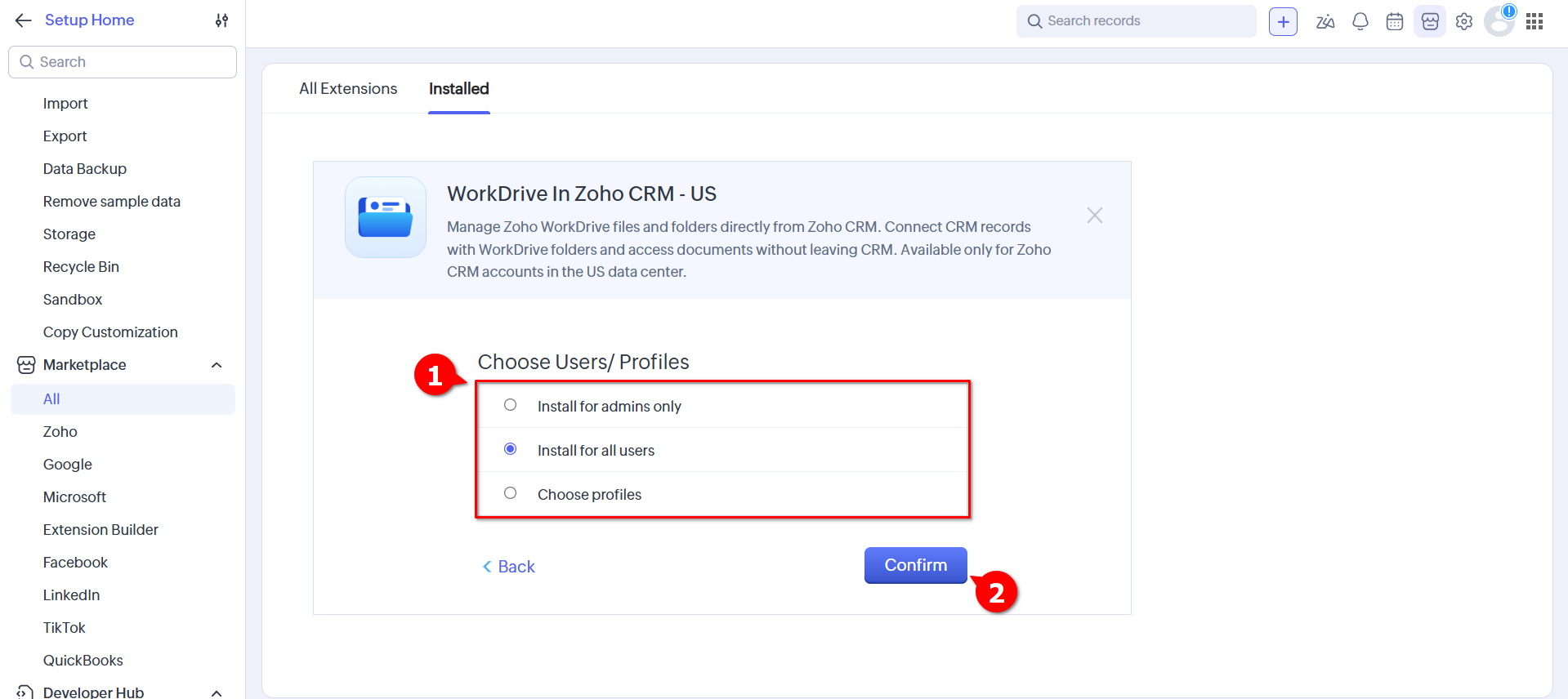
Select who the extension is installed for:
- Install for admins only – only administrators get the extension.
- Install for all users – everyone in your Zoho CRM organization gets it.
- Choose profiles – only the profiles you pick get it.
Click Confirm to start the installation.
Authorize your Zoho account
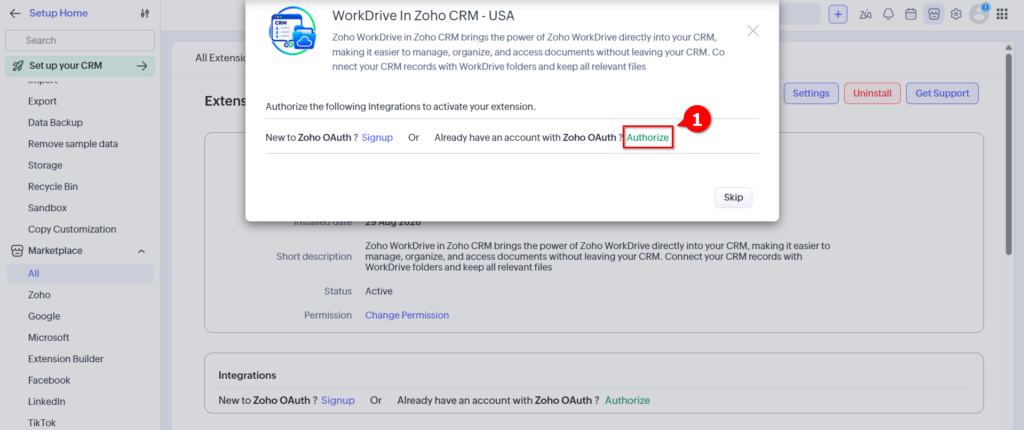
When the installation finishes, the extension asks you to authorize the Zoho account it connects with.
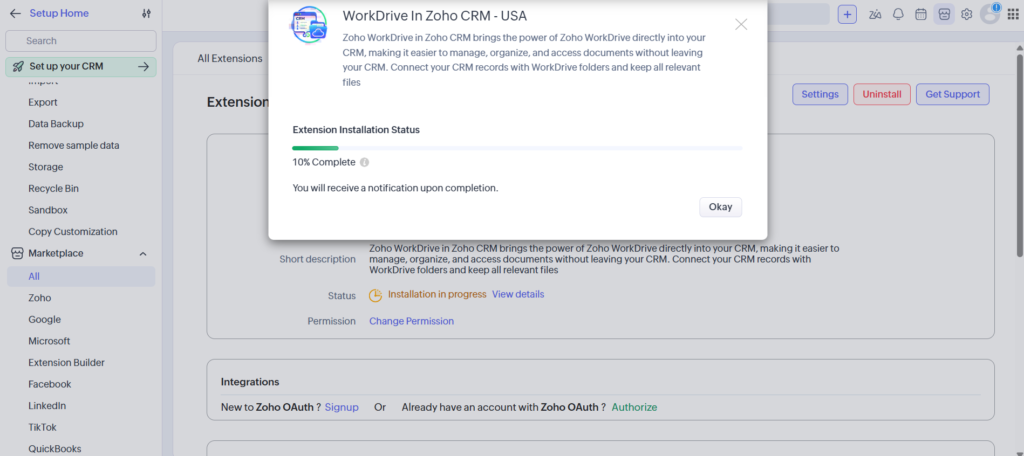
Click Authorize.
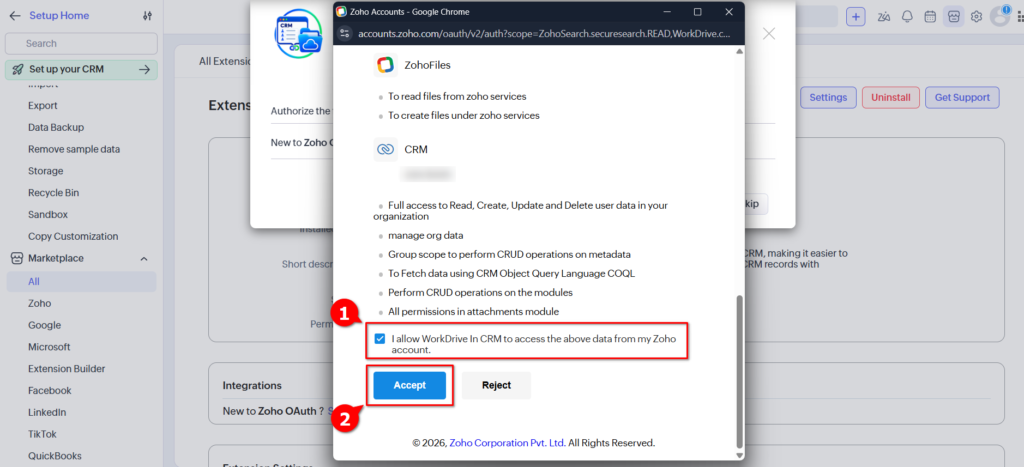
Review the scopes and permissions in the new window, tick “I allow WorkDrive in CRM to access the above data from my Zoho account”, and click Accept.
Click Finish. You are taken to the extension’s Settings page.
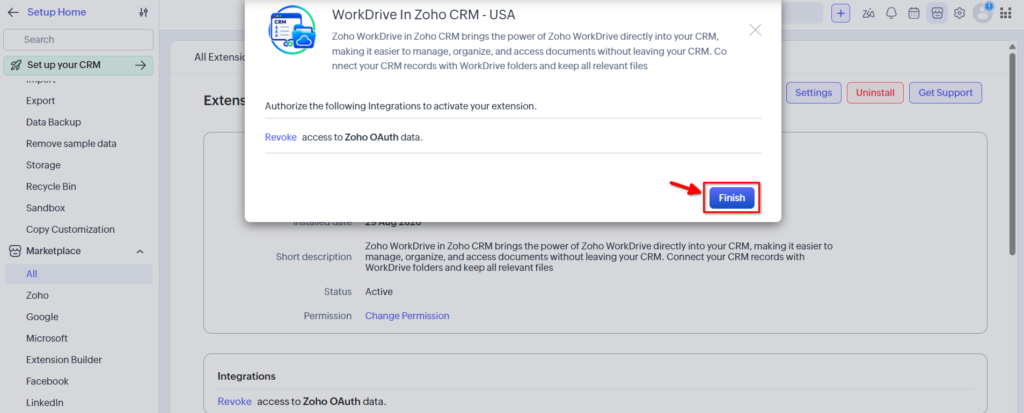
Everything WorkDrive in Zoho CRM does in WorkDrive runs as the account you authorize here. Use an account that can reach the team folder you plan to use, ideally a WorkDrive team admin.
Set up WorkDrive in Zoho CRM in Settings
Settings walks you through the setup in steps, in the order you need them: the root folder, the modules, the module configuration, the WorkDrive Files related list when it needs your attention, and the back-fill for older records. Open it any time from Setup > Marketplace > All > Installed > WorkDrive In Zoho CRM > Settings.
Step 1: Choose the root folder
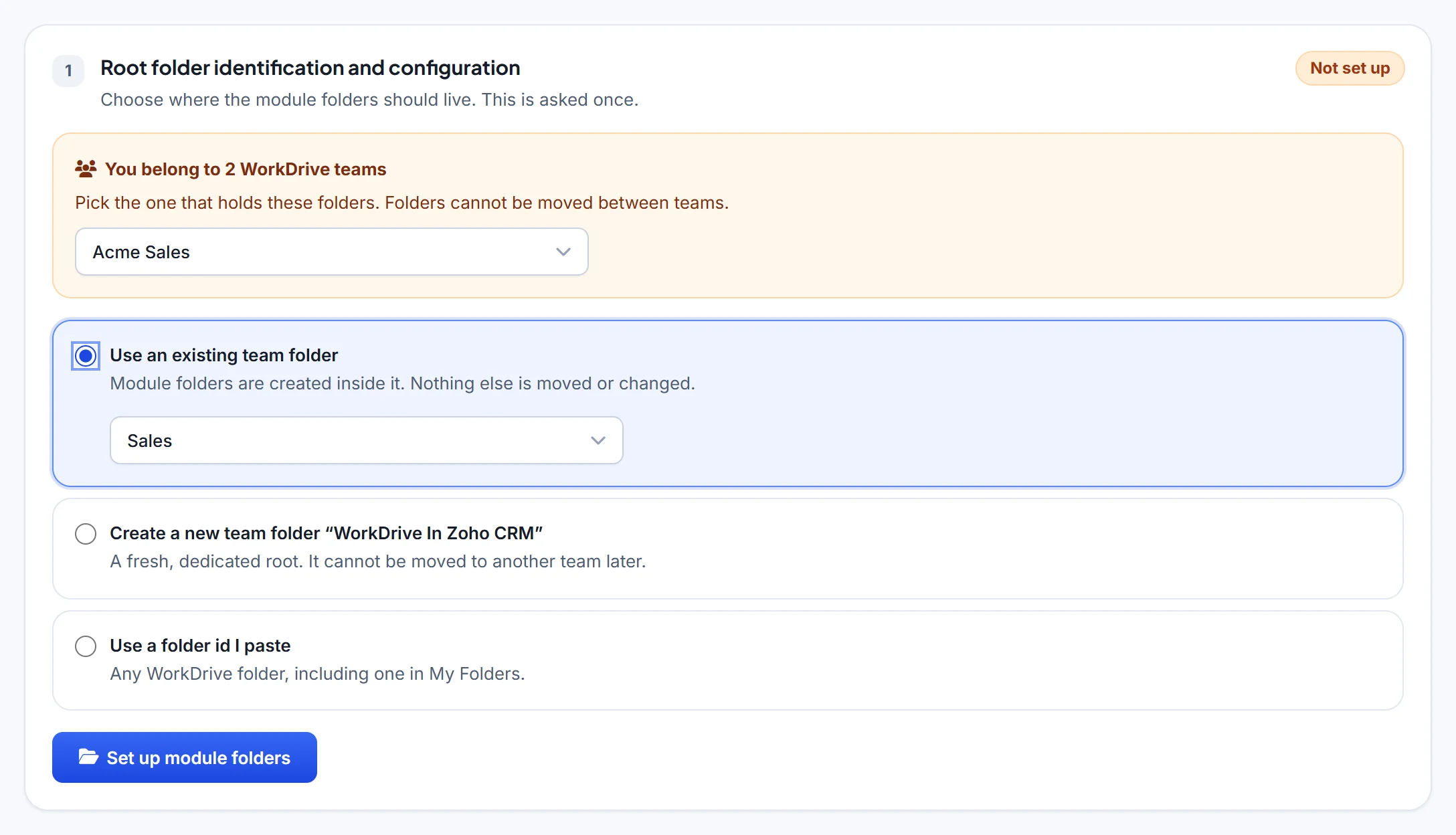
The root folder is where WorkDrive in Zoho CRM keeps one folder per module, and inside those, one folder per record. You set it once. Pick one of three options:
- Use an existing team folder – the module folders are created inside a team folder you already have. Nothing else in it is moved or changed.
- Create a new team folder “WorkDrive In Zoho CRM” – a fresh, dedicated team folder with one sub-folder per module. A team folder cannot be moved to another team later.
- Use a folder id I paste – any WorkDrive folder, including one in My Folders.
If you belong to more than one WorkDrive team, first choose the team that should hold the folders.
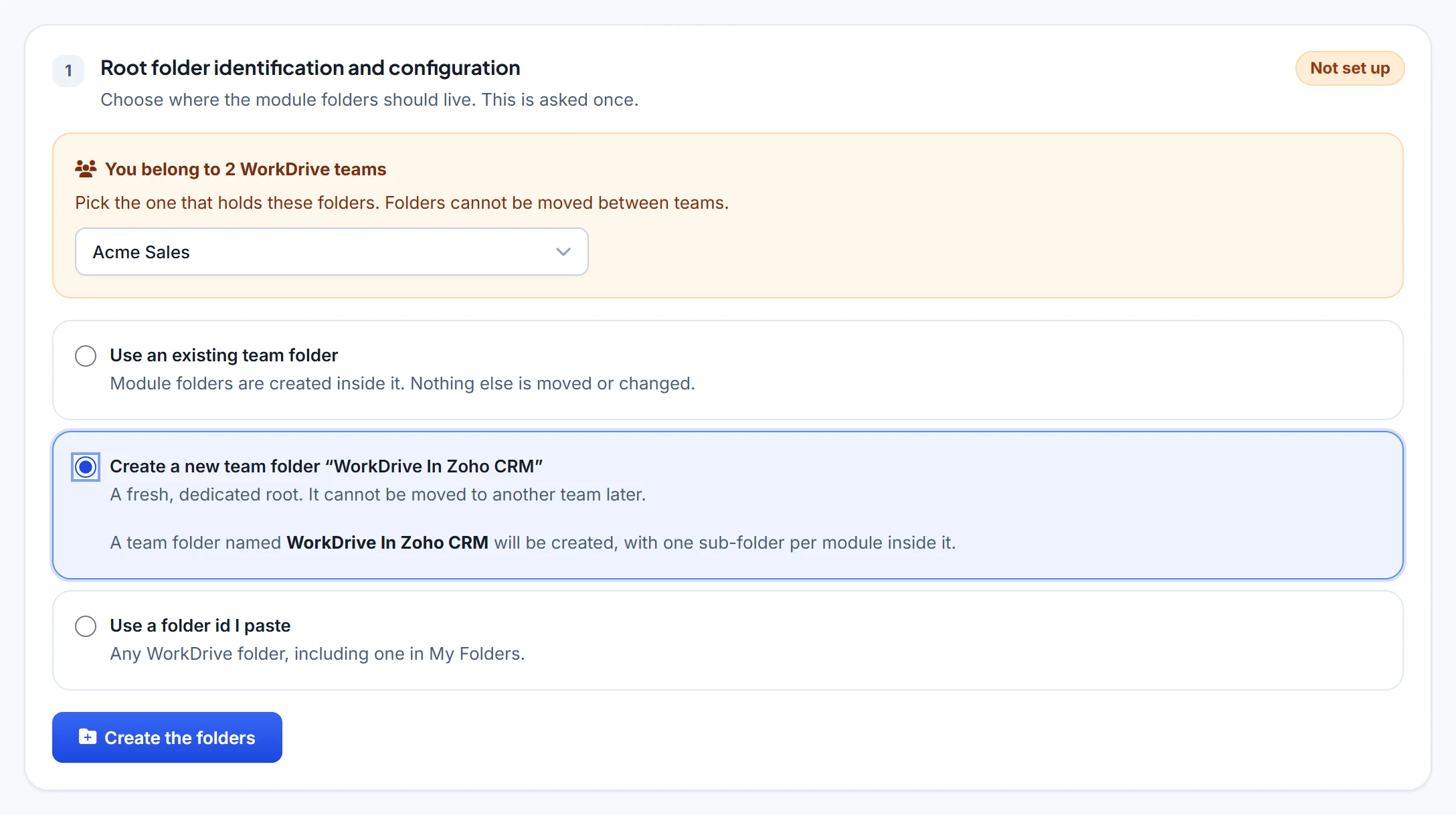
For an existing team folder, pick it from the list under the option, then click Set up module folders.
To use any other folder, paste its ID. The ID is the last part of the folder’s address when you open it in WorkDrive.
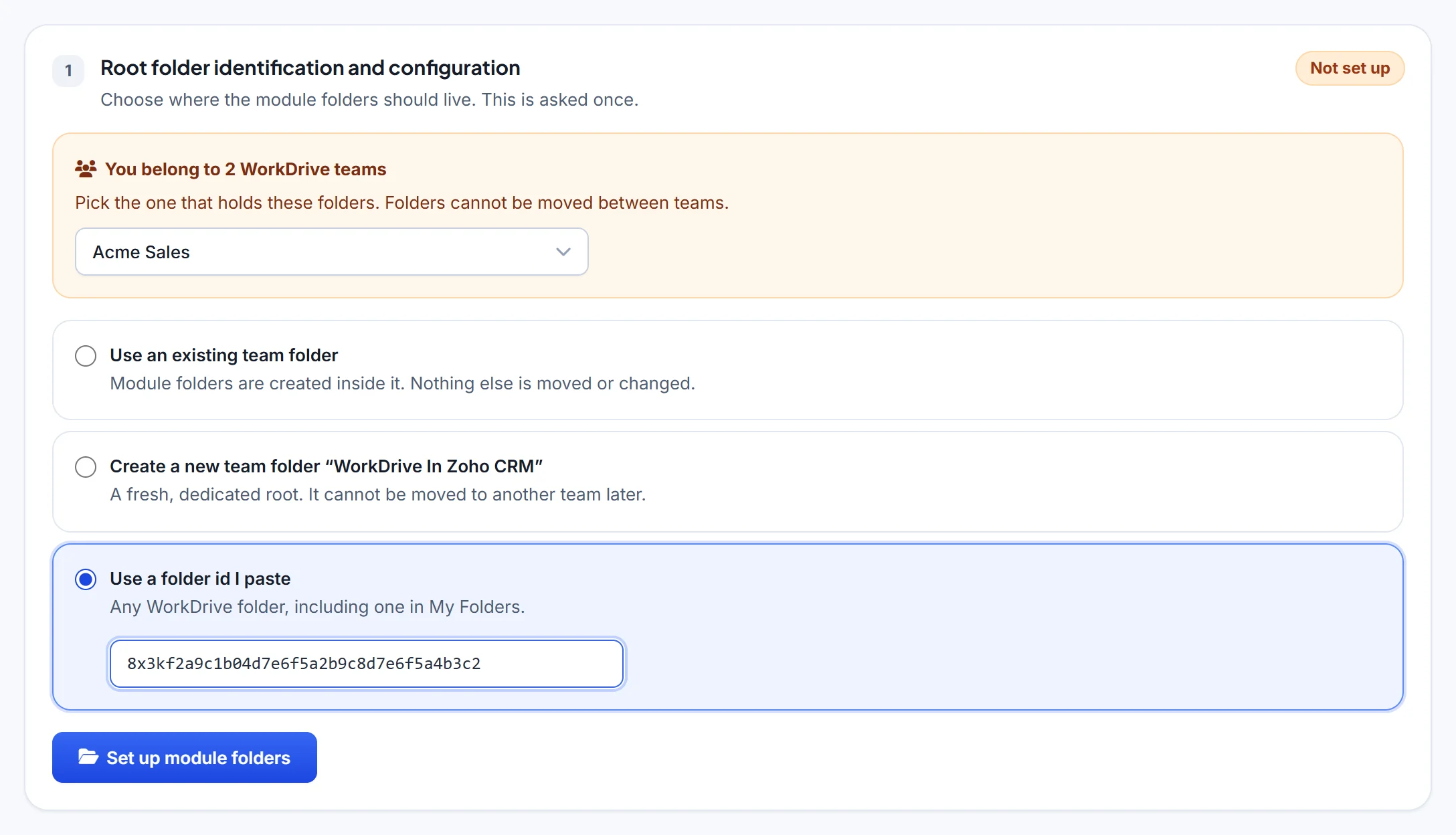
Click Create the folders (or Set up module folders). The step turns Ready and shows the ID of the folder now holding your module folders.
Step 2: Turn on modules
Nothing is switched on by default. Turn on each module whose records should get a WorkDrive folder. The counter shows how many are on. Until a module is on, no folders are created for it and no files panel is shown on its records.
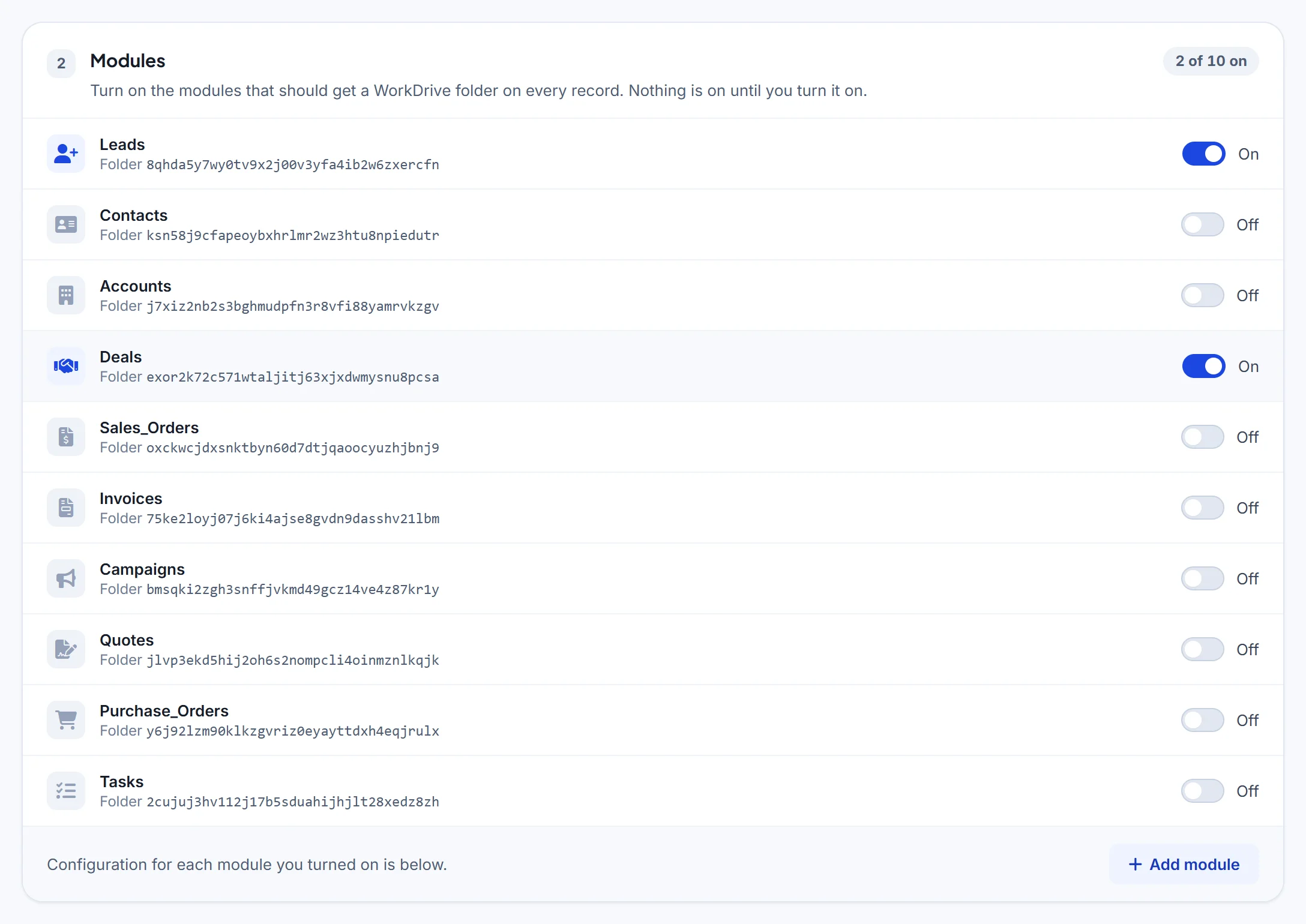
To give a custom module its own folders, click Add module, choose the module and the field that will store the folder ID, and follow the step-by-step guide for custom modules.
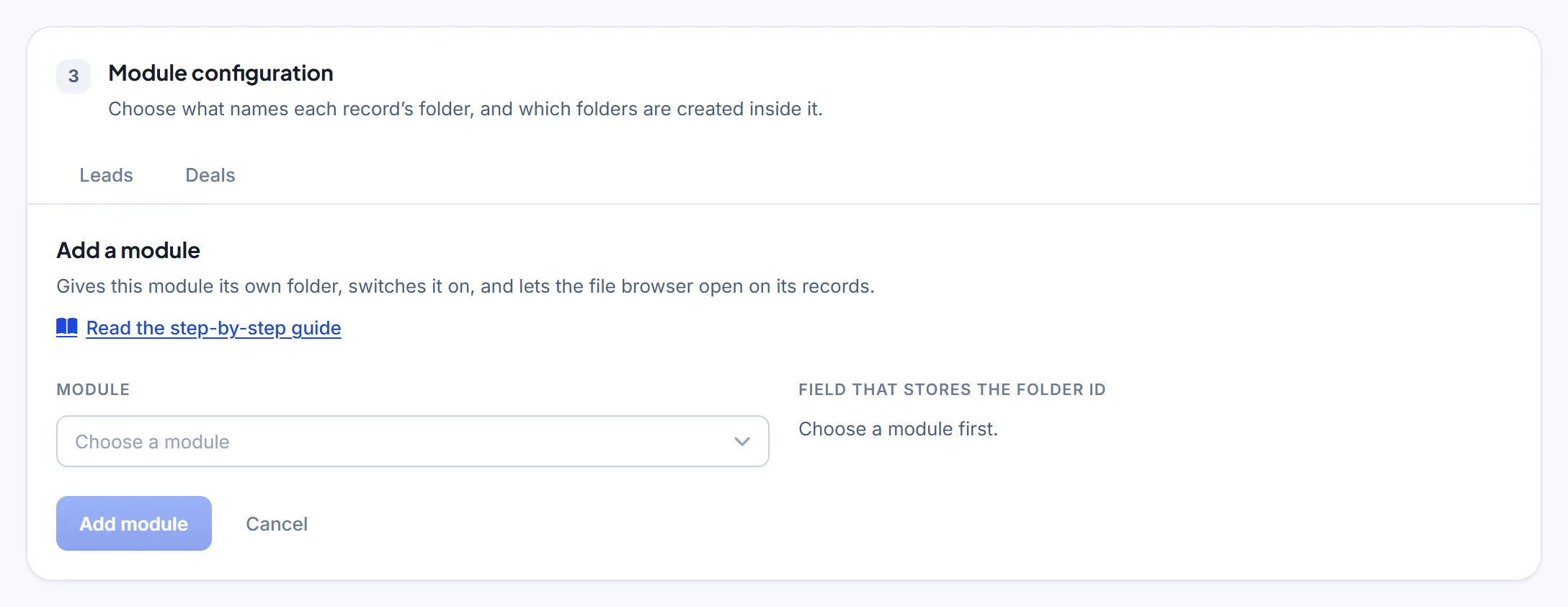
Step 3: Module configuration
Each module you turned on gets a tab. A dot on a tab means it has unsaved changes.
Folder name
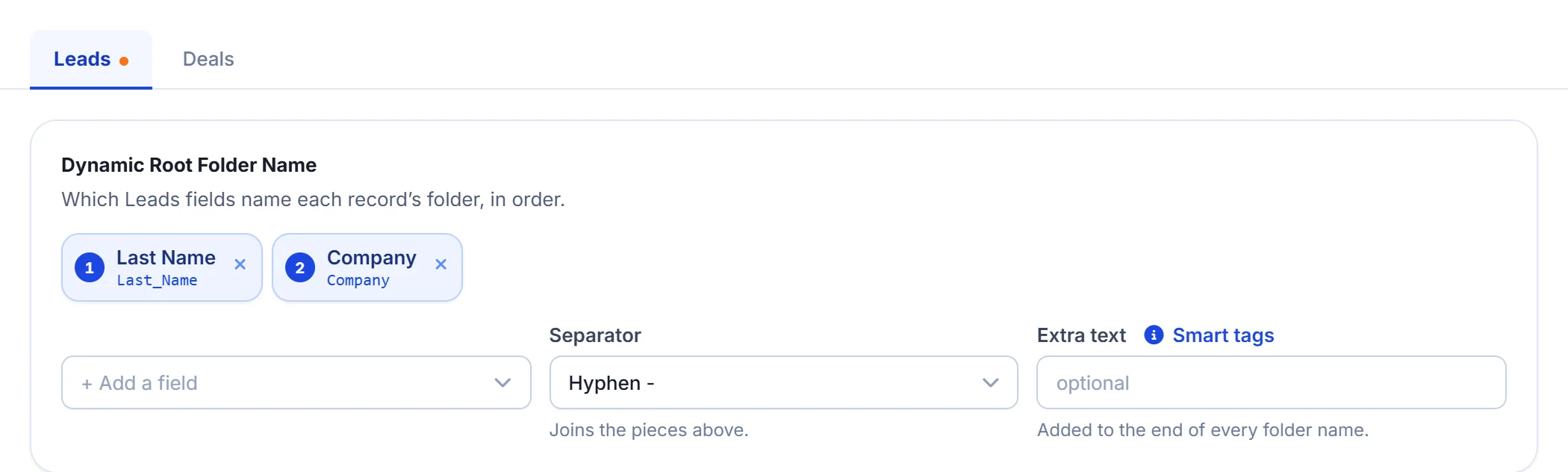
Under Dynamic Root Folder Name, choose the CRM fields that name each record’s folder, in order. For Leads, the default is Last Name.
- + Add a field adds another field to the name, such as Company. Click the x on a field to remove it.
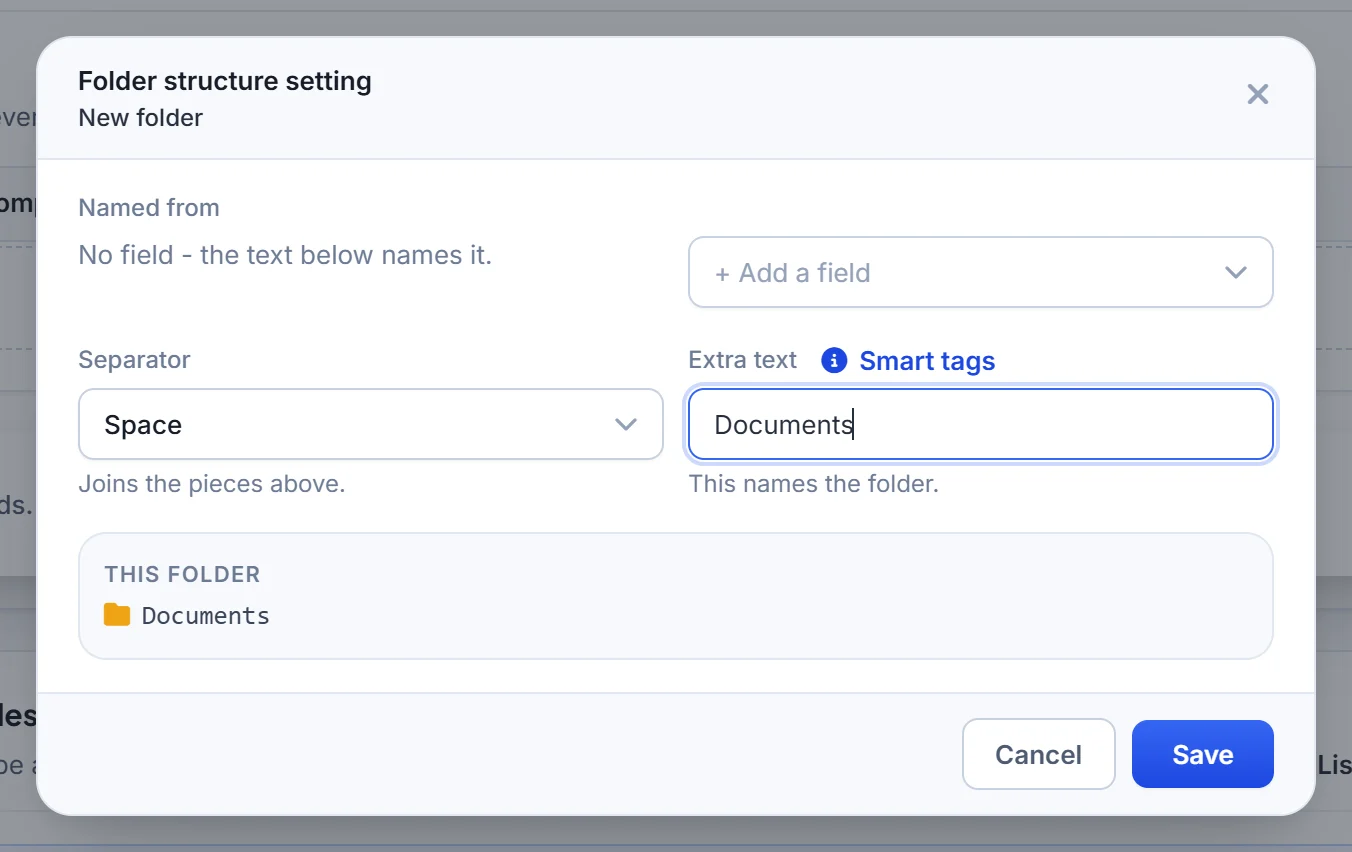
- Separator joins the pieces: space, hyphen, underscore, dot, comma or dash.
- Extra text is added to the end of every folder name. It can hold smart tags.
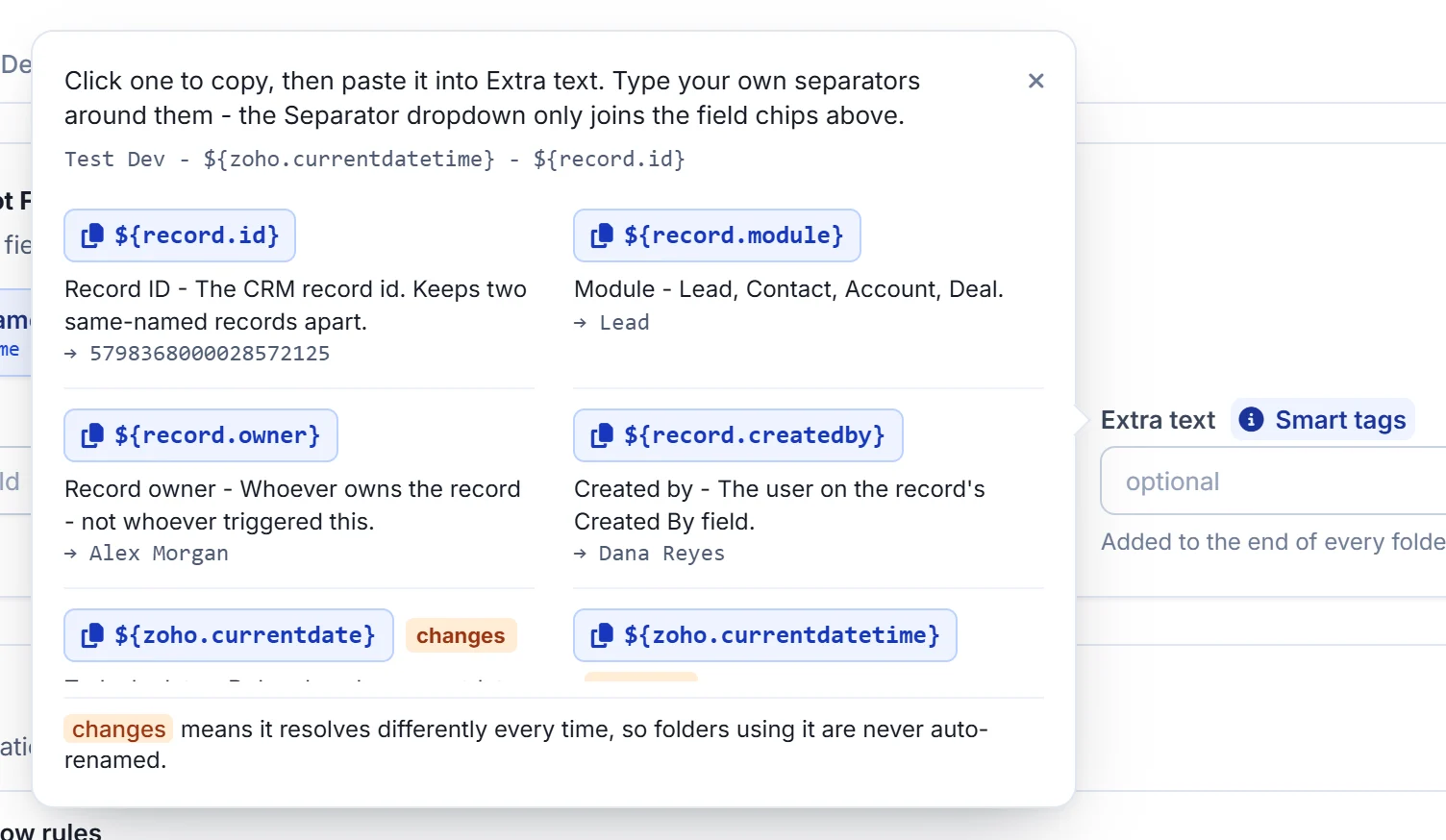
Smart tags
Click Smart tags to see the tags you can use in Extra text. Click a tag to copy it, then paste it into the box.
${record.id}– the CRM record ID. Keeps two records with the same name apart.${record.module}– the module, such as Lead, Contact, Account or Deal.${record.owner}– the record owner.${record.createdby}– the user in the record’s Created By field.${zoho.currentdate}– today’s date.${zoho.currentdatetime}and${zoho.currenttime}– the date and time.${date.year},${date.month},${date.day}– the year (four digits), month and day (two digits).${zoho.loginuser}and${zoho.loginuserid}– the user and email the automation runs as.${zoho.adminuser}and${zoho.adminuserid}– the extension owner’s name and email.
A tag marked changes, such as a date, resolves to a new value each time. Its value is fixed when the folder is created, and folders using it are never renamed automatically afterwards.
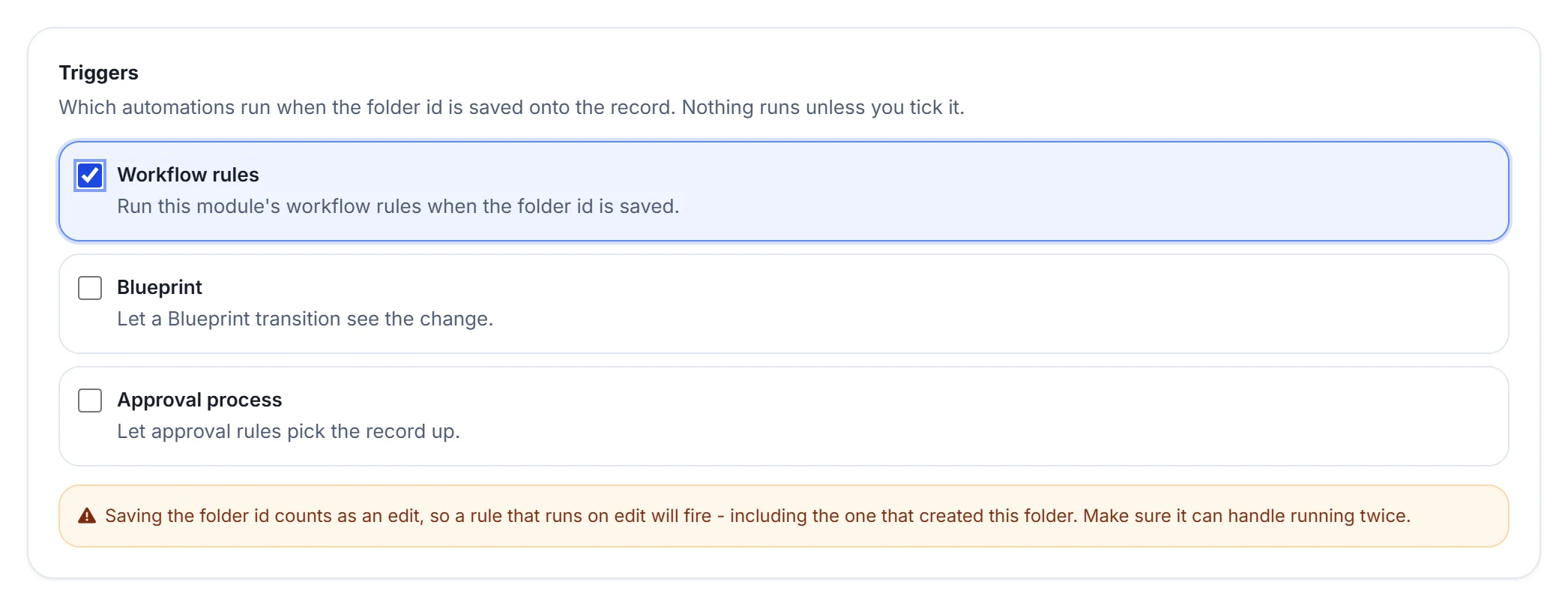
Triggers
Saving the folder ID onto a record counts as an edit. Choose which automations that edit is allowed to run:
- Workflow rules – run the module’s workflow rules.
- Blueprint – let a Blueprint transition see the change.
- Approval process – let approval rules pick the record up.
Leaving all three unticked is the usual choice: folders are still created normally, and no automation runs. If you tick Workflow rules, make sure a rule that runs on edit can handle running twice.
Example folder and folder ID field
Example folder previews the shape of the name, with field names standing in for each record’s values. Beside it is the ID of the module’s own folder in WorkDrive.

Folder structure
Under Folder structure, list the subfolders that should be created inside every new record folder, such as Documents, Contracts and Photos. Click Add folder to add one. Hover a folder to add a folder inside it, rename it, move it up, down, in or out, or delete it.
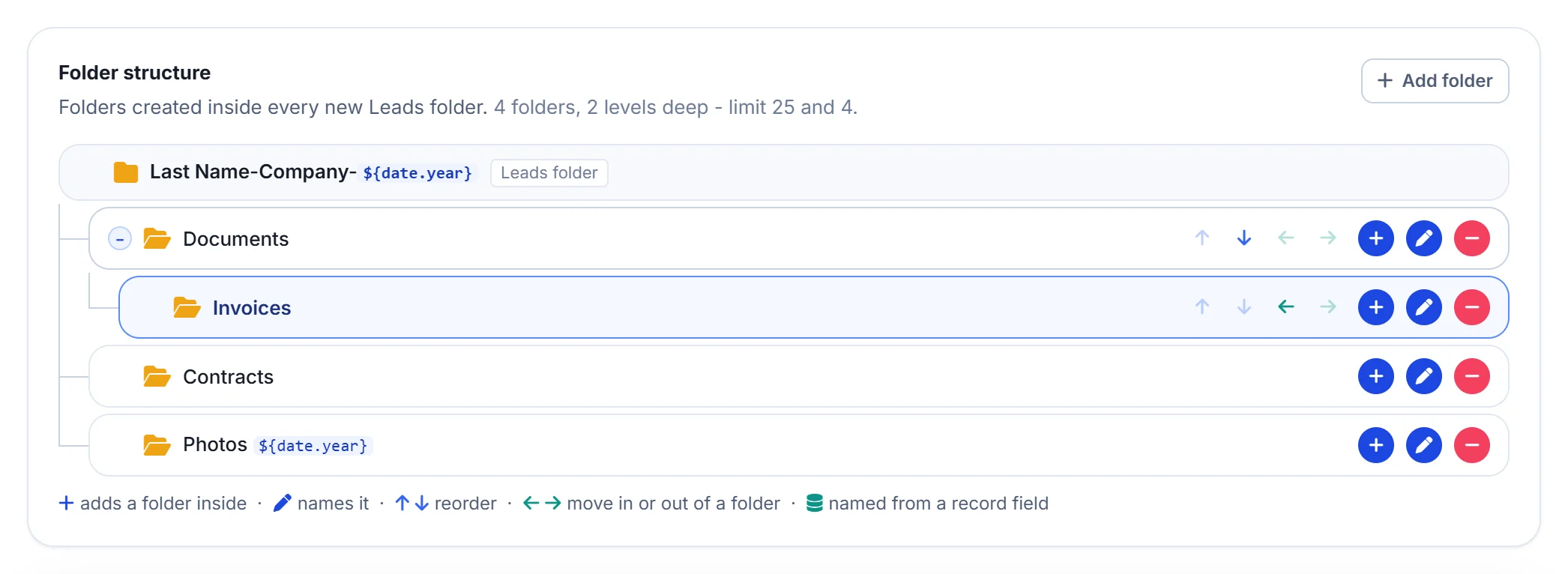
Each subfolder can be named from fixed text, CRM fields, a separator and smart tags, the same way as the record folder.
When you are done, click Update setting in the bar at the bottom of the page to save the module’s configuration.
Step 4: The WorkDrive Files related list
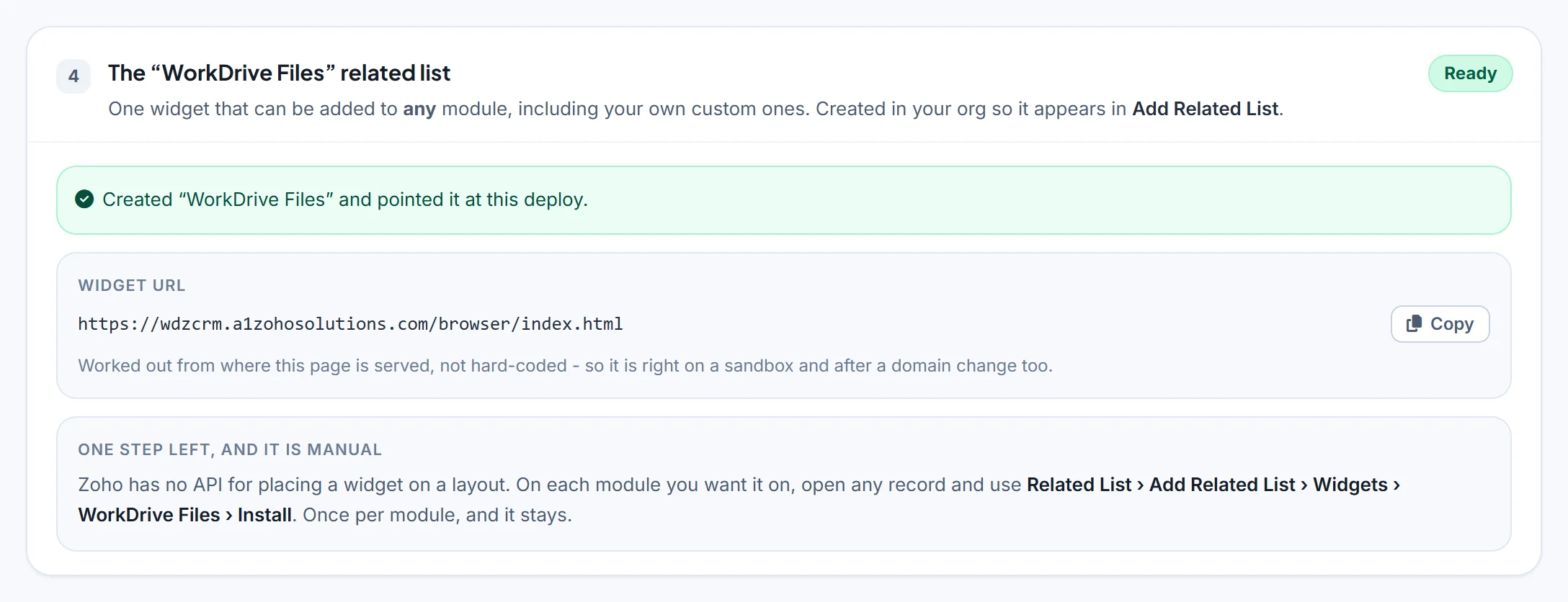
WorkDrive in Zoho CRM creates a WorkDrive Files related list widget in your org, so the files panel can be added to any module, including custom ones. This step appears only when the widget is missing, points at the wrong address, or has just been created. Once it is in place, Back-fill becomes step 4.
Placing the widget on a module is a manual step in Zoho CRM: open any record of the module, go to Related List > Add Related List > Widgets > WorkDrive Files > Install. Do it once per module.
Step 5: Back-fill older records
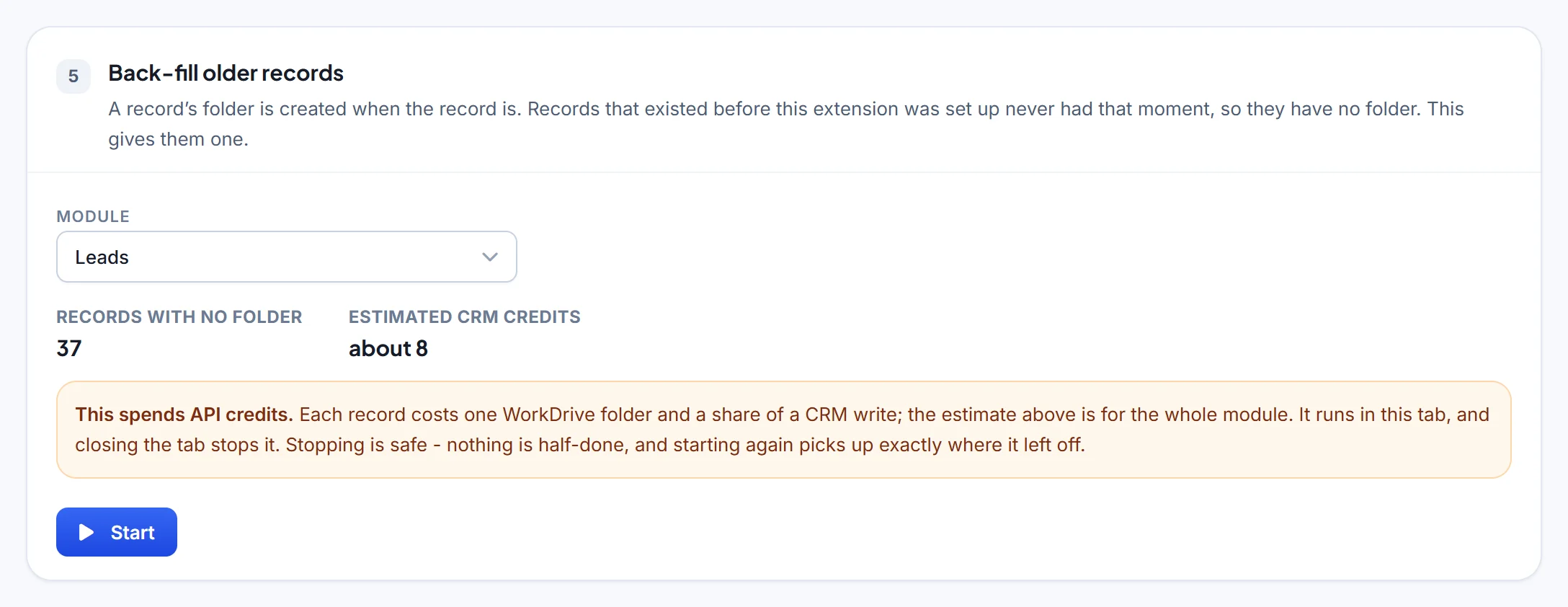
A record’s folder is created when the record is created, so records that existed before you set up the extension have no folder. Back-fill gives them one.
- Choose a module. Settings shows how many records have no folder and estimates the CRM API credits the run will spend.
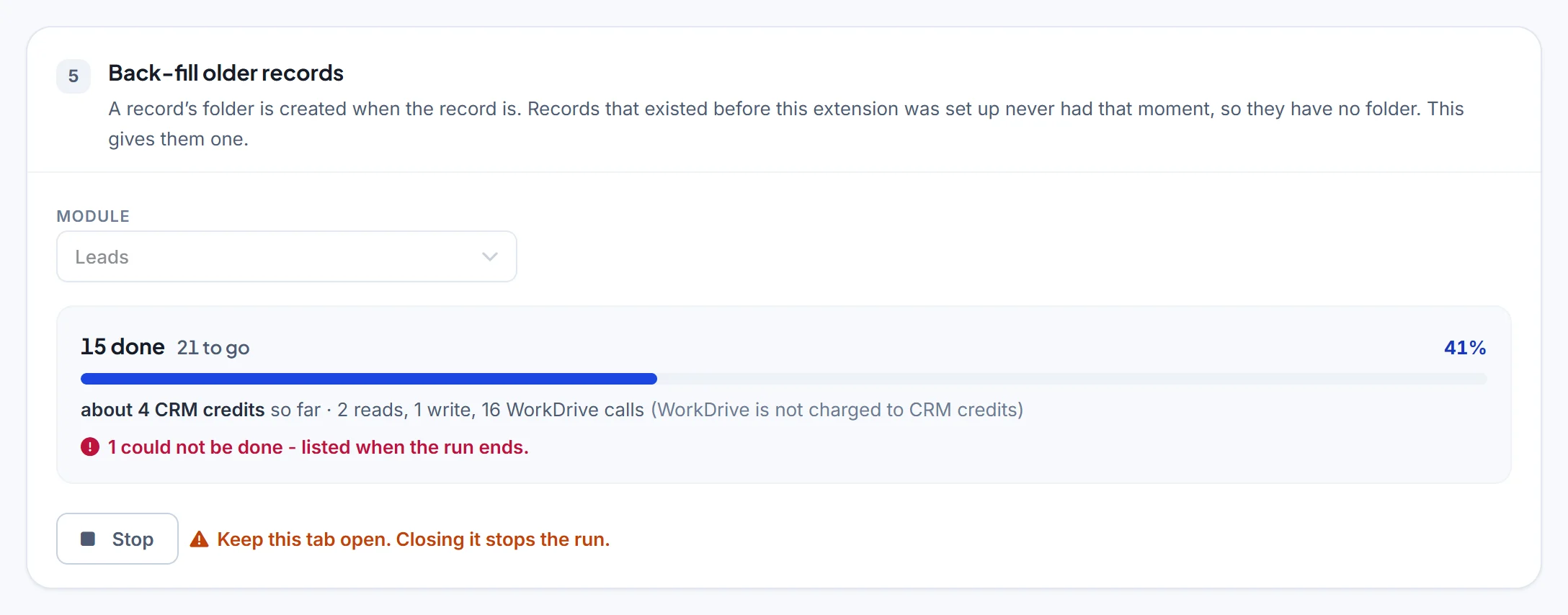
- Click Start. The panel shows how many are done and left, what the run has spent so far, and a Stop button.
- Keep the tab open while it runs. Stopping is safe: nothing is left half-done, and starting again carries on from where it stopped.
Records that could not be done are listed at the end with the reason for each, so you can fix the cause and run it again. No record is ever given two folders.
The Settings footer shows the installed version and links to this guide, the video guide, the changelog and support. The sun icon at the top switches between the Light, Dark and System themes.
Create a record and find its WorkDrive folder
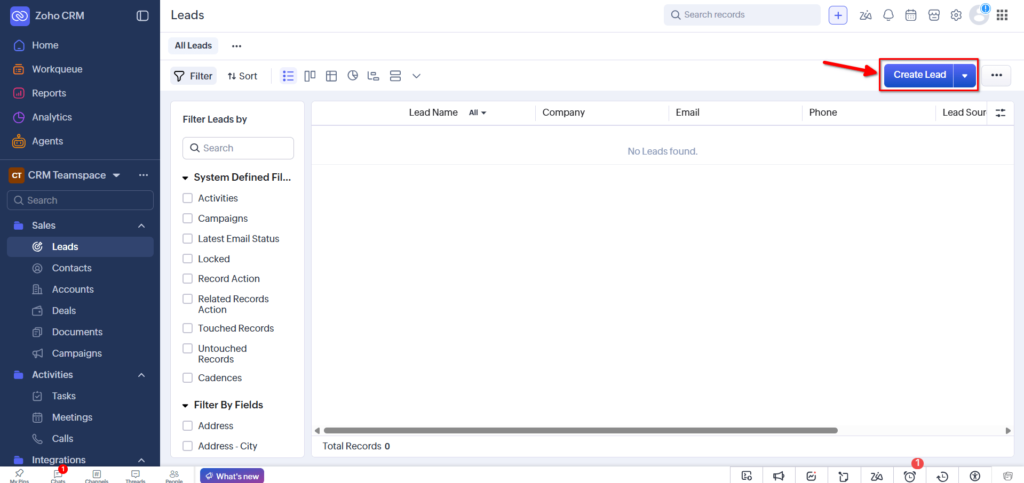
Open any module you turned on, such as Leads, and create a record.
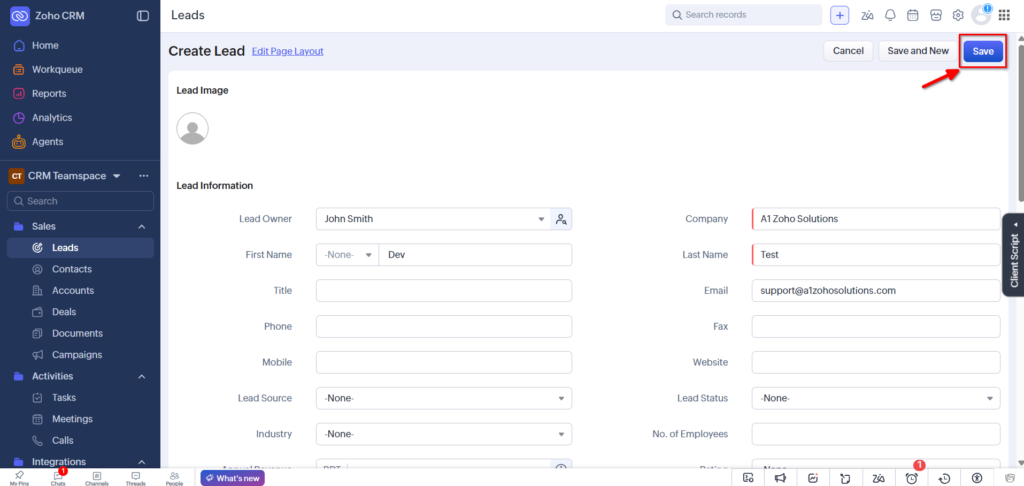
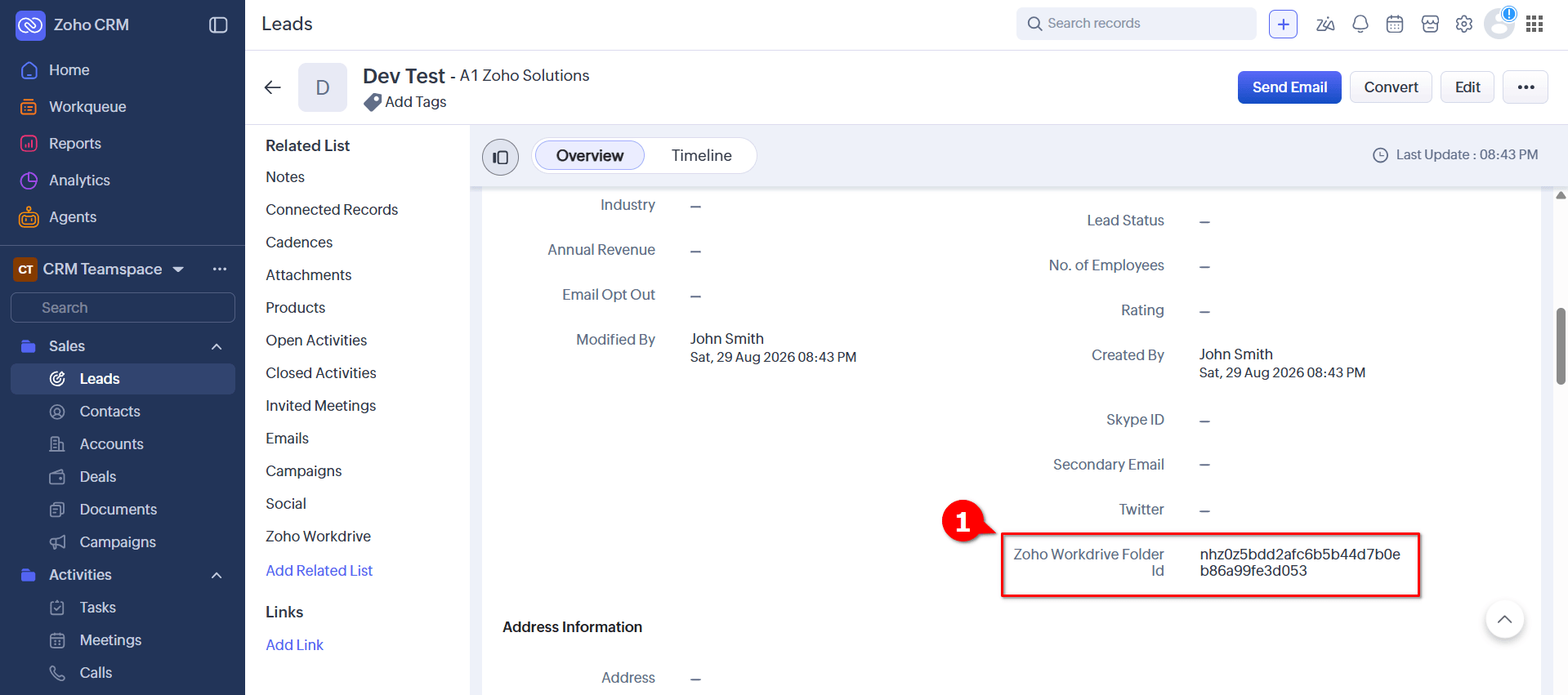
Reload the record. The Zoho WorkDrive Folder Id field now holds the ID of the record’s folder.
Important: do not edit or clear this field. It is how the record stays connected to its WorkDrive folder.
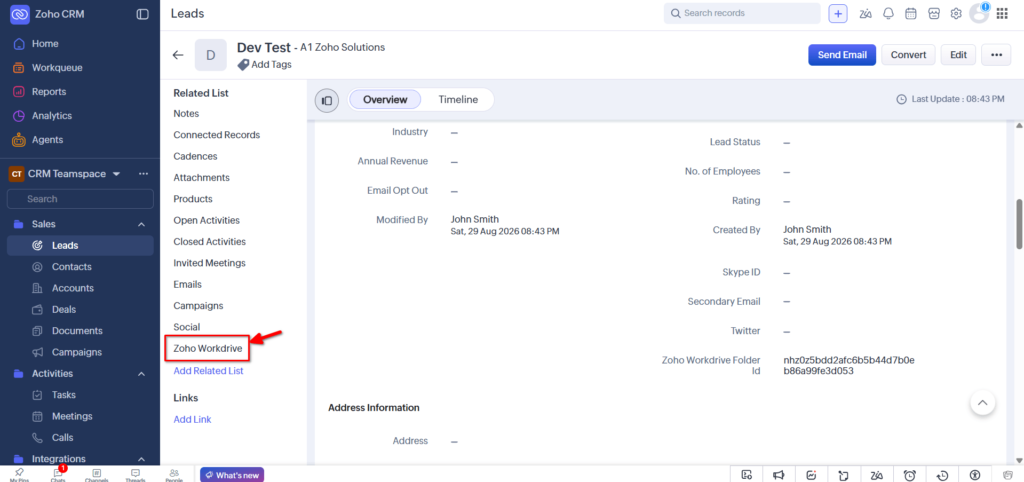
In the record’s Related List, click the WorkDrive related list to open the files panel.
Use the files panel on a Zoho CRM record
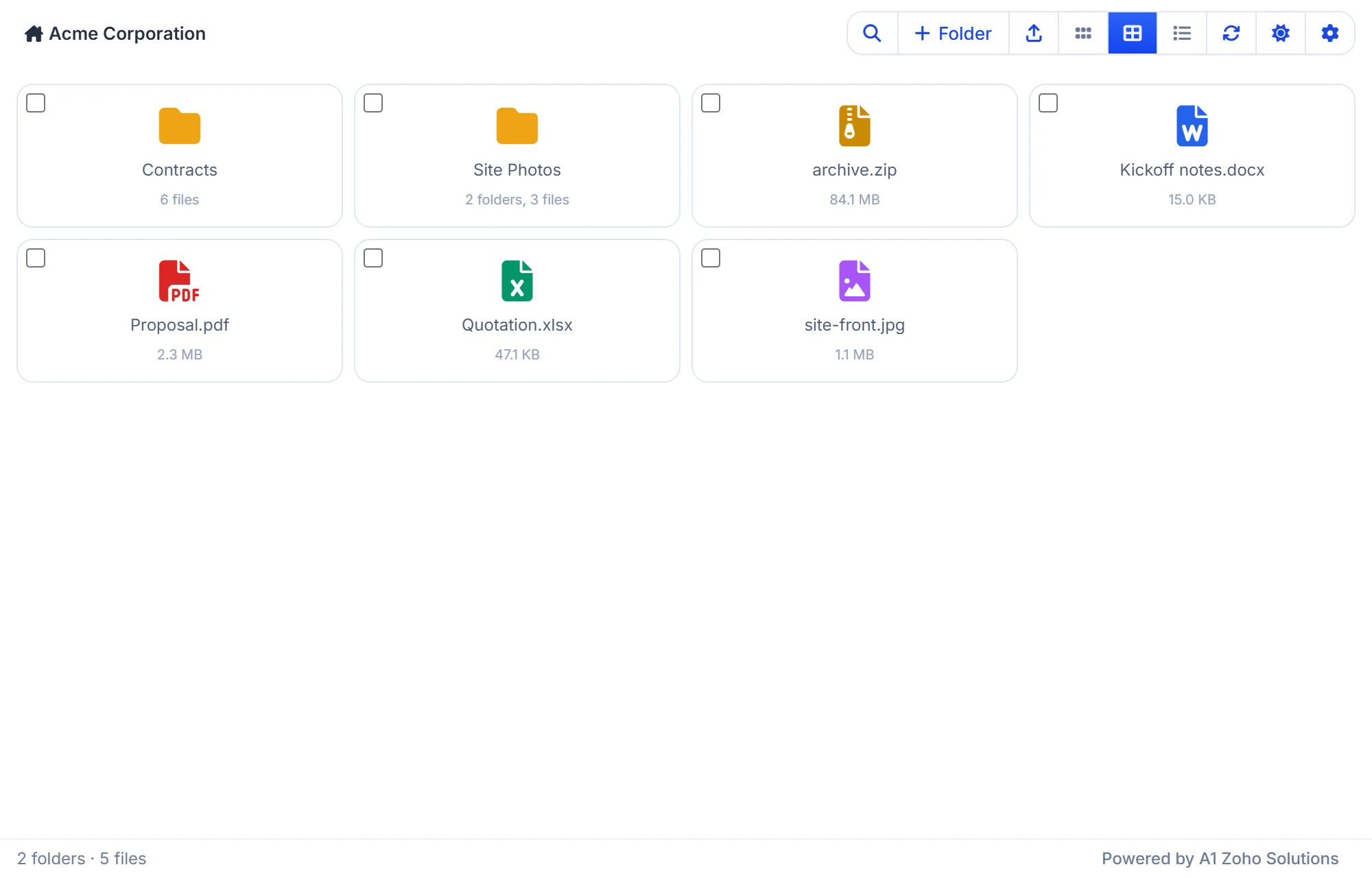
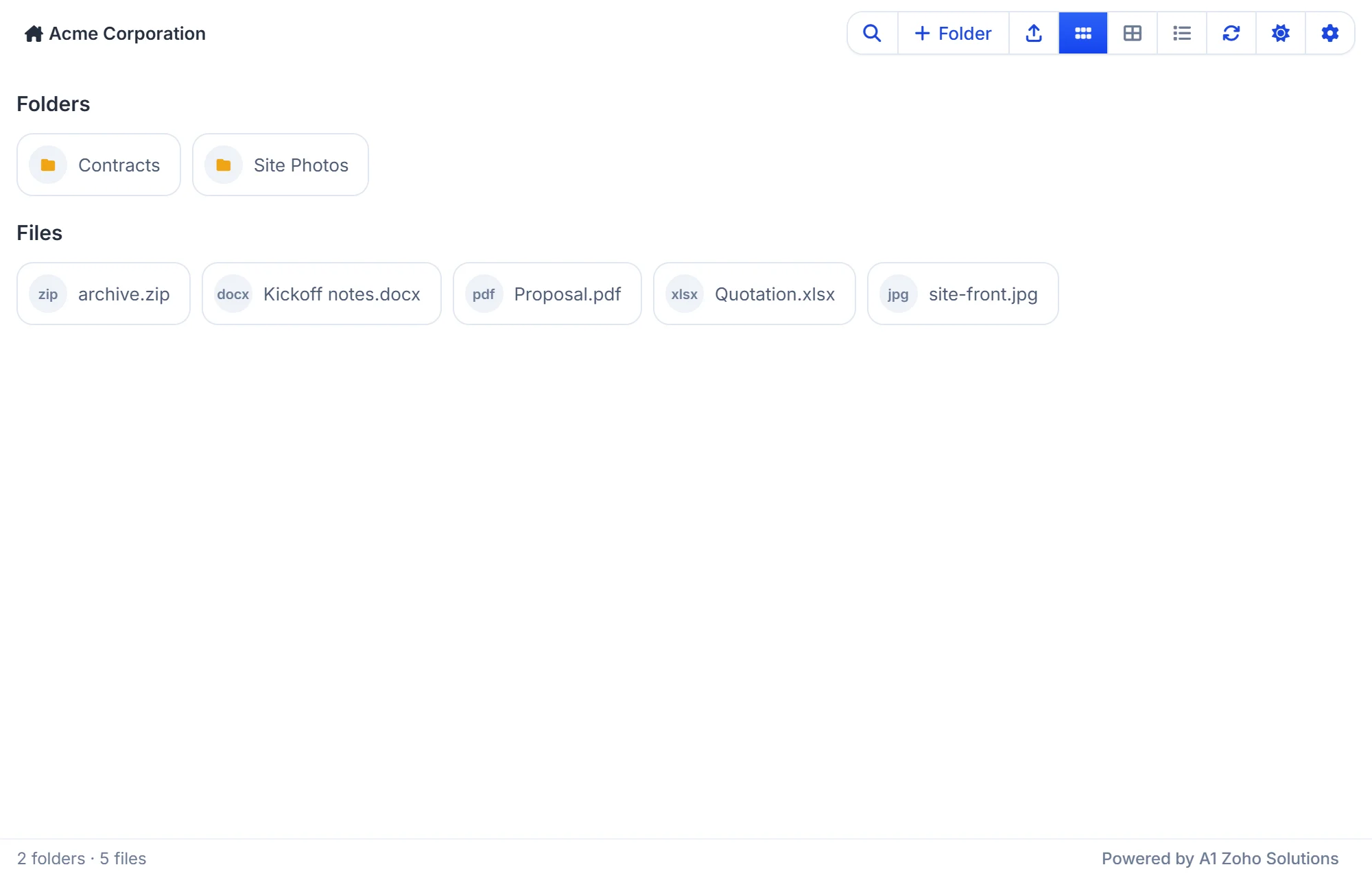
The files panel shows the record’s WorkDrive folder. The toolbar holds, from left to right: the folder path, Search, + Folder, Upload, the three views, Refresh, the theme menu and the More actions menu. Each file and folder has its own menu, opened from the three dots at the end of its row. The footer shows how many folders and files are in view, with page controls when a folder has more than one page.
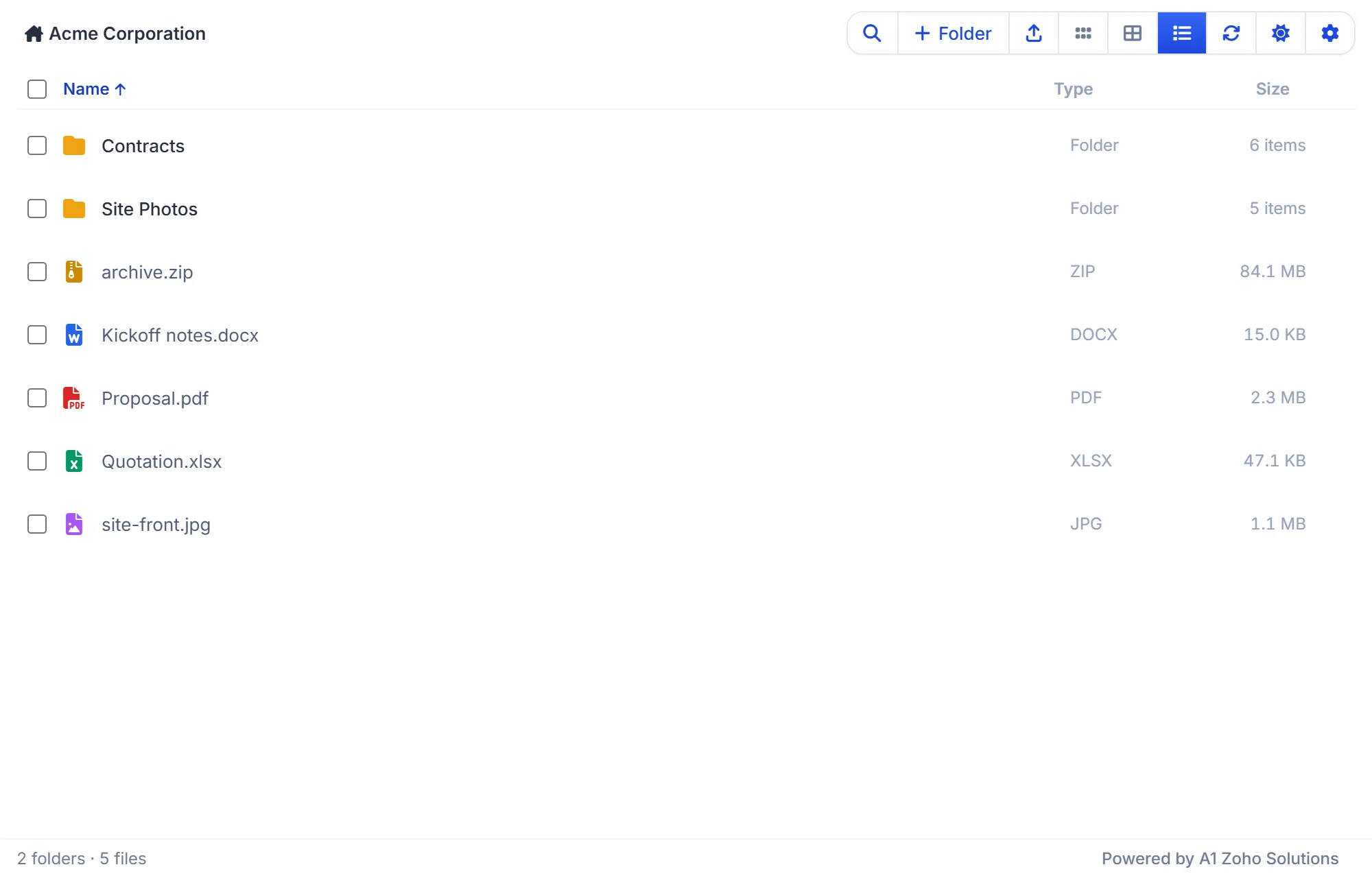
A folder’s Size shows how many items it holds. Hover it for the number of folders and files.
Create a folder
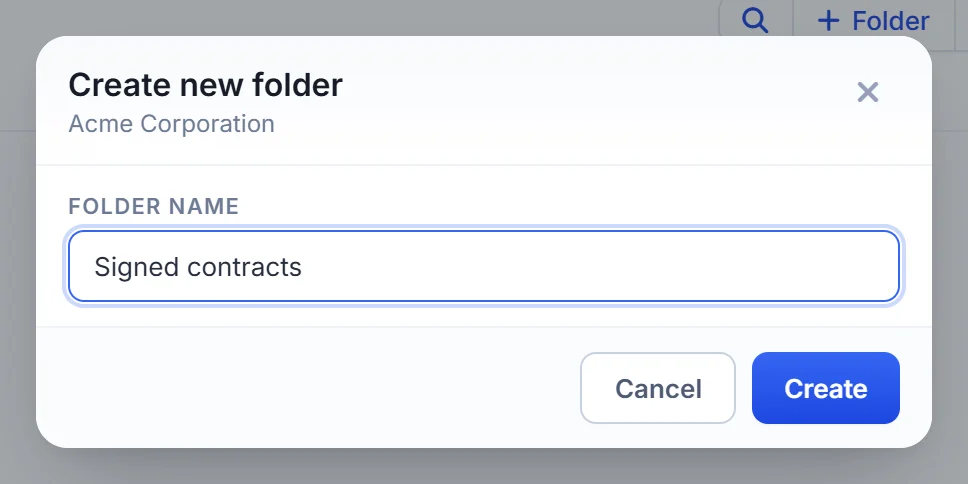
Click + Folder, type a name and click Create. The folder is created in the folder you are looking at. Click a folder to open it, and use the path at the top left to go back up.
Upload files
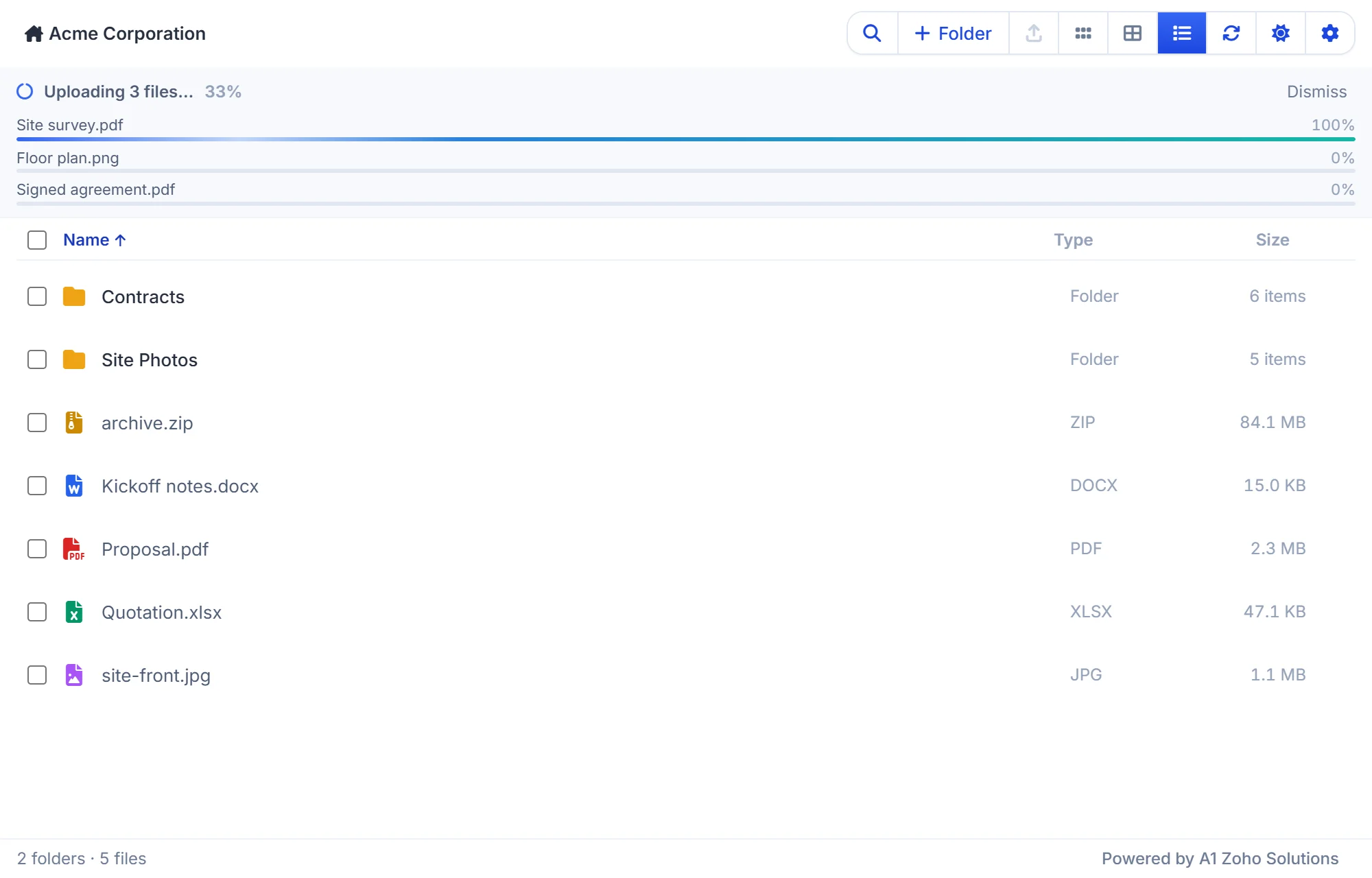
Click Upload and pick one or more files, or drag files from your computer and drop them on the panel. A progress panel shows each file as it uploads. Files up to 250 MB can be uploaded from CRM; upload a bigger file in WorkDrive directly.
Search files
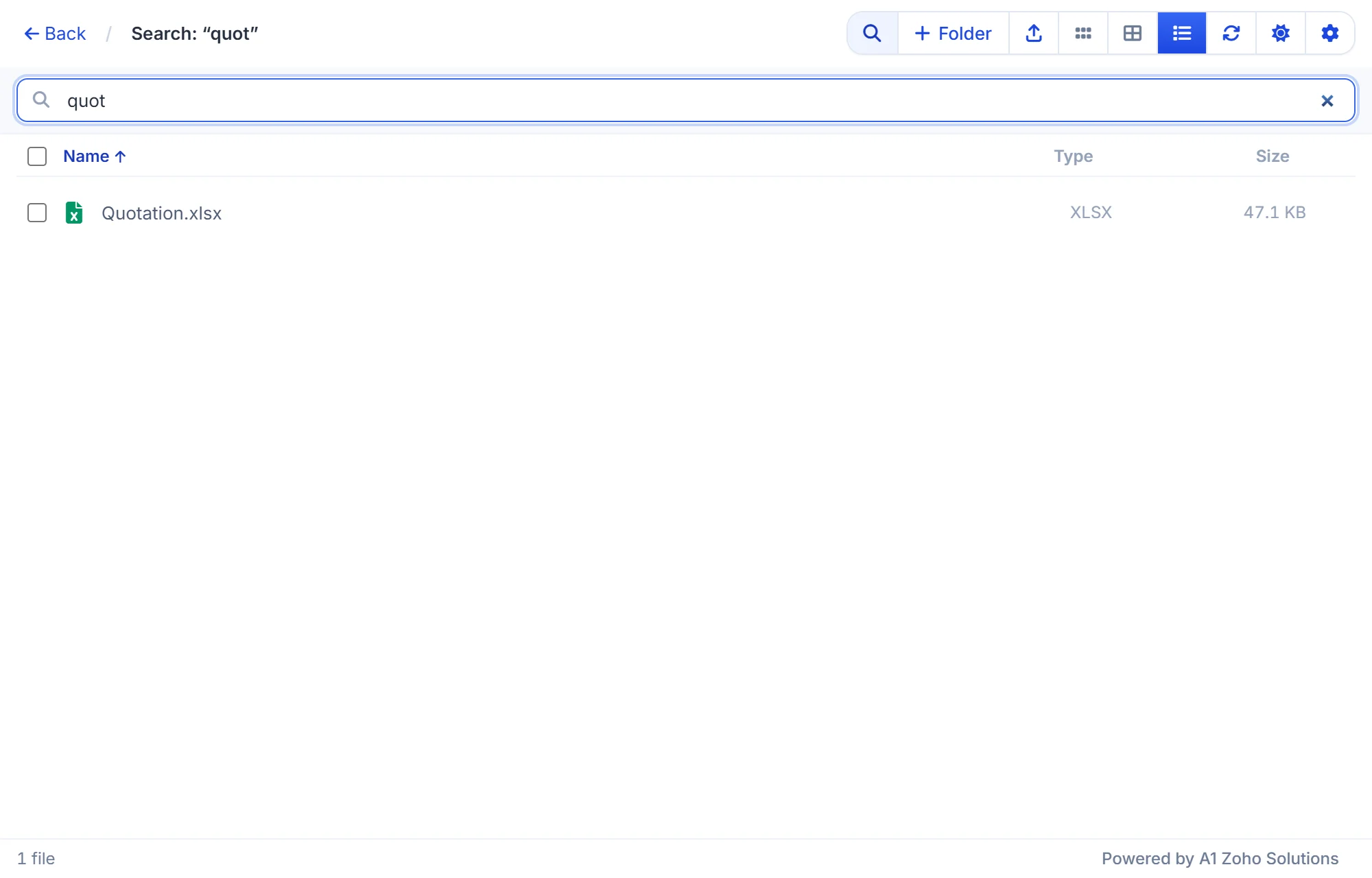
Click Search and type part of a file or folder name. Click Back to return to the folder.
Change the view
Switch between List view, Grid view and Compact view. In list view, click a column heading to sort by it.
Preview and download files
Choose Preview from a file’s menu to view it inside CRM. Many file types can be previewed, such as images, PDFs, spreadsheets and text files. Download saves a copy, and Open in WorkDrive opens the file in a new tab.
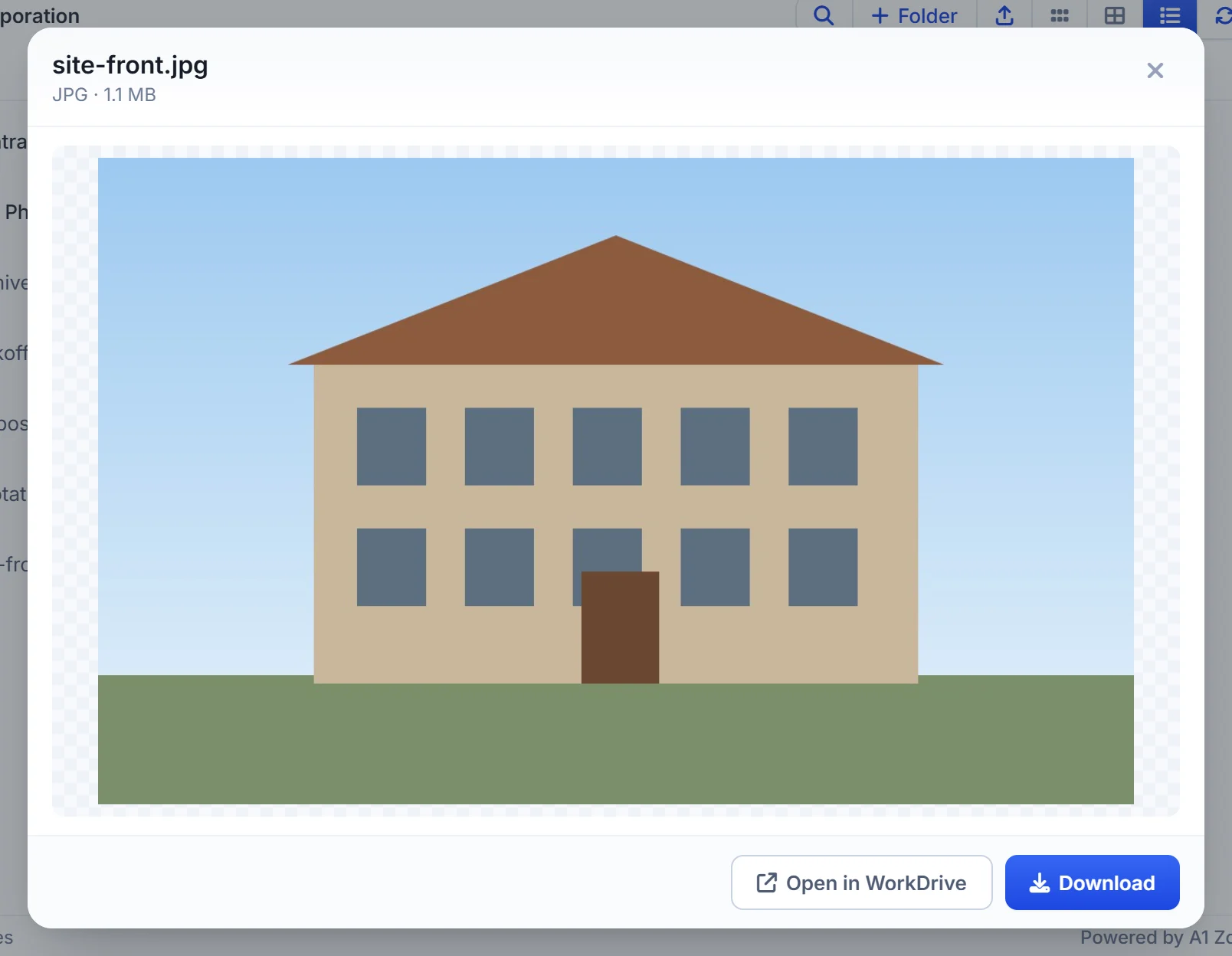
Download and Open in WorkDrive open a new browser tab. If nothing opens, allow pop-ups for Zoho CRM in your browser.
Work with several files at once
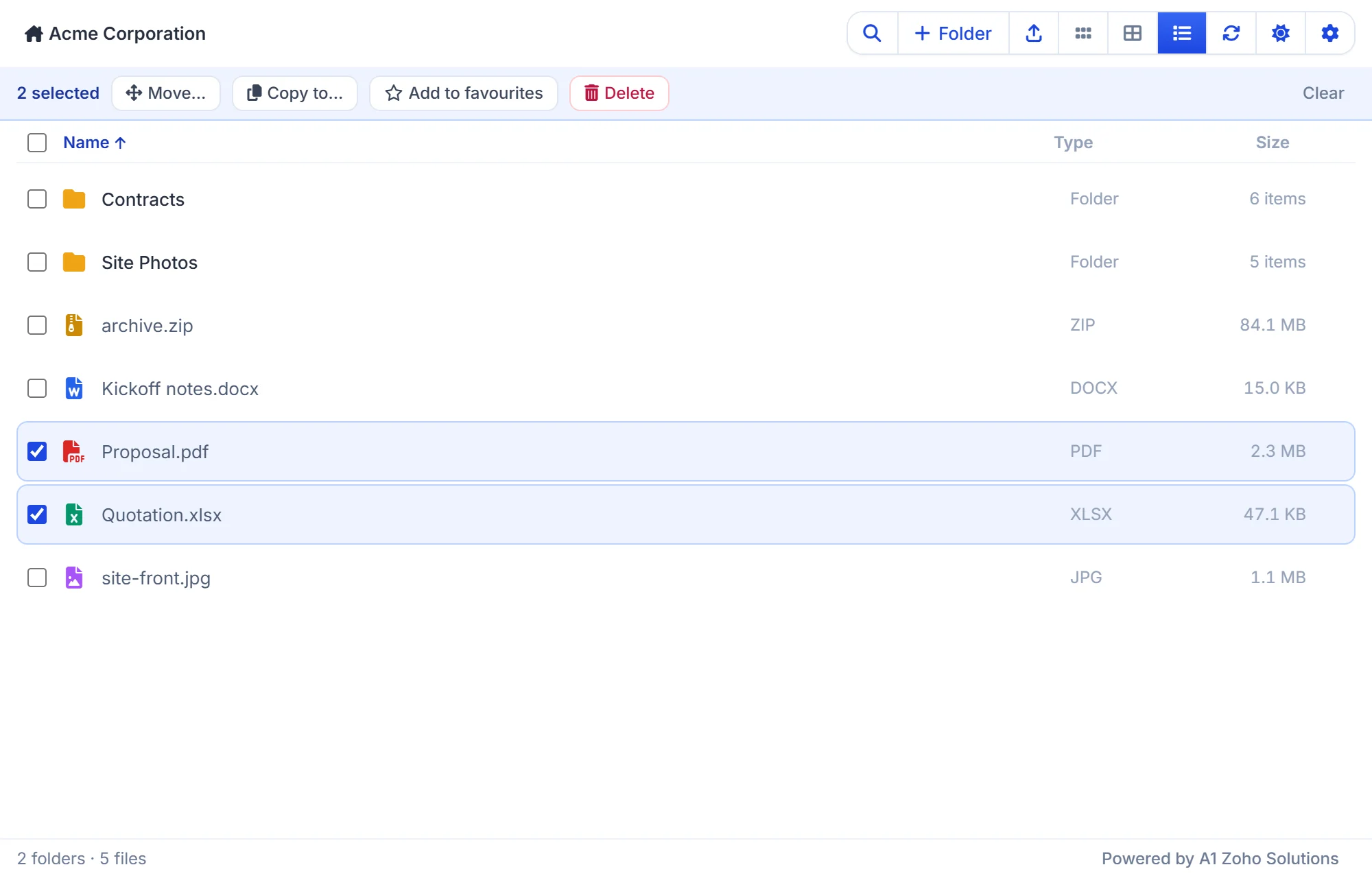
Tick the boxes beside files and folders, or the box in the header to select them all. The bar above the list offers Move, Copy to, Add to favourites and Delete for the whole selection. If a few items can’t be moved or copied, the message says how many went through and why.
The file menu
Click the three dots at the end of a file’s row for everything you can do with it. The menu only offers what the file allows, so a file you can’t edit shows some entries greyed out.
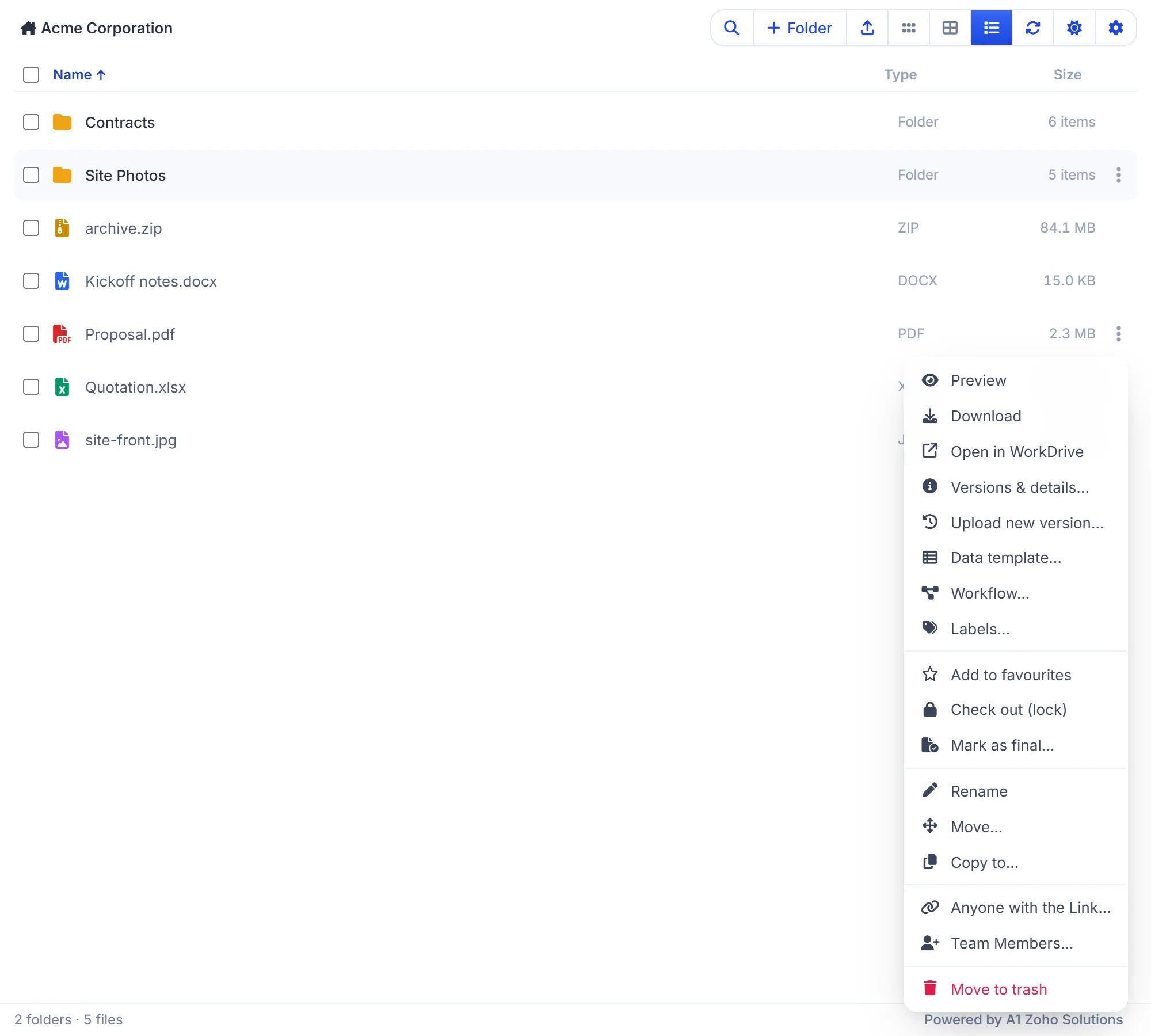
- Preview, Download and Open in WorkDrive.
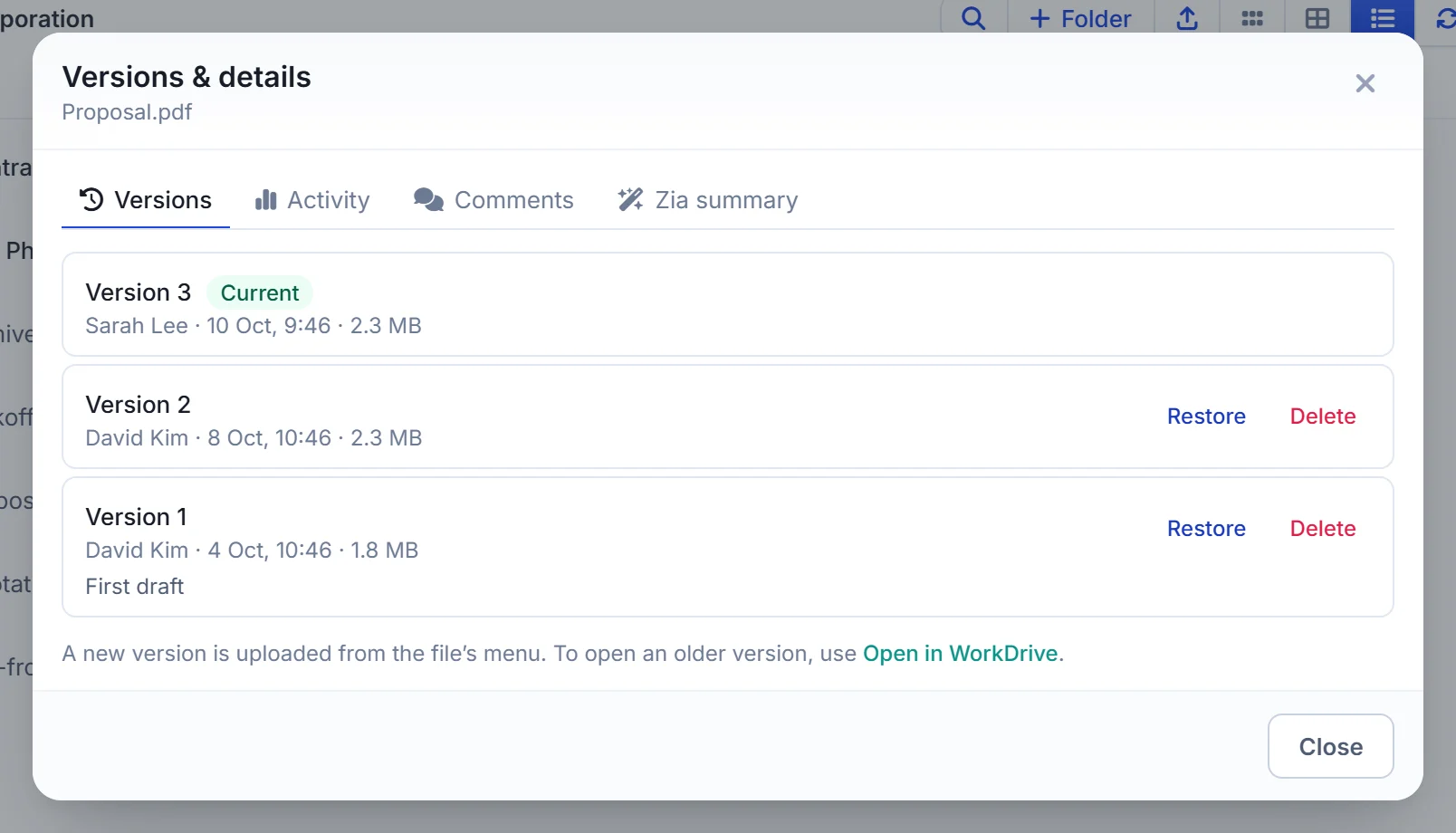
- Versions & details – version history, activity, comments and a Zia summary.
- Upload new version – pick the updated file from your computer. It replaces the current one under the original name, and WorkDrive keeps the previous copy in the version history.
- Data template, Workflow and Labels – described below.
- Add to favourites, Check out (lock) and Mark as final.
- Rename, Move and Copy to.
- Anyone with the Link and Team Members – sharing.
- Move to trash.
A folder’s menu has Open, Open in WorkDrive, Labels, Add to favourites, Rename, Move, Copy to, the two share entries and Move to trash.
Favourites, check out and mark as final
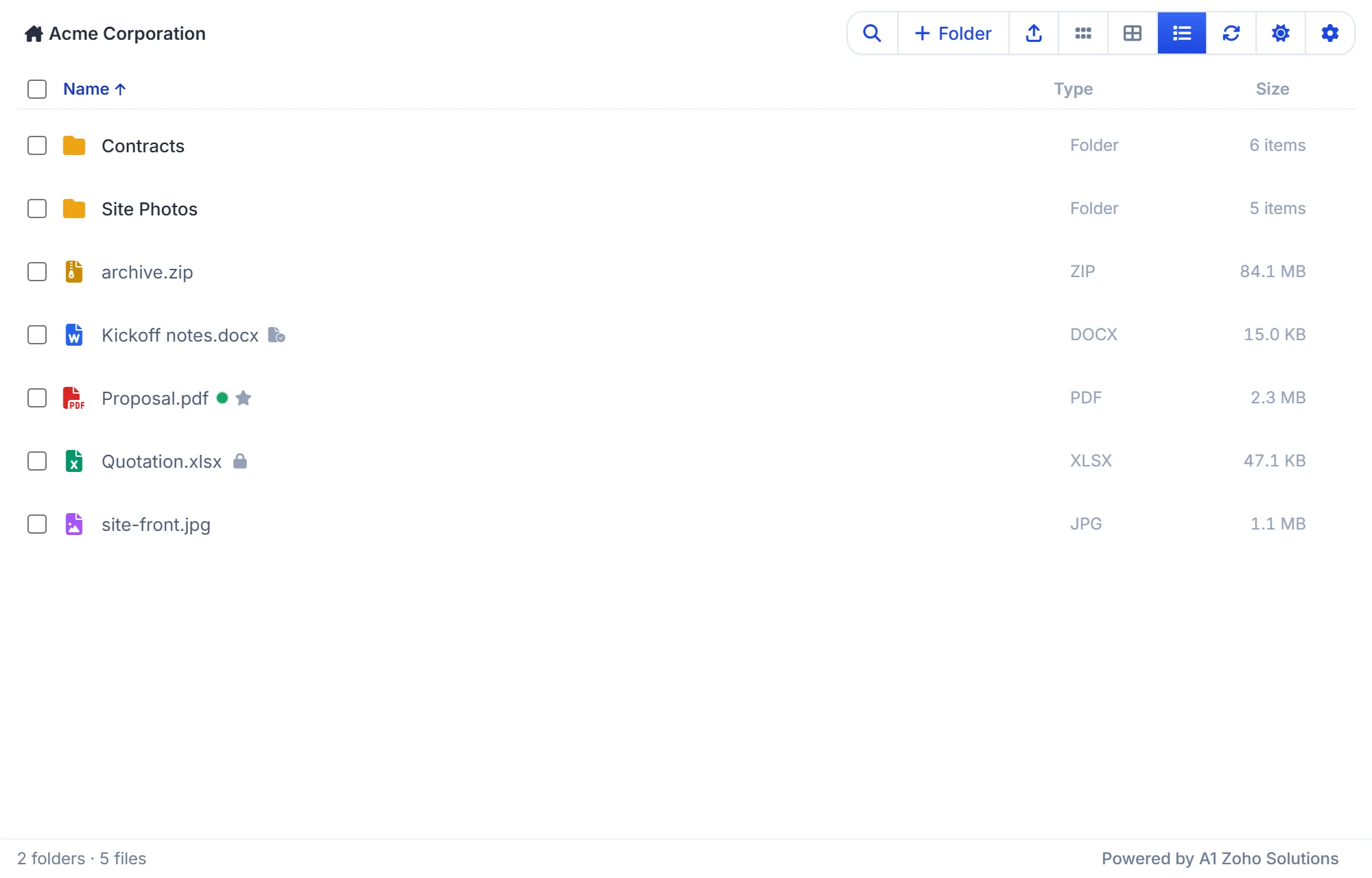
- Add to favourites marks a file or folder so you can find it again in WorkDrive. It shows a star beside the name.
- Check out (lock) locks a file while you work on it. Everyone can still read it, but nobody else can edit or replace it until you Check in (unlock). It shows a padlock.
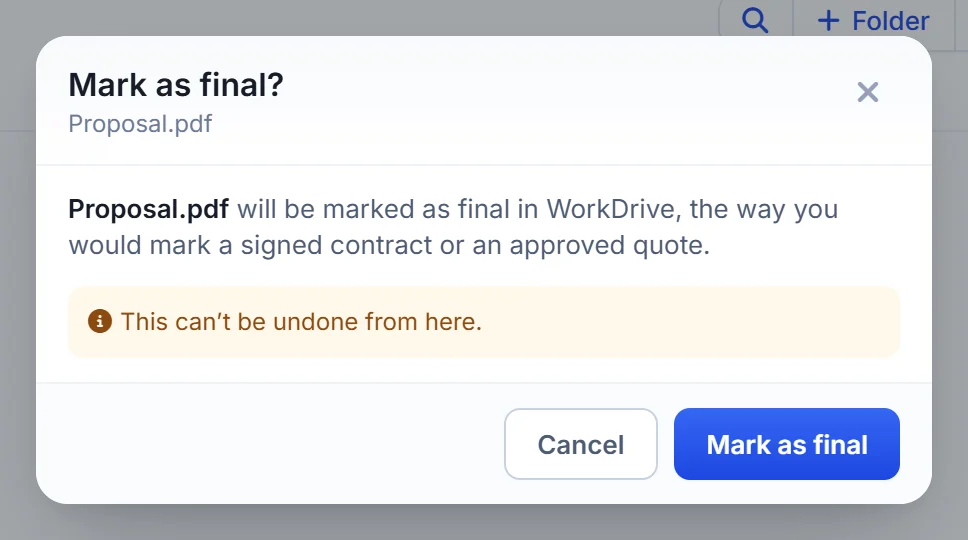
- Mark as final marks a signed contract or an approved quote as final in WorkDrive. It asks first, because it can’t be undone from CRM, and shows a final mark.
Rename, move, copy and delete
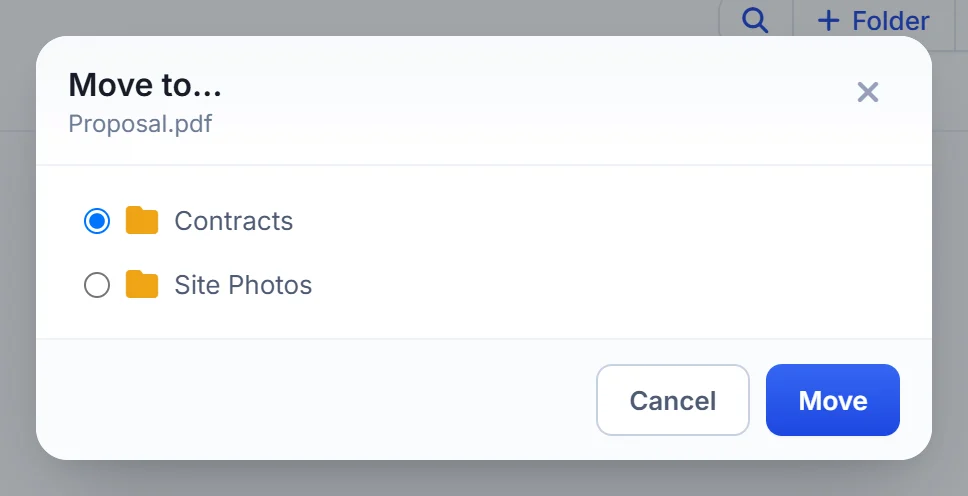
Move and Copy to list the folders inside the record’s folder. Pick one and confirm.
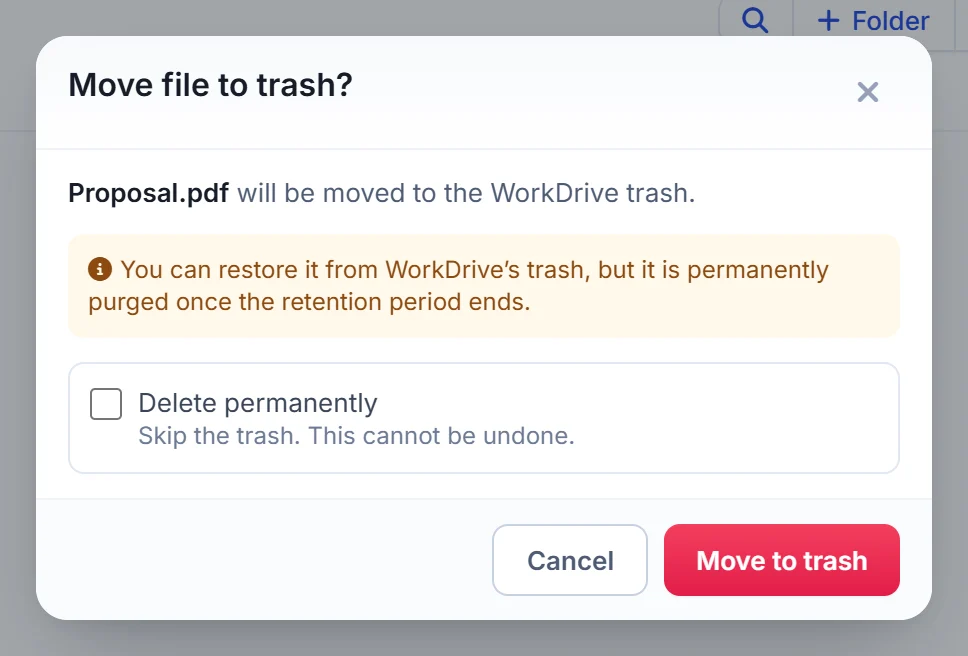
Move to trash sends the item to the WorkDrive trash, where it can be restored until the retention period ends. Tick Delete permanently to skip the trash.
Version history, activity, comments and Zia summary
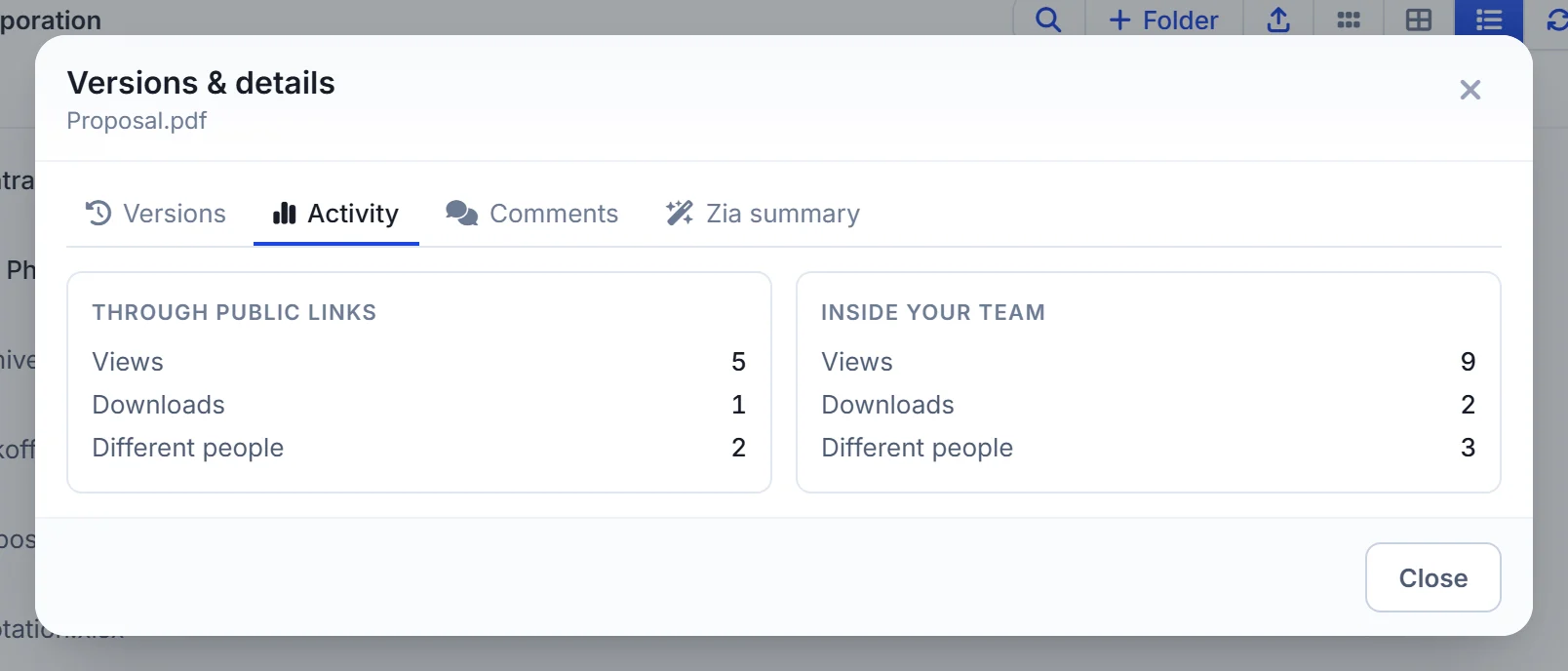
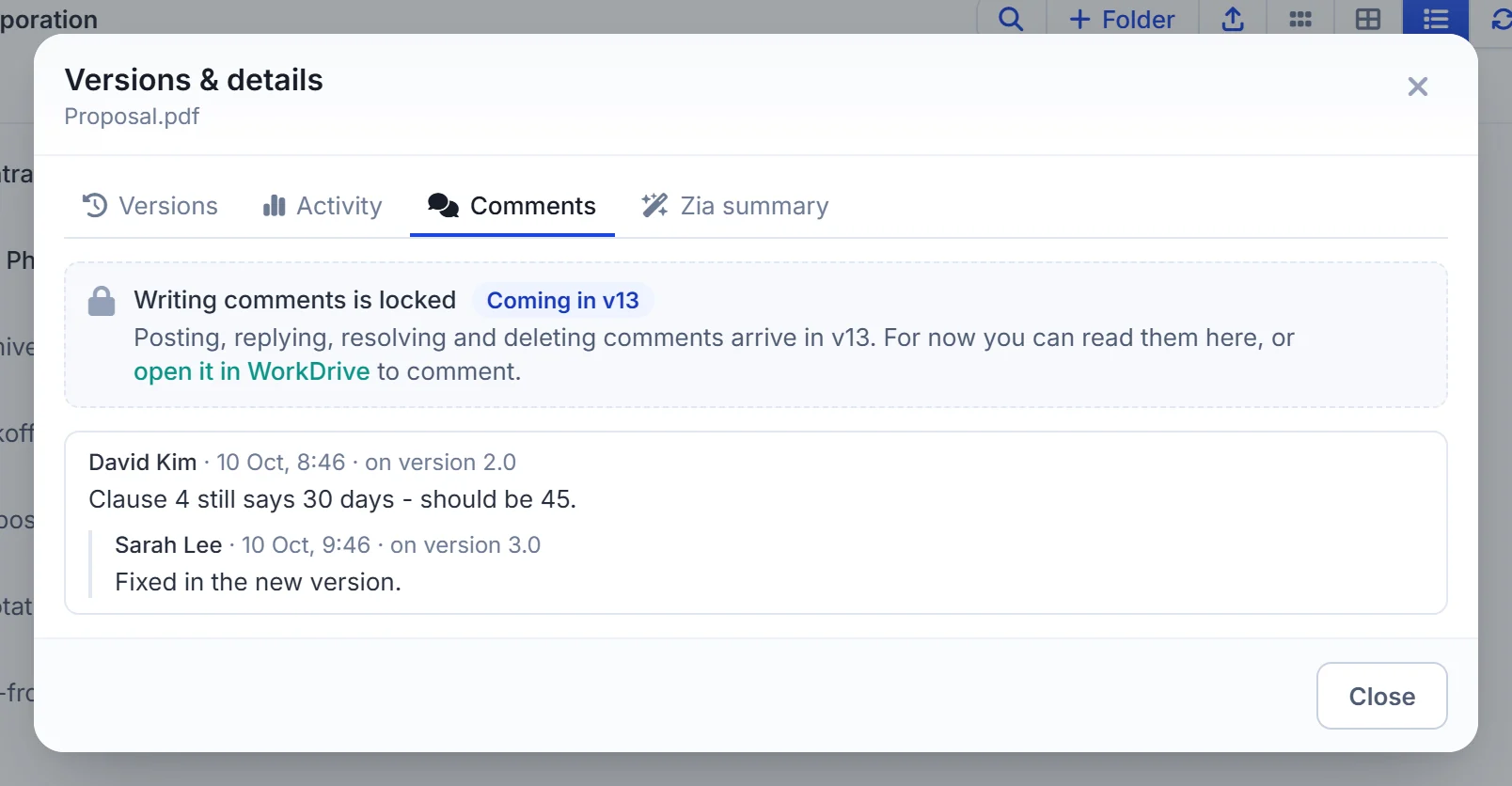
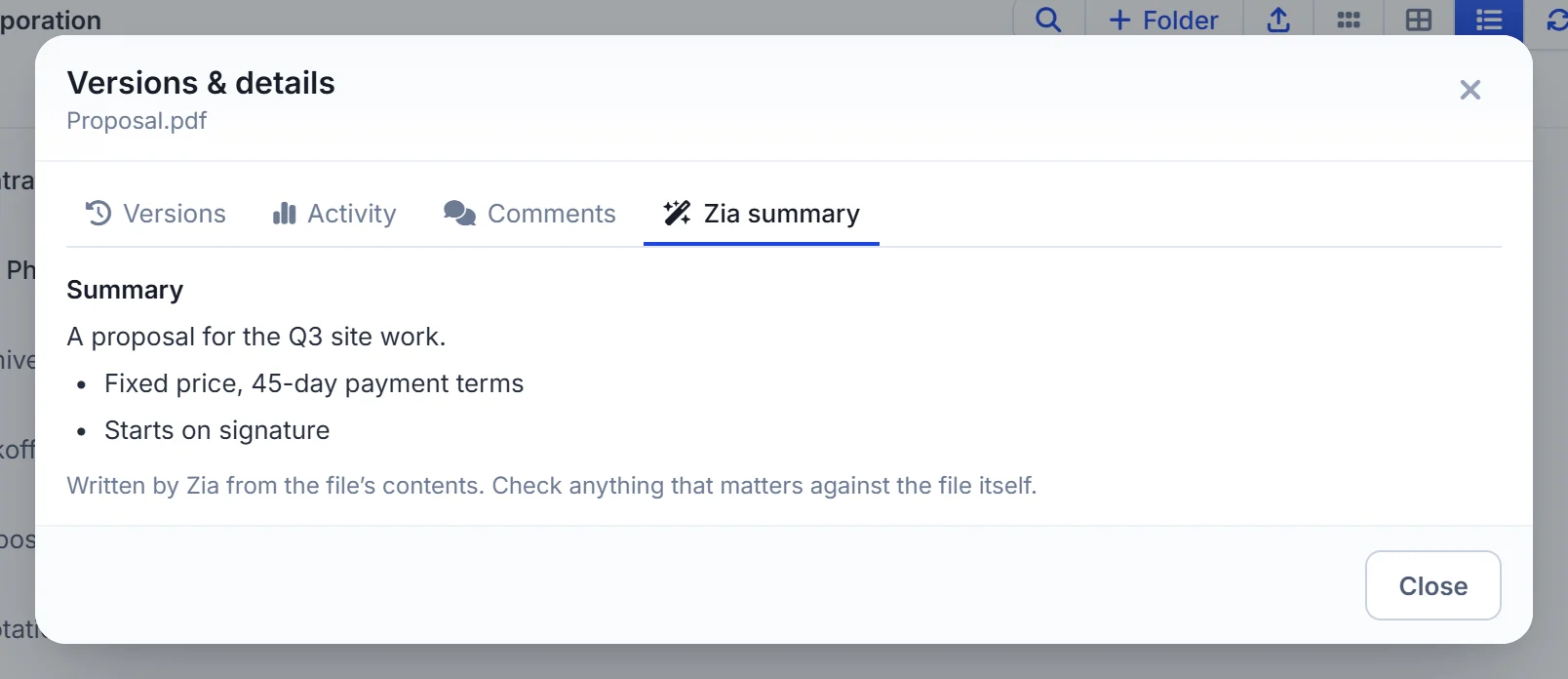
Versions & details opens four tabs:
- Versions – every version of the file, with who uploaded it, when and its size. Restore makes an older version current again, and Delete removes one.
- Activity – how many times the file was viewed and downloaded, inside your team and through public links.
- Comments – the comments on the file. Writing comments from CRM arrives in version 13; until then, the tab links to the file in WorkDrive, where you can comment.
- Zia summary – a short summary of the document written by Zia, when you ask for one. It works on documents such as PDF and Word files.
Labels
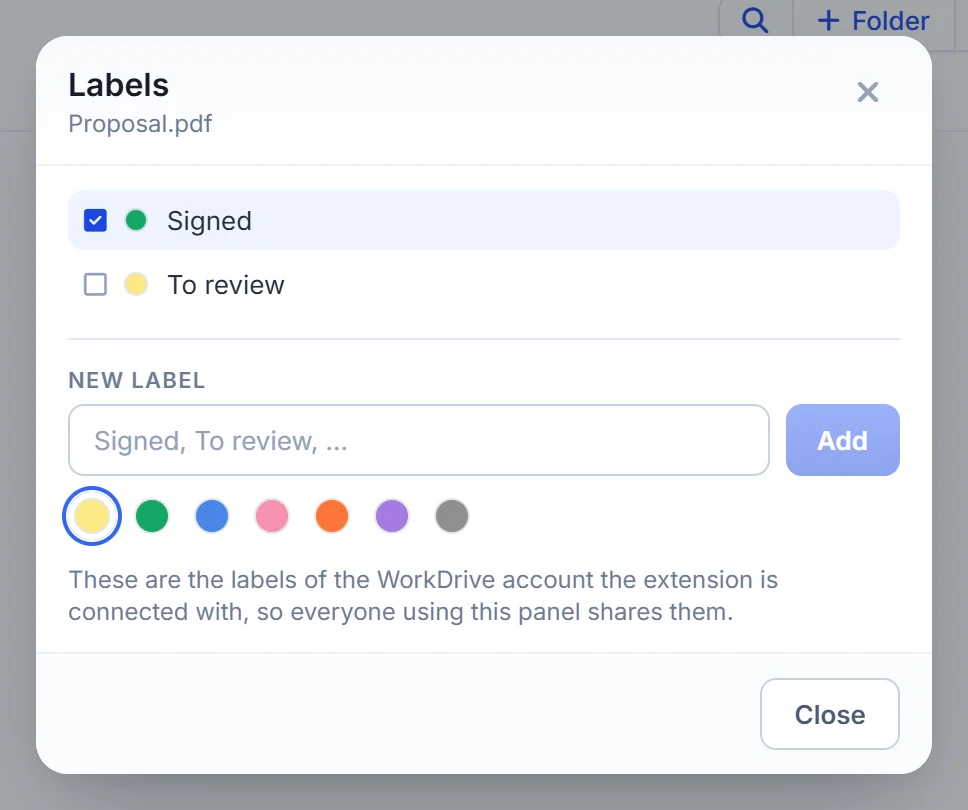
Labels lets you tick the WorkDrive labels a file or folder should carry, or create a new label with a colour. Labels show as small coloured dots beside the name. They belong to the WorkDrive account the extension is connected with, so everyone using the panel shares them.
Data templates
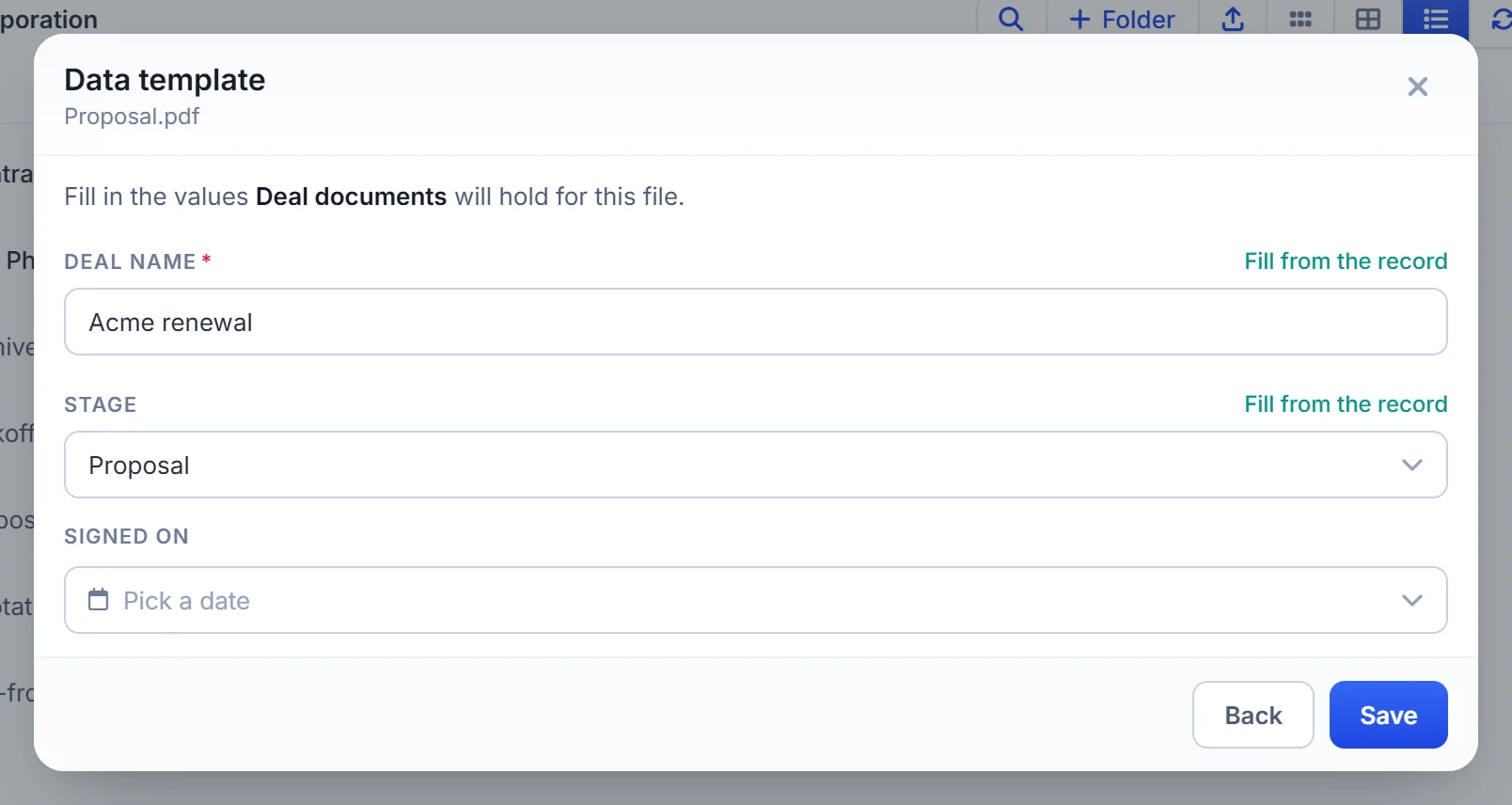
Data template saves searchable values on a file in WorkDrive. Choose one of your team’s data templates and fill in its fields. Fields named like the record’s own fields start with the record’s values, and Fill from the record copies a value in one click.
Workflows
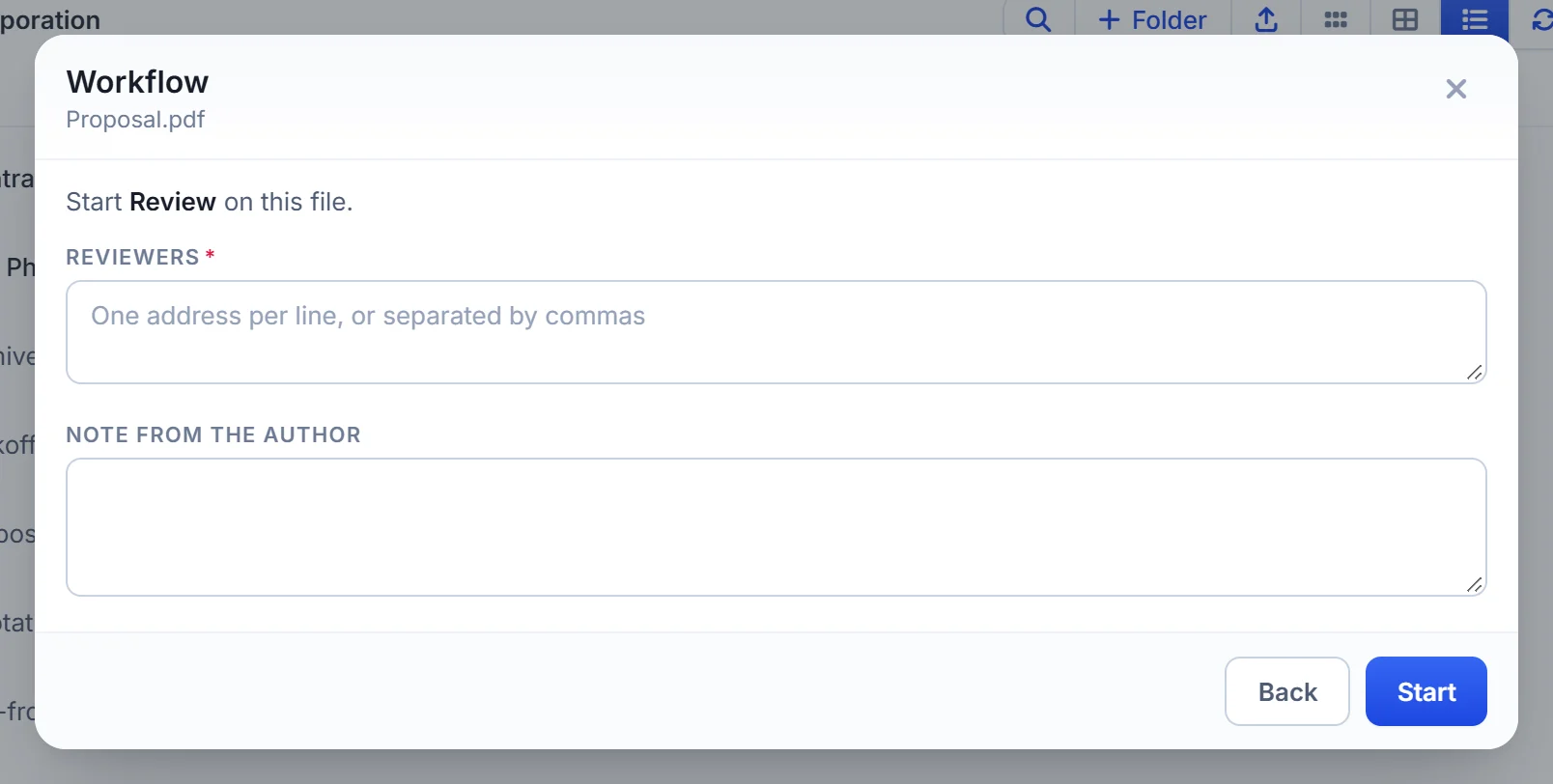
Workflow starts one of your team’s WorkDrive workflows on a file, such as a review or an approval. Fill in what the workflow asks for, such as reviewers and a note, and click Start.
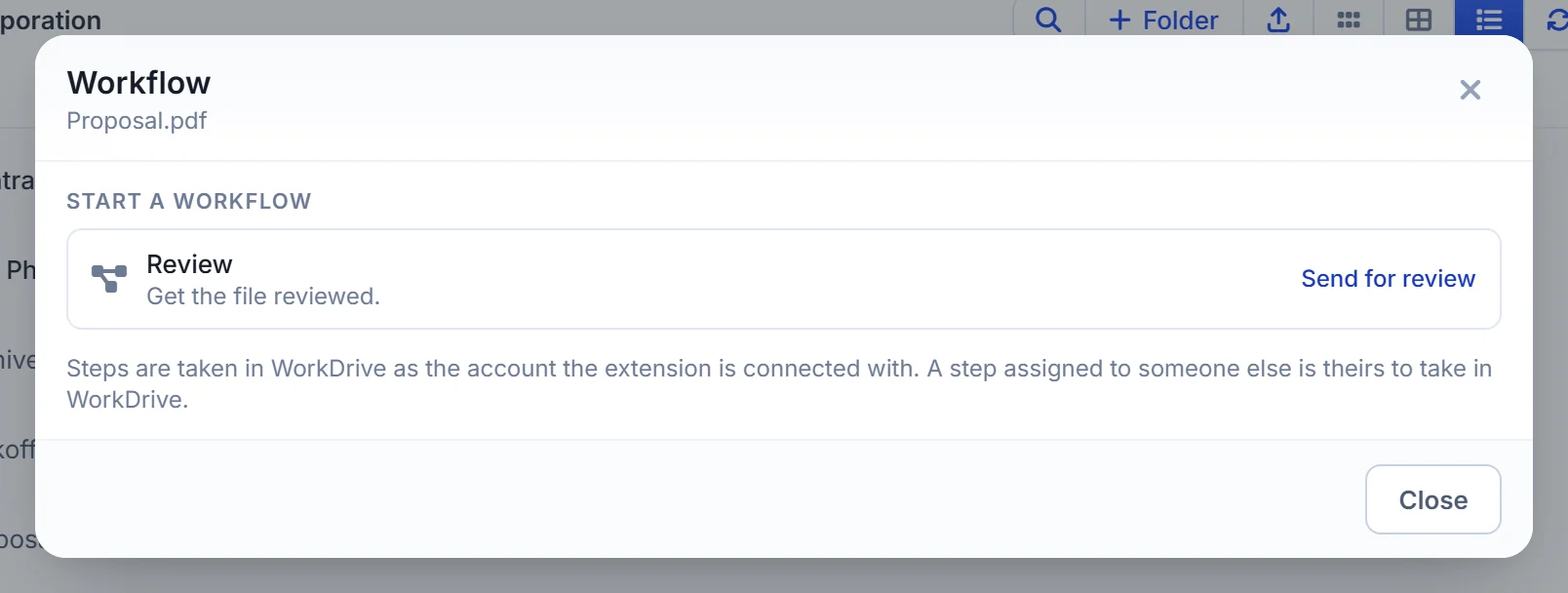
Once a workflow is running, the same entry shows which step it is at and lets you take the next step. Steps are taken in WorkDrive as the connected account; a step assigned to someone else is theirs to take in WorkDrive.
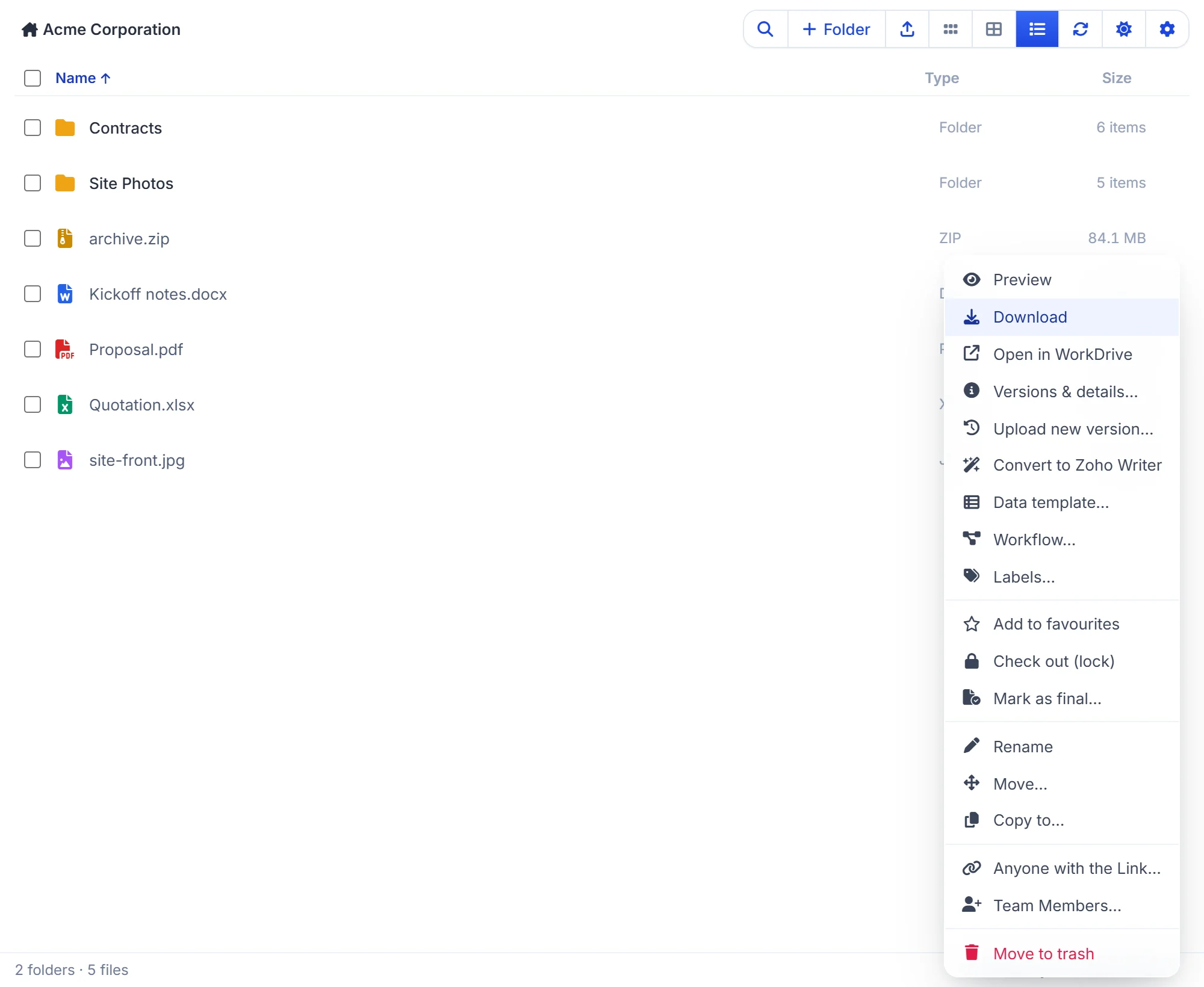
Convert to a Zoho document and extract ZIP files
A Word, Excel or PowerPoint file’s menu has Convert to Zoho Writer, Convert to Zoho Sheet or Convert to Zoho Show. It makes an editable Zoho copy beside the original, which stays unchanged.
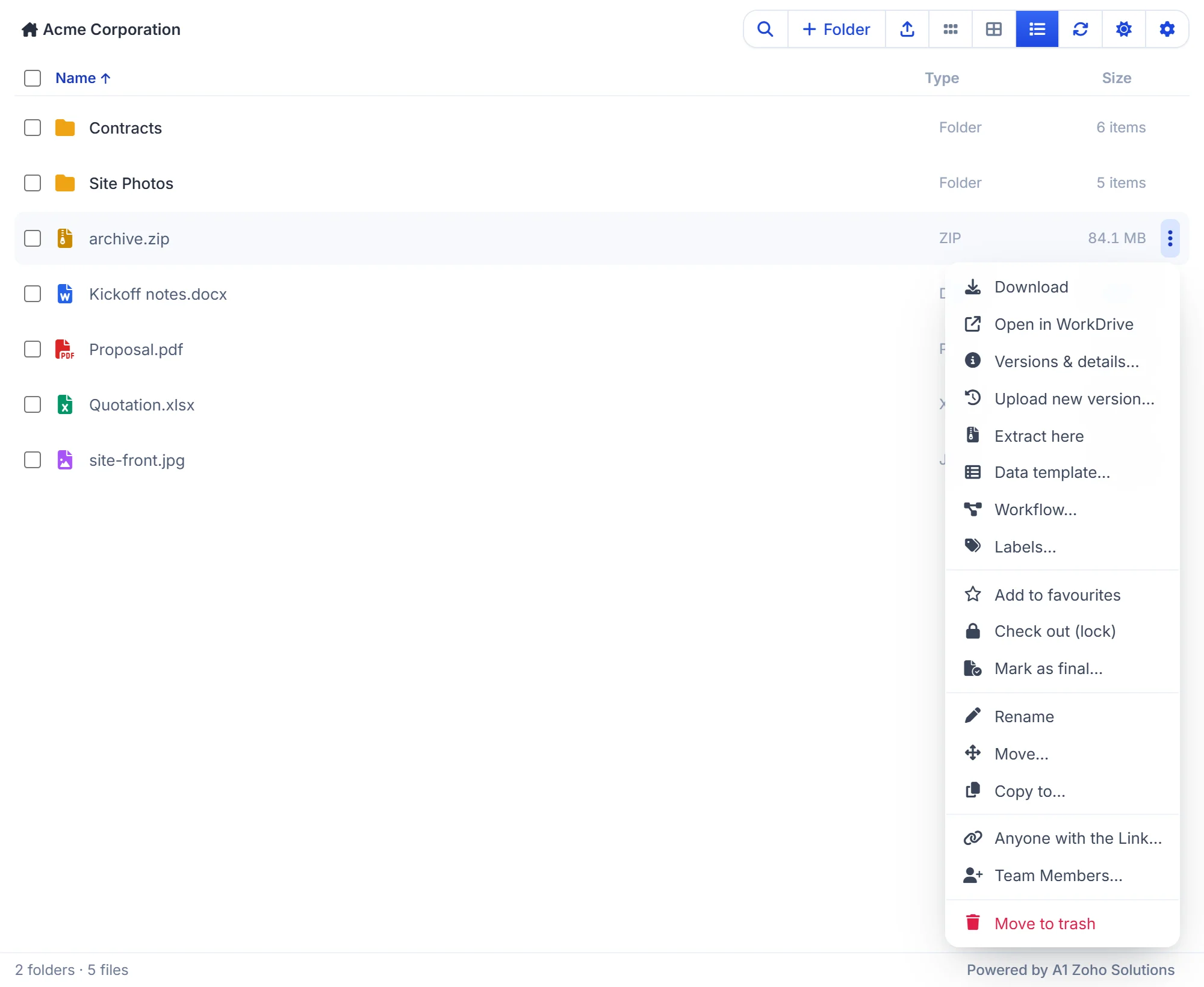
A ZIP file’s menu has Extract here, which unpacks it into a new folder of the same name.
Share files and folders from Zoho CRM
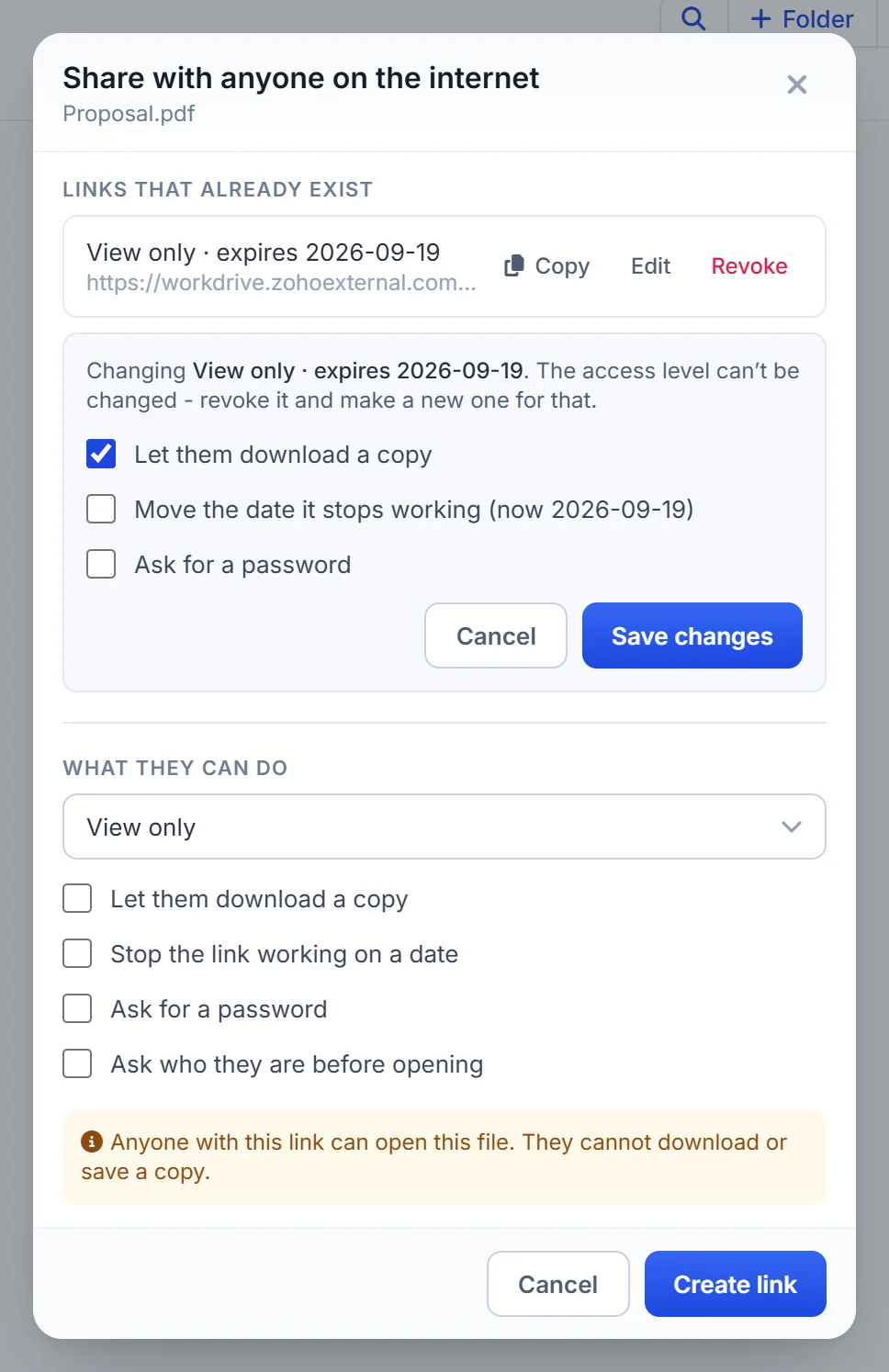
Share with anyone on the internet
Anyone with the Link creates a link that works for people outside your team. Choose what they can do:
- View only, View and comment, Upload only (folders) or Edit – full access.
- Download only, a set number of times – the link goes straight to a download and stops working after the number of downloads you set. Useful for sending a customer a signed contract or an invoice.
Then tick what applies: Let them download a copy, Stop the link working on a date, Ask for a password and Ask who they are before opening. Click Create link and copy it.
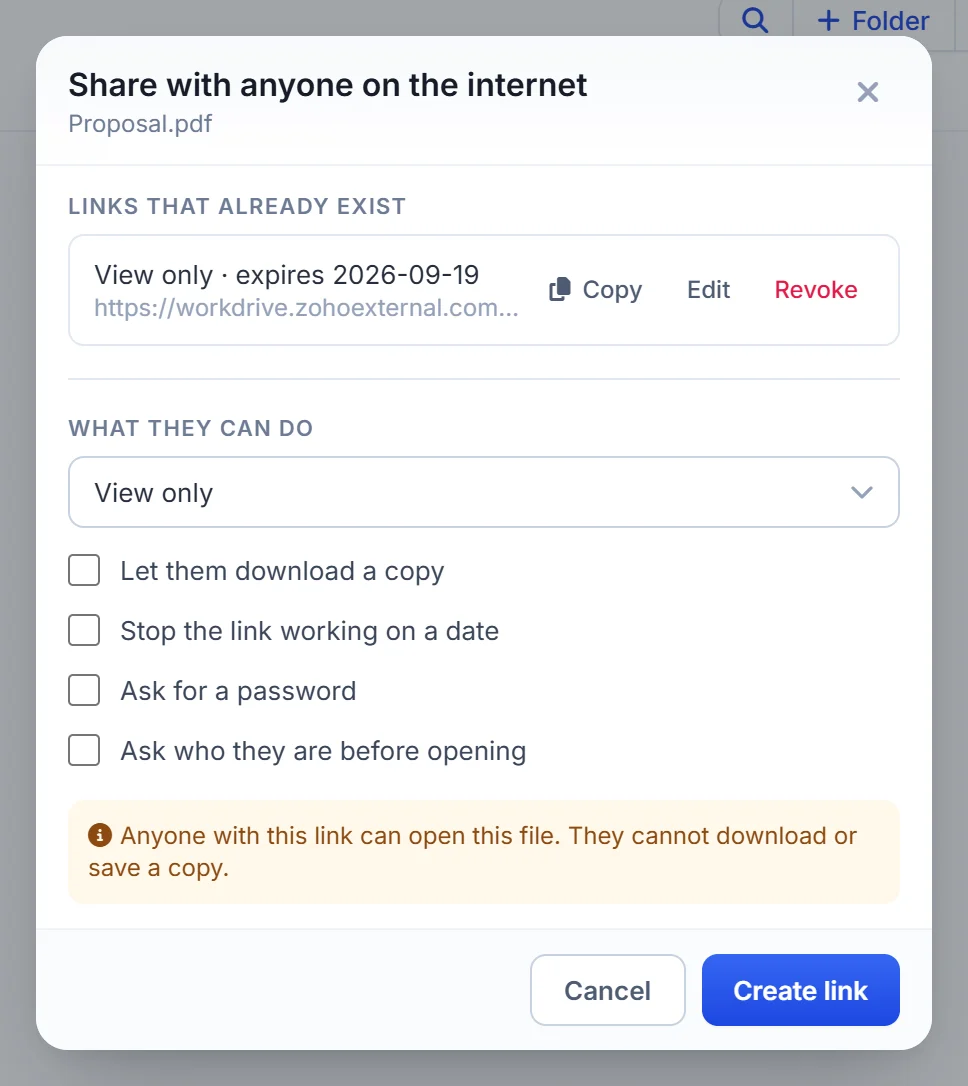
Links that already exist are listed at the top with Copy, Edit and Revoke. Edit adds or removes a password, moves the end date, or turns downloading on or off, without sending a new link. A link’s access level can’t be changed after it is made; revoke it and create a new one instead.
Share with team members
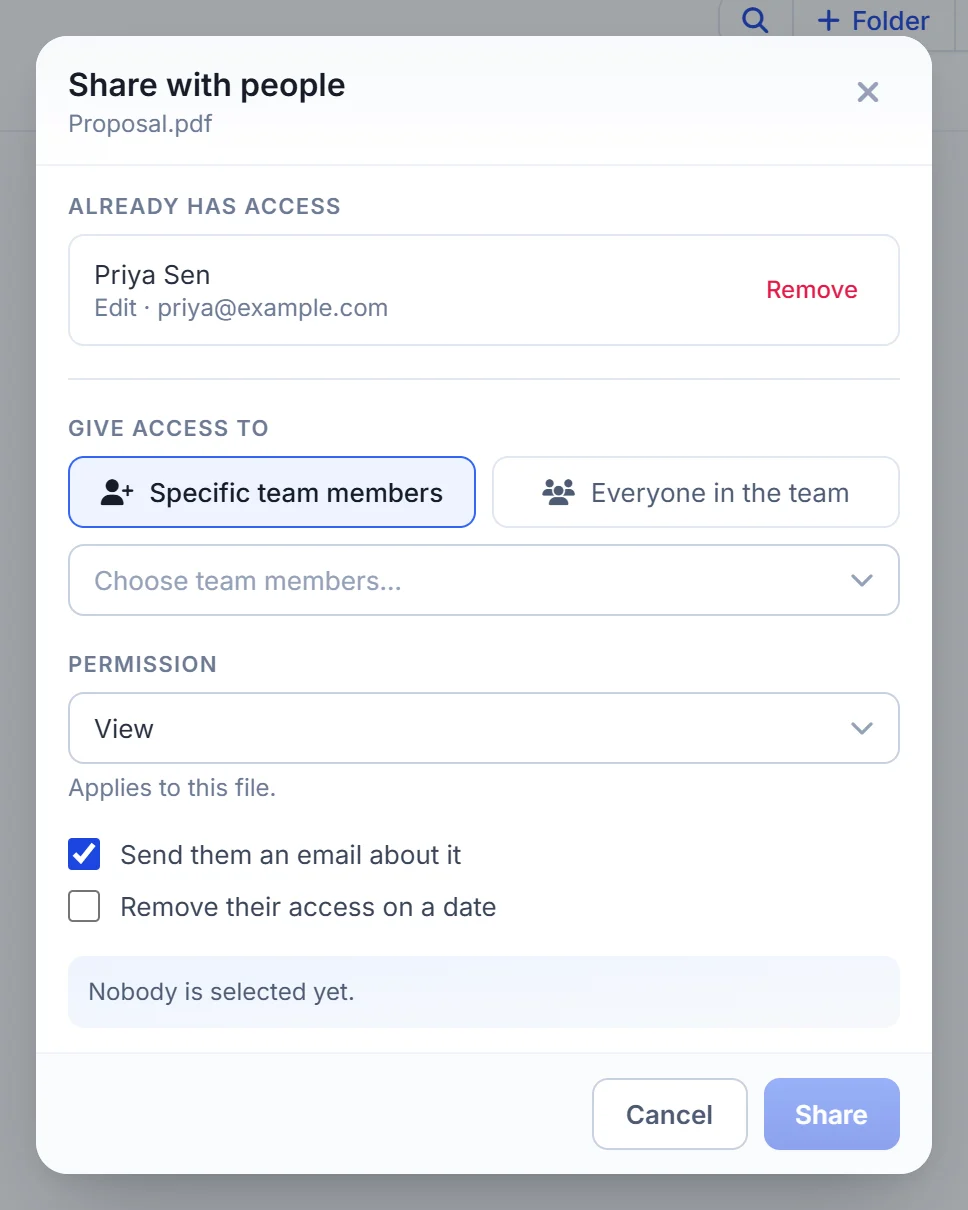
Team Members gives people in your WorkDrive team access. Choose Specific team members or Everyone in the team, then the permission: View, View and comment, View and fill, Edit or Share for a file, and View, Upload, Organize or Edit for a folder. You can email them about it and remove their access on a date. People who already have access are listed at the top, with Remove.
Folder actions in the More actions menu
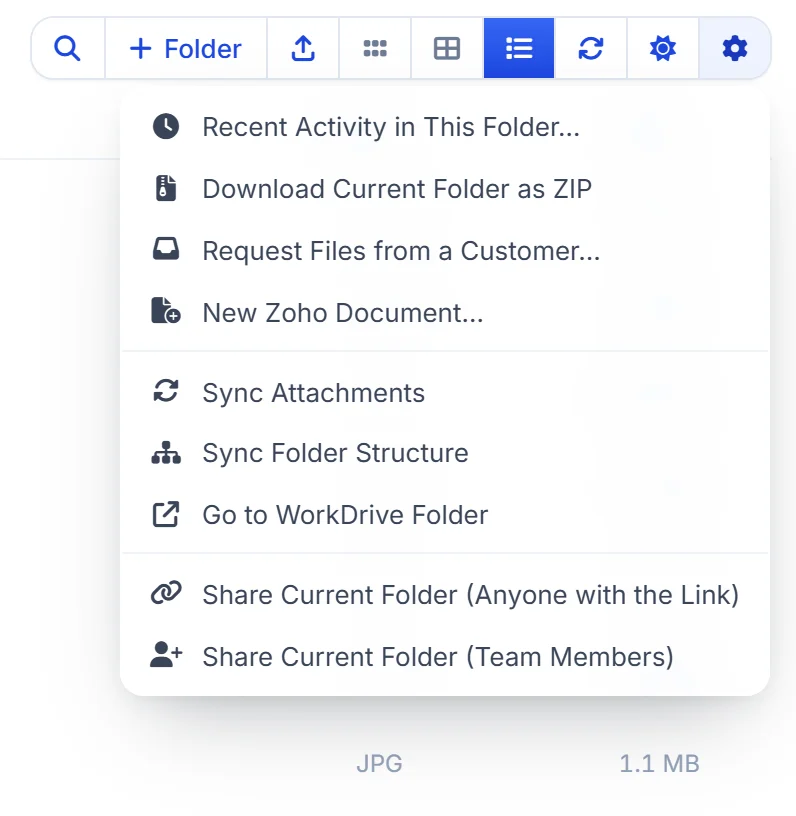
The gear at the right of the toolbar opens actions for the folder you are looking at.
Recent activity in this folder
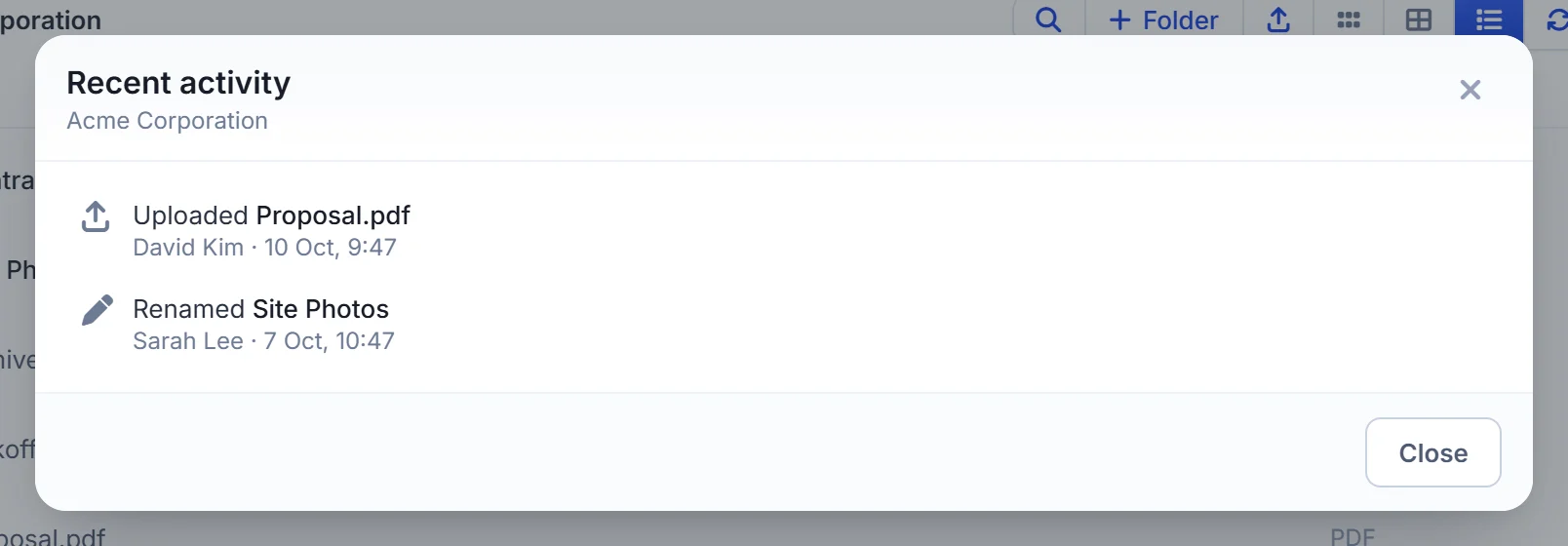
Recent Activity in This Folder lists what was added, renamed, moved or deleted in the folder, and by whom, over the last 30 days.
Download the current folder as a ZIP
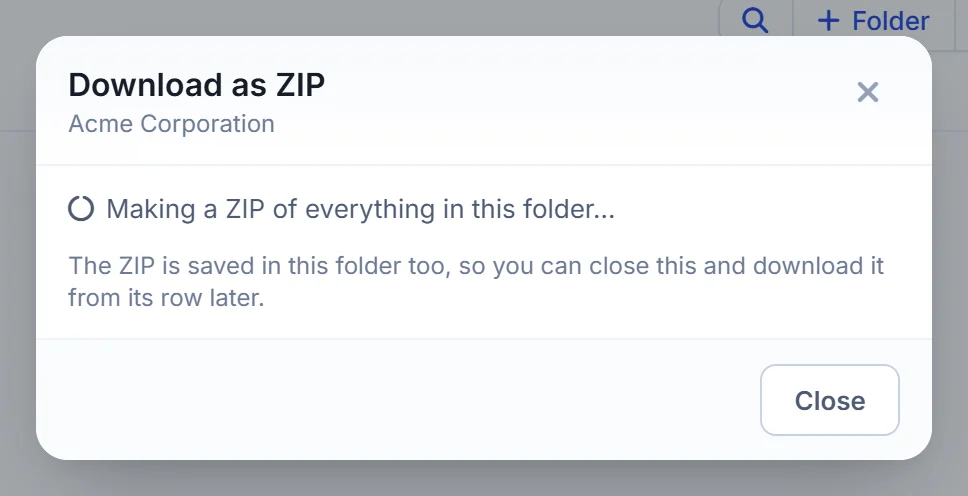
Download Current Folder as ZIP packs everything in the folder into one ZIP file. The ZIP is saved in the folder itself and offered for download when it is ready, so you can close the dialog and download it from its row later.
Request files from a customer
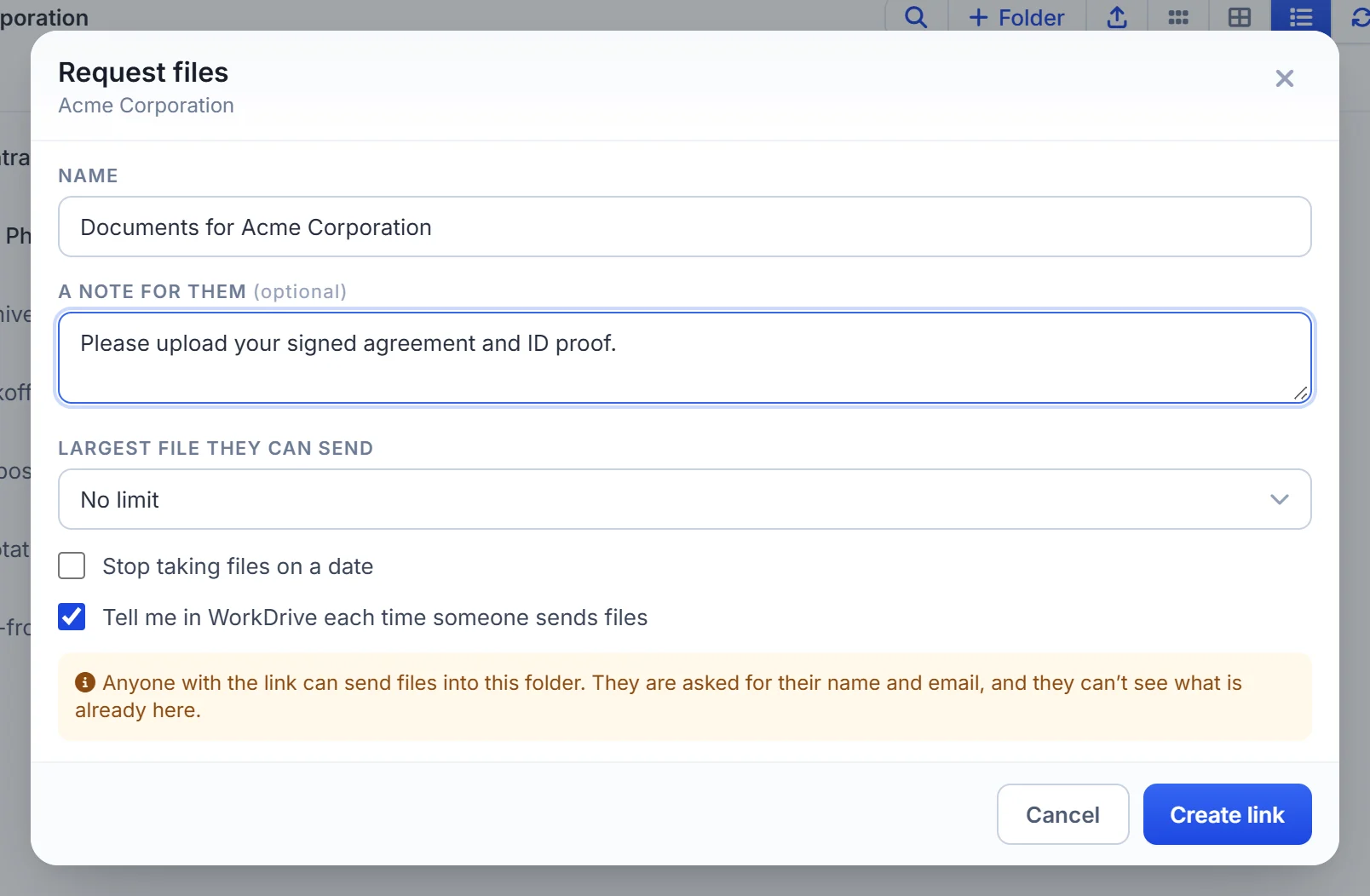
Request Files from a Customer makes a link you send to someone outside your team. They open it, give their name and email, and upload their files, which land straight in the folder. They need no WorkDrive account and can’t see what is already there.
- Give the request a name and, optionally, a note for them.
- Set the largest file they can send and a date to stop taking files.
- Choose whether WorkDrive tells you each time someone sends files.
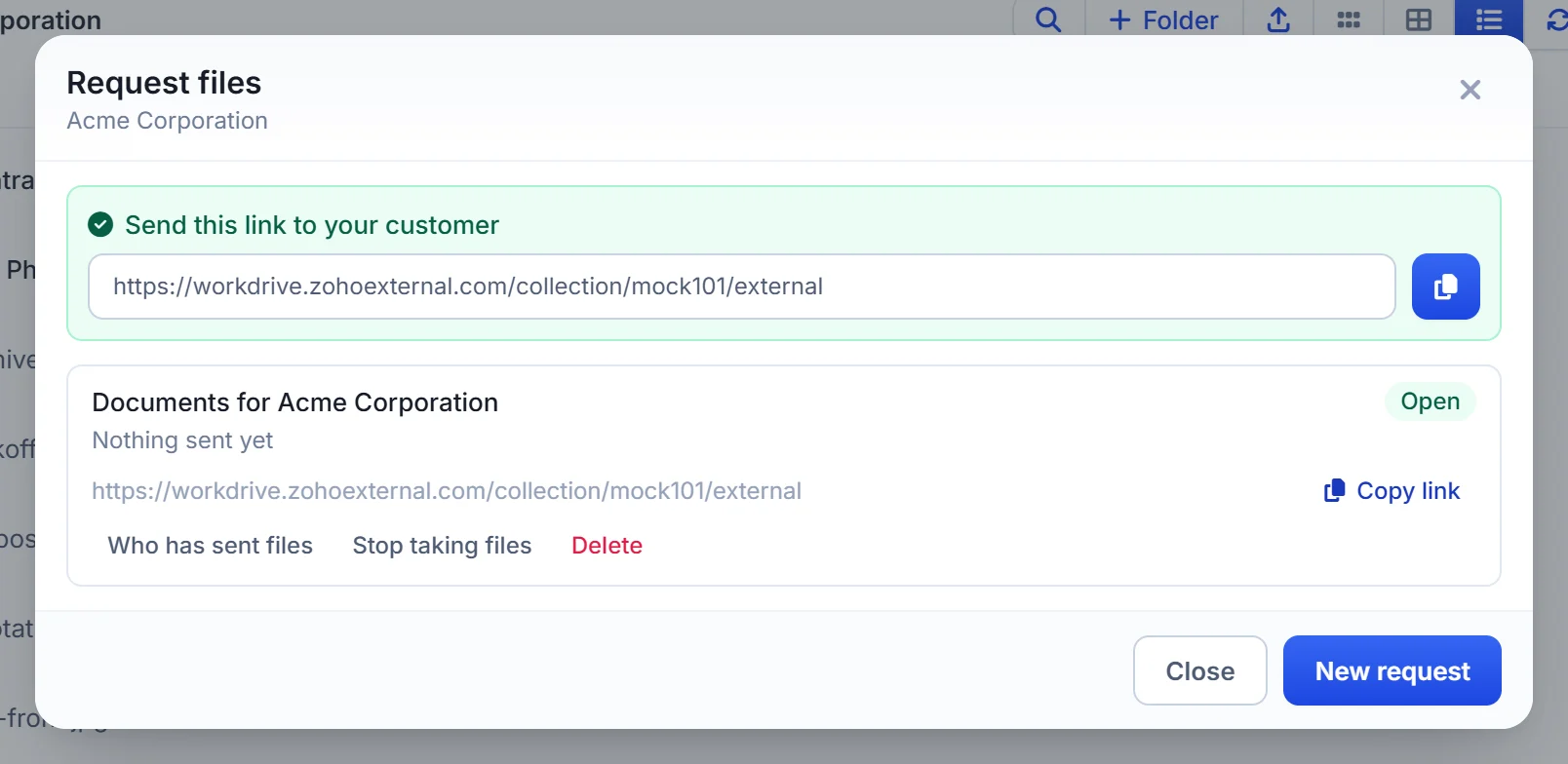
After you click Create link, copy the link and send it. The dialog lists your requests, who has sent files, and lets you stop or delete a request when you are done.
Create a new Zoho document
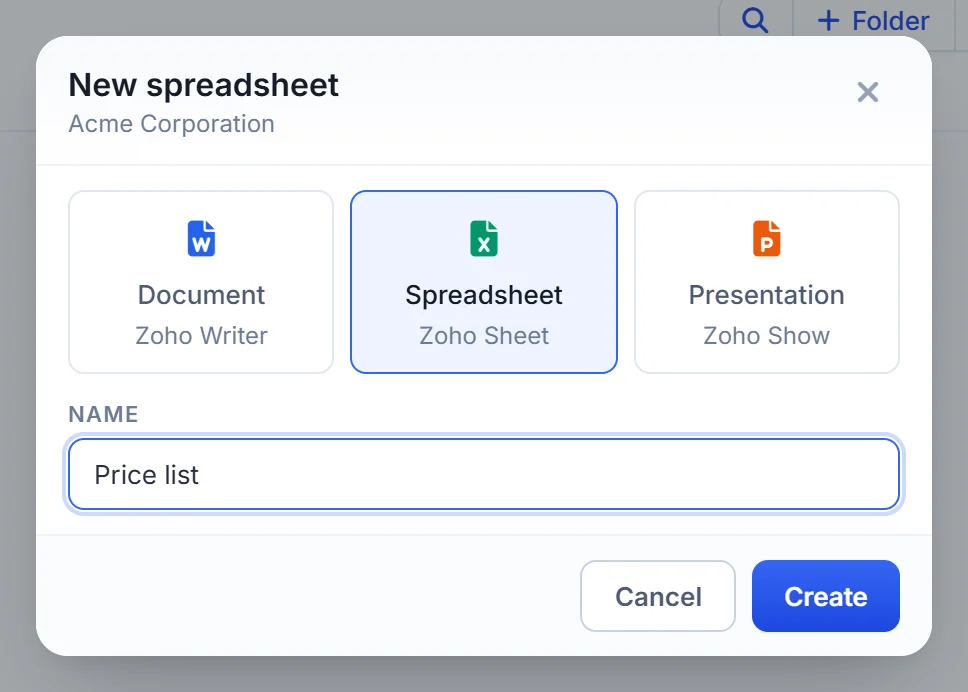
New Zoho Document creates a Zoho Writer document, a Zoho Sheet spreadsheet or a Zoho Show presentation in the folder and opens it in a new tab.
Sync attachments and folder structure
Sync Attachments copies the record’s Zoho CRM attachments into its WorkDrive folder, skipping files that are already there. The progress panel shows each file.
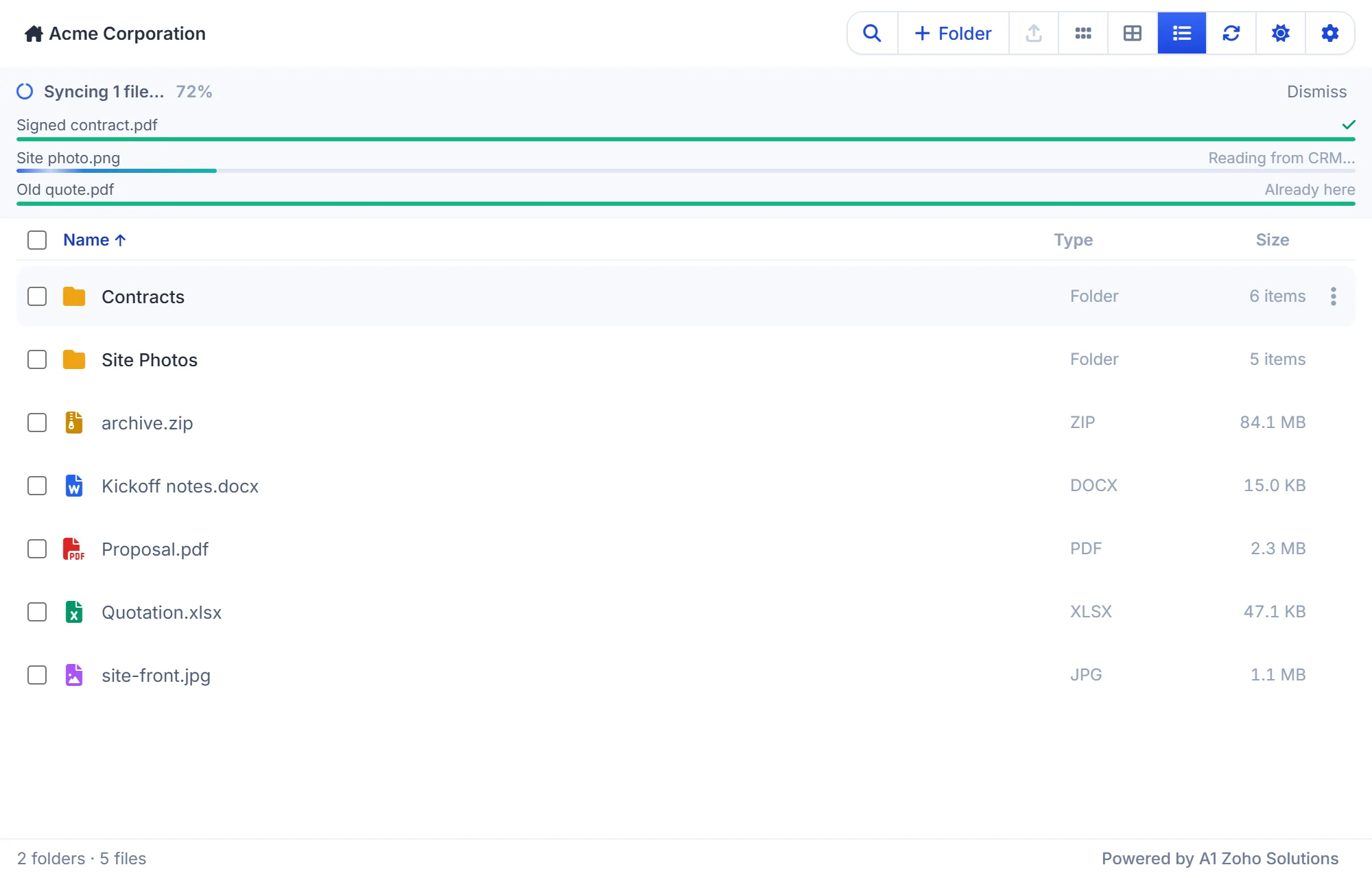
Sync Folder Structure creates any subfolders from the module’s folder structure that are missing in the record’s folder, for example after you add a subfolder in Settings. A subfolder named from a field the record had not filled in yet is renamed once the field has a value. Go to WorkDrive Folder opens the folder in WorkDrive.
Share the current folder
Share Current Folder (Anyone with the Link) and Share Current Folder (Team Members) share the folder you are looking at, using the same dialogs as a single file.
Create the folder for an older record
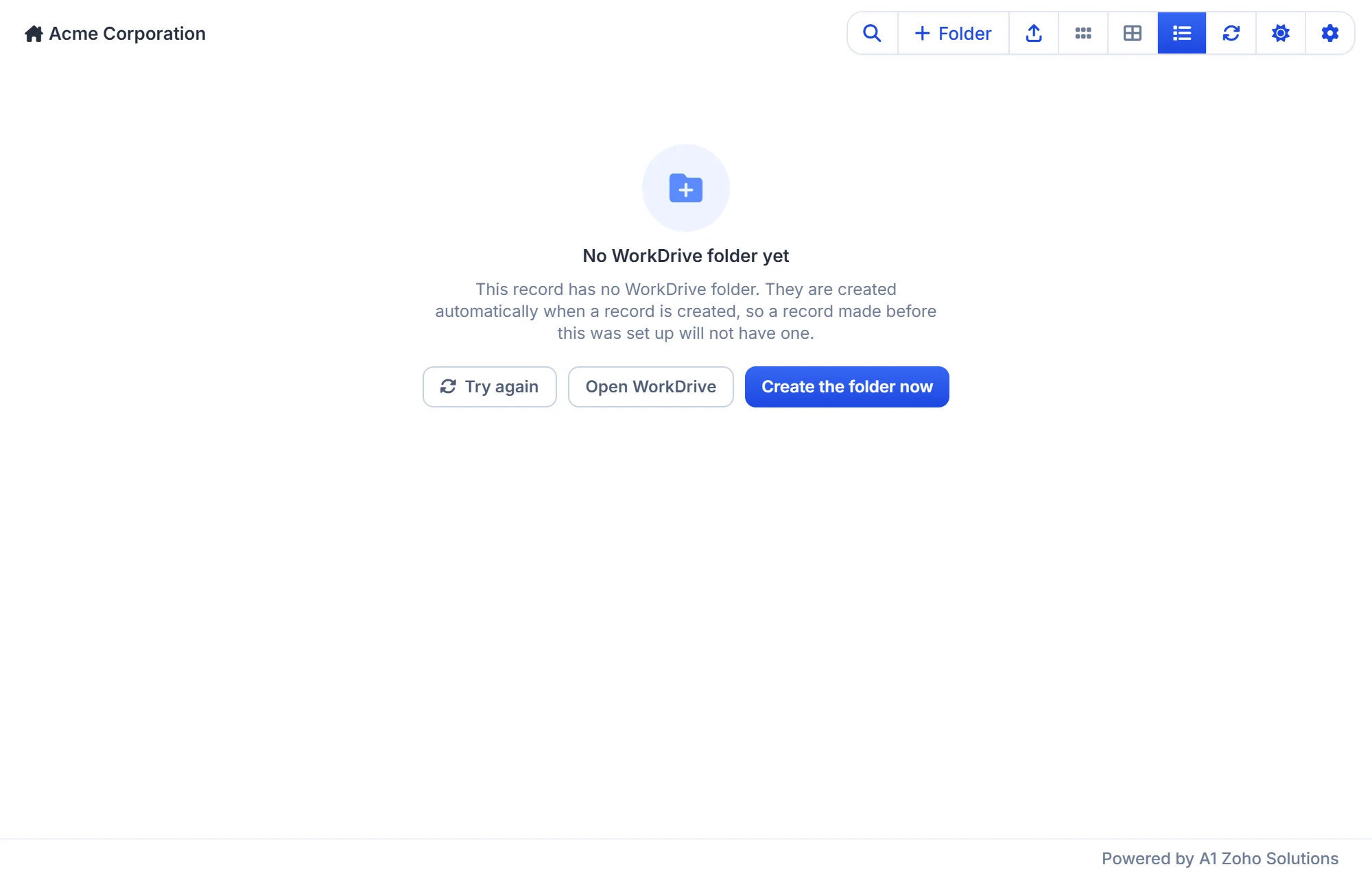
A record created before its module was turned on has no folder yet. Its files panel offers Create the folder now, which creates the folder and its subfolders on the spot. To do this for every older record at once, use the back-fill in Settings.
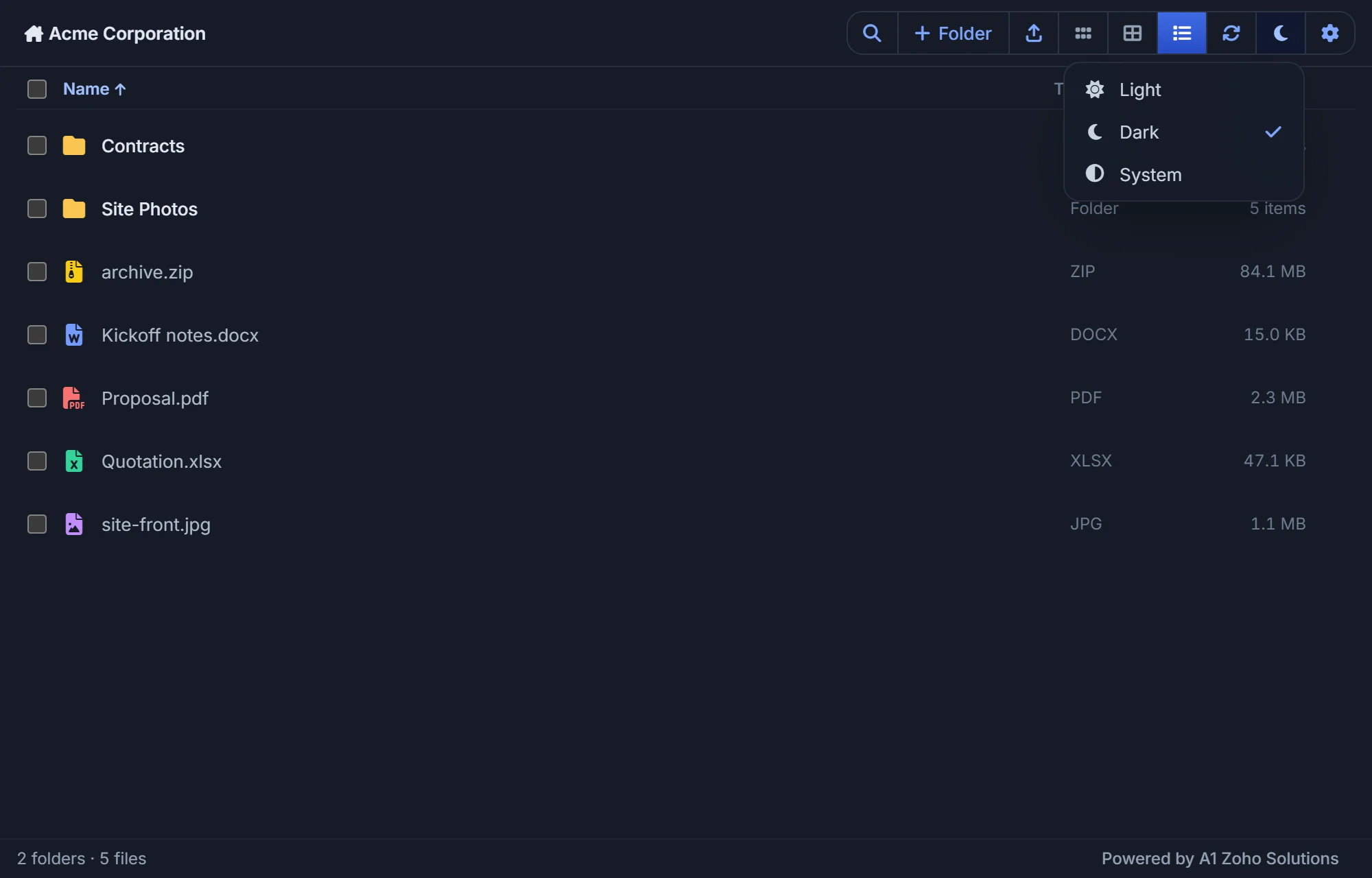
Light and dark theme
The sun icon in the toolbar switches the panel between Light, Dark and System, which follows your computer’s setting.
Upgrading to version 12
Labels, data templates, workflows, file requests, version history, Zia summaries, ZIP downloads, link editing, extract and convert need the extension upgraded to version 12. The upgrade adds new WorkDrive permissions, so after upgrading, an administrator must authorize the WorkDrive connector once more. Until then, these entries don’t appear and the panel works as before. See the changelog for what changed in each version.
Frequently asked questions
Why does a record have no WorkDrive folder?
Either its module is not turned on in Settings, or the record was created before the module was turned on. Open the record’s files panel and click Create the folder now, or run the back-fill for the module in Settings.
Which Zoho CRM modules does WorkDrive in Zoho CRM support?
Leads, Contacts, Accounts, Deals, Sales Orders, Invoices, Quotes, Purchase Orders, Campaigns and Tasks, plus any custom module you add with Add module in Settings.
Can I rename a record’s folder after it is created?
When the fields that name a record’s folder change, the folder is renamed to match. A name that contains a changing smart tag, such as a date, is fixed when the folder is created and is never renamed automatically. You can always rename a folder yourself from its menu.
Is there a file size limit for uploads?
Files up to 250 MB can be uploaded from the files panel. Upload larger files in WorkDrive directly; they appear in the panel like any other file.
Whose account do actions run as?
Every action from CRM runs as the WorkDrive account the extension is connected with. That is why labels and workflow steps are shared by everyone using the panel.
Download or Open in WorkDrive does nothing. What should I do?
Both open a new tab, and the browser’s pop-up blocker can stop it. The panel says so when that happens. Allow pop-ups for Zoho CRM and try again.
The new version 12 entries are missing from the menus. Why?
The extension has not been upgraded to version 12 yet, or the WorkDrive connector has not been authorized again after the upgrade. An administrator can do both from the extension’s page in Zoho CRM Setup.
Does moving a file to trash delete it permanently?
No. Move to trash sends it to the WorkDrive trash, where it can be restored until the retention period ends. Only Delete permanently skips the trash.
You’re all set. If you need help, email support@a1zohosolutions.com or watch the video guide below.
Walkthrough video
How to Set Up and Use WorkDrive in Zoho CRM
YouTube